EasyManua.ls Logo

Hitachi VM-C52E - Using the Shutter Speed Control Feature

Hitachi VM-C52E
29 pages
Print Icon
To Next Page IconTo Next Page
To Previous Page IconTo Previous Page
Loading...
USING
THE
SHUTTER
SPEED
CONTROL
FEATURE
Because
your
camera/recorder
has
a
variable
shutter,
you
can
choose
one
of
five
possible
shutter
speeds
to
record
fast-moving
action.
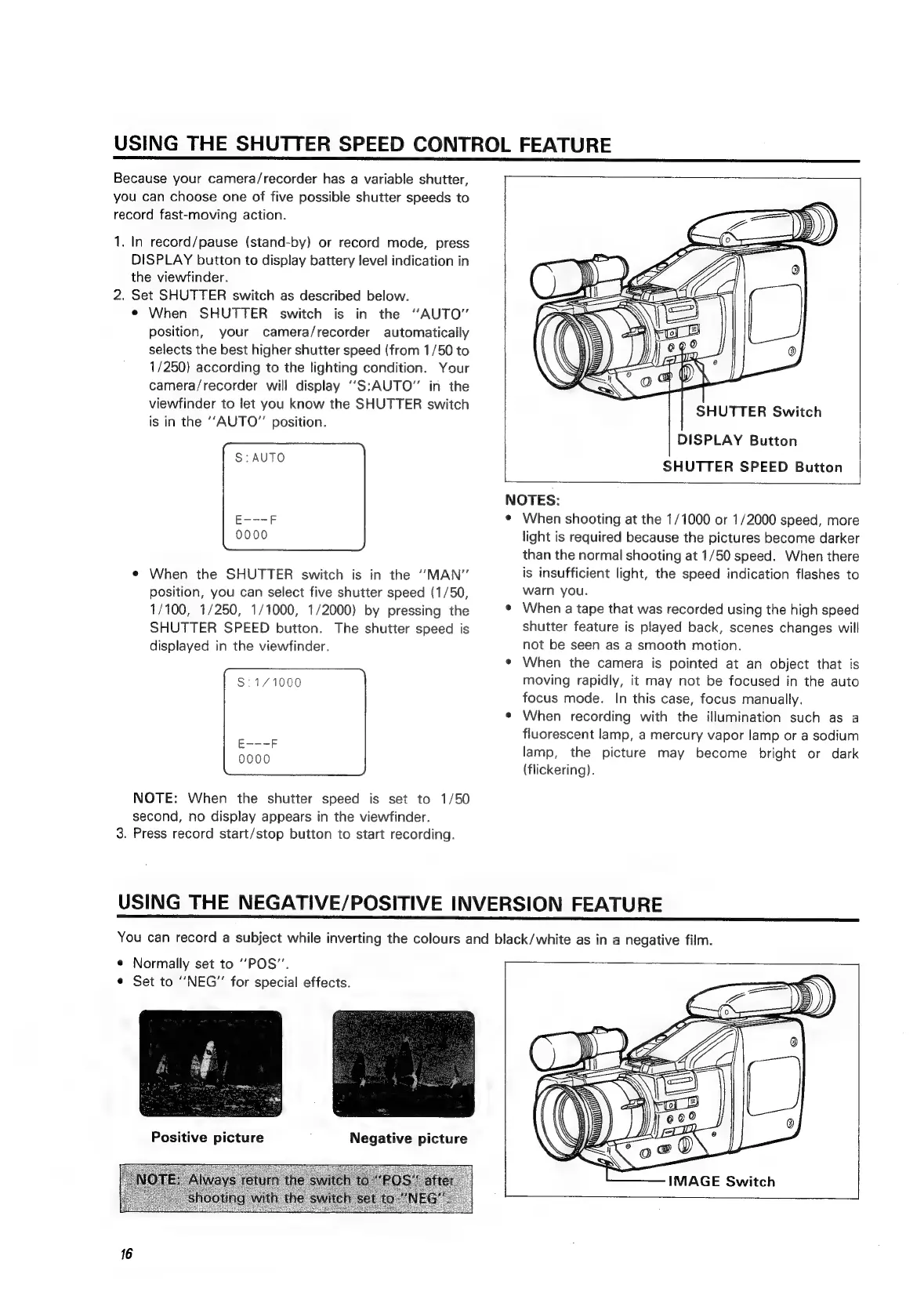
1.
In
record/pause
(stand-by)
or
record
mode,
press
DISPLAY
button
to
display
battery
level
indication
in
the
viewfinder.
2.
Set
SHUTTER
switch
as
described
below.
When
SHUTTER
switch
is
in
the
“AUTO”
position,
your
camera/recorder
automatically
selects
the
best
higher
shutter
speed
(from
1/50
to
1/250)
according
to
the
lighting
condition.
Your
camera/recorder
will
display
‘‘S:AUTO”’
in
the
viewfinder
to
let
you
know
the
SHUTTER
switch
is
in
the
‘‘AUTO”
position.
¢
When
the
SHUTTER
switch
is
in
the
“MAN”
position,
you
can
select
five
shutter
speed
(1/50,
1/100,
1/250,
1/1000,
1/2000)
by
pressing
the
SHUTTER
SPEED
button.
The
shutter
speed
is
displayed
in
the
viewfinder.
$:171000
NOTE:
When
the
shutter
speed
is
set
to
1/50
second,
no
display
appears
in
the
viewfinder.
3.
Press
record
start/stop
button
to
start
recording.
SZ
]
pe
SHUTTER
Switch
DISPLAY
Button
SHUTTER
SPEED
Button
NOTES:
¢
When
shooting
at
the
1/1000
or
1/2000
speed,
more
light
is
required
because
the
pictures
become
darker
than
the
normal
shooting
at
1/50
speed.
When
there
is
insufficient
light,
the
speed
indication
flashes
to
warn
you.
¢
When
a
tape
that
was
recorded
using
the
high
speed
shutter feature
is
played
back,
scenes
changes
will
not
be
seen
as
a
smooth
motion.
¢
When
the
camera
is
pointed
at
an
object
that
is
moving
rapidly,
it
may
not
be
focused
in
the
auto
focus
mode.
In
this
case,
focus
manually.
¢
When
recording
with
the
illumination
such
as
a
fluorescent
lamp,
a
mercury
vapor
lamp
or
a
sodium
lamp,
the
picture
may
become
bright
or
dark
(flickering).
USING
THE
NEGATIVE/POSITIVE
INVERSION
FEATURE
You
can
record
a
subject
while
inverting
the
colours
and
black/white
as
in
a
negative
film.
¢
Normally
set
to
‘‘POS”.
¢
Set
to
“NEG”
for
special
effects.
Positive
picture
16
IMAGE
Switch

Related product manuals