EasyManua.ls Logo

Hitachi VM-C52E - Setting

Hitachi VM-C52E
29 pages
Print Icon
To Next Page IconTo Next Page
To Previous Page IconTo Previous Page
Loading...
DATE/CLOCK
SETTING
The
date
and
clock
can
be
recorded
on
your
tapes
to
act
as
a
handy
reference
when
viewing
them
at
a
later
time.
Use
the
following
procedure
to
set
up
this
display
for
the
current
date
and
time.
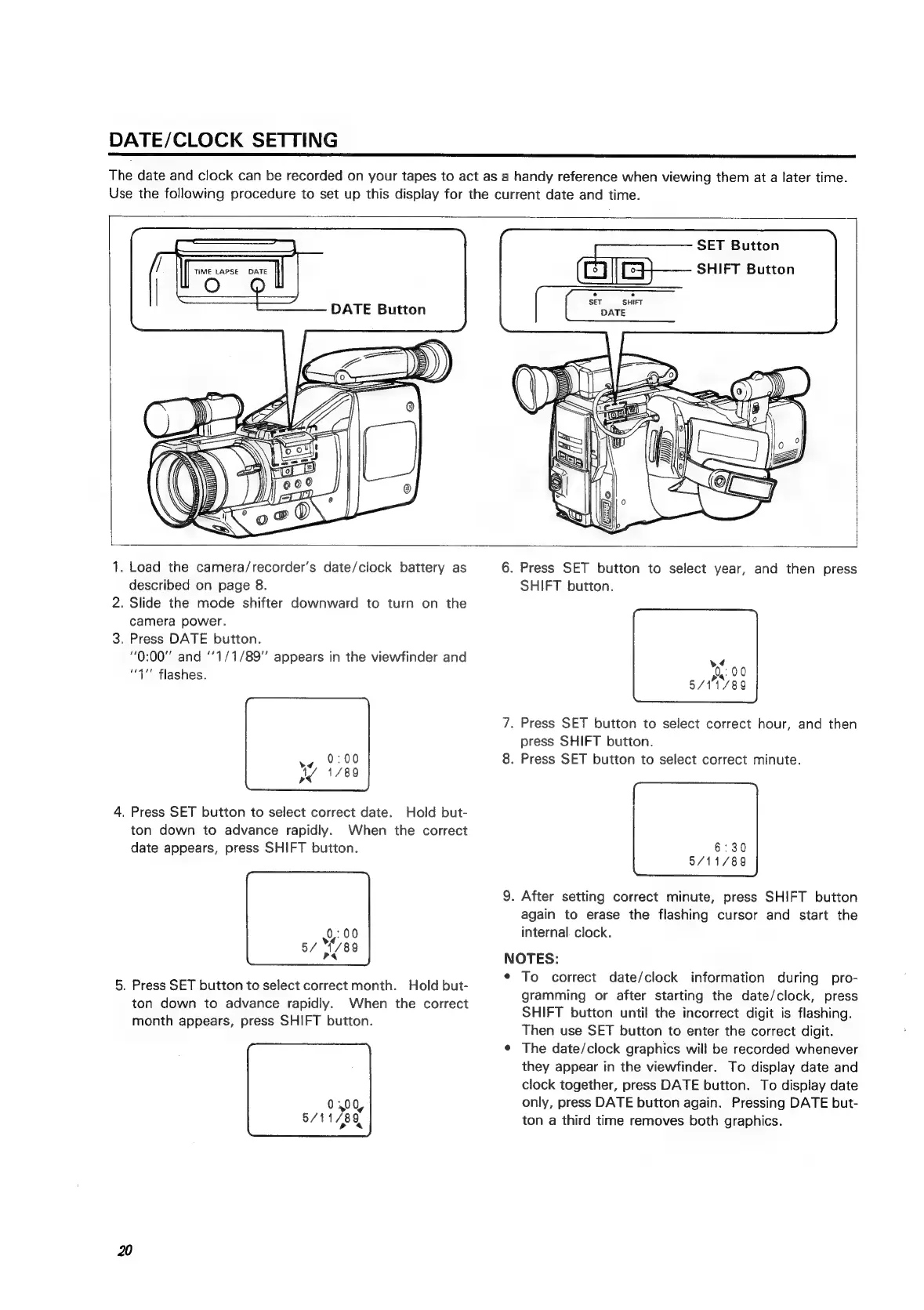
TIME
LAPSE
DATE
DATE
Button
SET
Button
SHIFT
Button
.
Load
the
camera/recorder’s
date/clock
battery
as
described
on
page
8.
.
Slide
the
mode
shifter
downward
to
turn
on
the
camera
power.
.
Press
DATE
button.
“0:00”
and
‘‘1/1/89"
appears
in
the
viewfinder
and
“4""
flashes.
.
Press
SET
button
to
select
correct
date.
Hold
but-
ton
down
to
advance
rapidly.
When
the
correct
date
appears,
press
SHIFT
button.
.
Press
SET
button
to
select
correct
month.
Hold
but-
ton
down
to
advance
rapidly.
When
the
correct
month
appears,
press
SHIFT
button.
.
Press
SET
button
to
select
year,
and
then
press
SHIFT
button.
pr:
00
5/11/89
.
Press
SET
button
to
select
correct
hour,
and
then
press
SHIFT
button.
.
Press
SET
button
to
select
correct
minute.
6:30
8/11/89
.
After
setting
correct
minute,
press
SHIFT
button
again
to
erase
the
flashing
cursor
and
start
the
internal
clock.
NOTES:
To
correct
date/clock
information
during
pro-
gramming
or
after
starting
the
date/clock,
press
SHIFT
button
until
the
incorrect
digit
is
flashing.
Then
use
SET
button
to
enter
the
correct
digit.
The
date/clock
graphics
will
be
recorded
whenever
they
appear
in
the
viewfinder.
To
display
date
and
clock
together,
press
DATE
button.
To
display
date
only,
press
DATE
button
again.
Pressing
DATE
but-
ton
a
third
time
removes
both
graphics.

Related product manuals