13
Adding Gauges
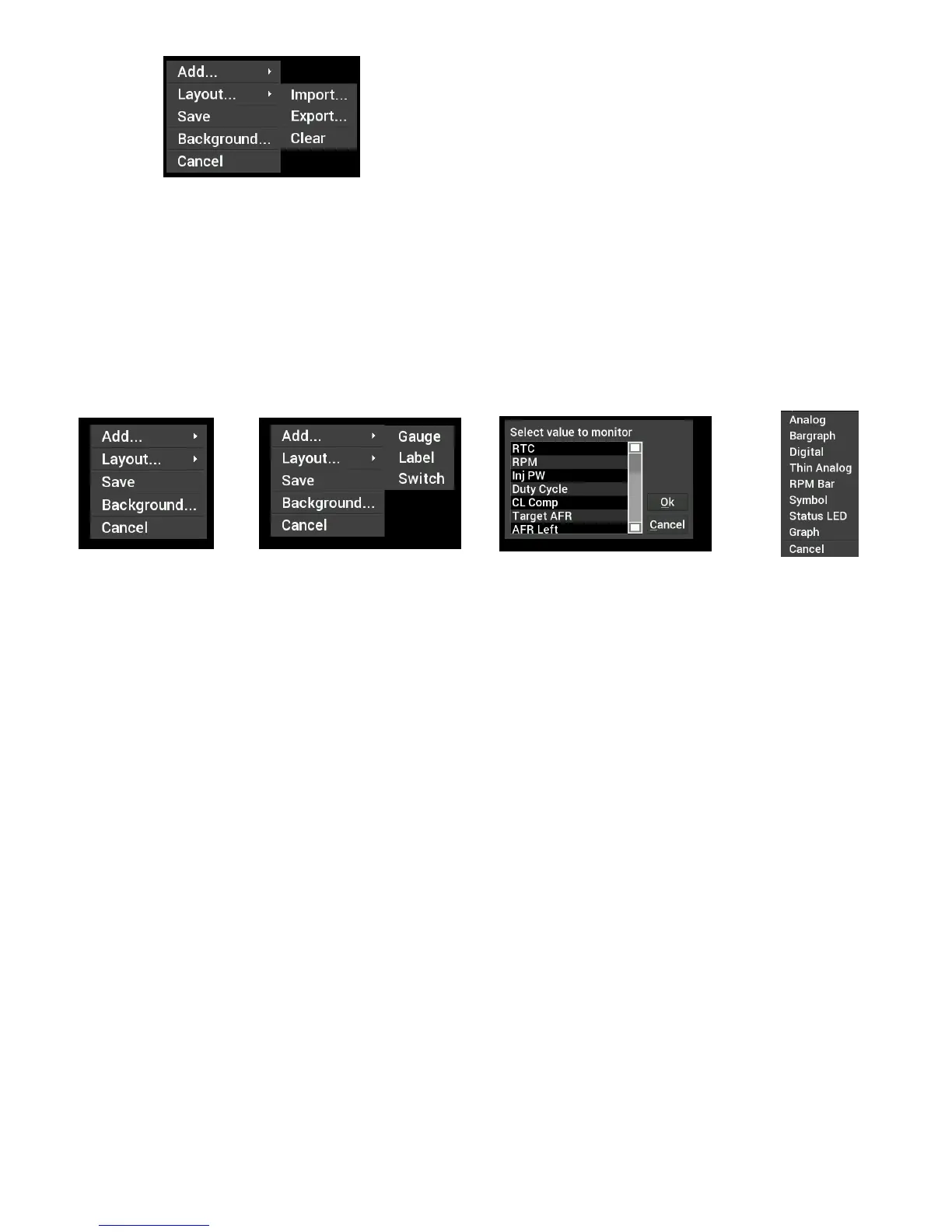
Press on the display where you want a gauge to appear, then click Add > Gauge > Value to Monitor > Gauge
Type. Once you have selected the gauge type you will be asked to select the value to monitor. Every
available EFI channel including user configured inputs and outputs will be shown in this list (see Appendix A).
Once the value is chosen the gauge will be placed on the screen.
1. Select ‘Add’
2. Select ‘Gauge’
3. Select Value to Monitor
4. Select Gauge type
Gauge Types
See page 14 for pictures of all gauge types.
Analog
Traditional style gauge with a sweeping needle
Bargraph
Bargraph gauges can be oriented horizontally or vertically.
Digital Meter
Numeric value readout
Thin Analog
Round gauge with a sweeping bar instead of a needle.
AFR Meter
The AFR meter is more of a lean/rich indicator. There is a green target that shows the current Target AFR that
is programmed in the map. In closed loop, the gauge face will rotate so that the target AFR is pointing ‘north’
on the gauge. The needle and digital value shows the current AFR reading.
In this fashion, if the needle is pointing to the left the engine is running rich, and if the needle points to the right
the engine is running lean.
The AFR meter option will only appear on AFR channels.



 To Next Page