29
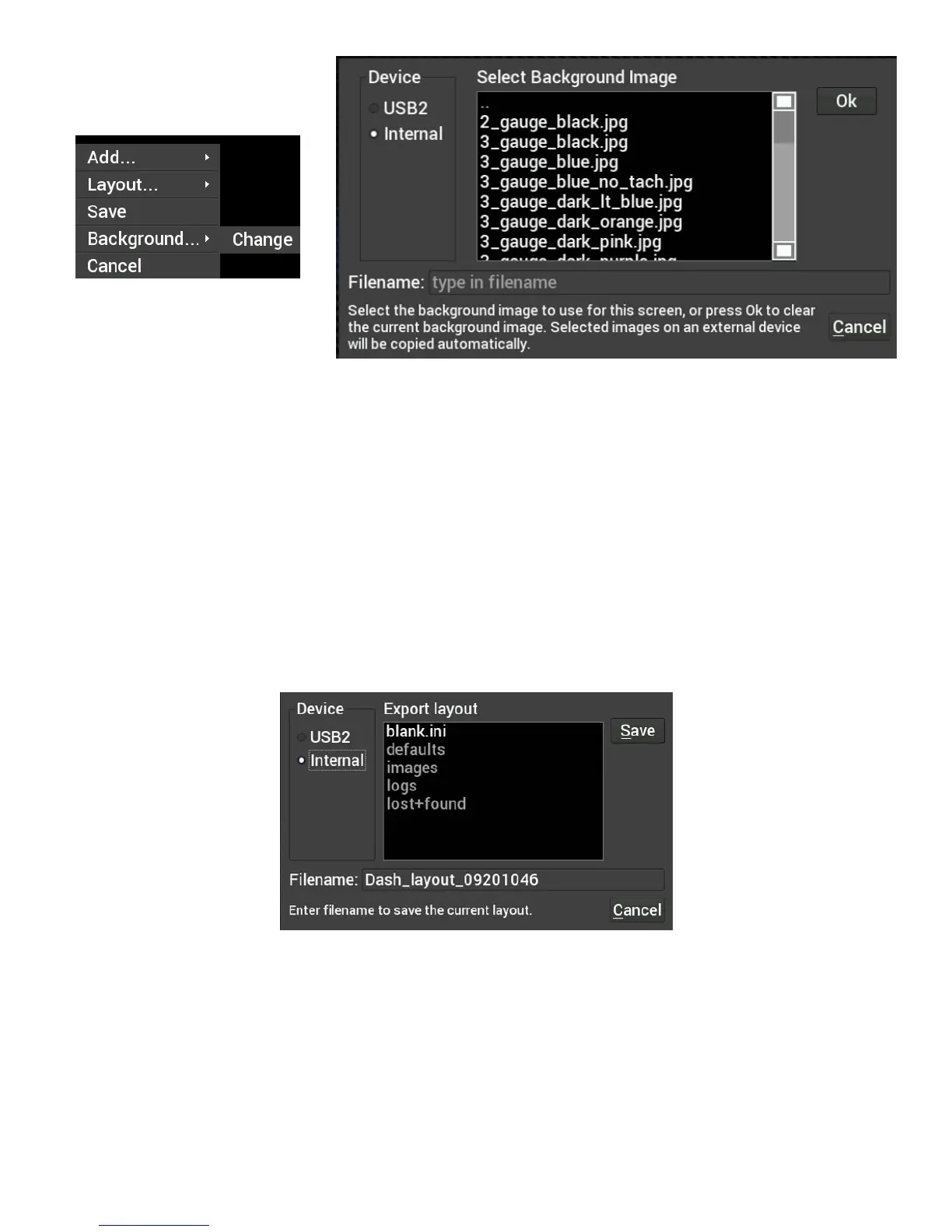
To remove the background from the current layout, press Ok without selecting a filename.
Saving Your Layout
Once a layout has been created it must be saved. Touch any blank portion of the gauge screen and select
Save.
Exporting / Importing Layouts
You can save a copy of your layout in Customize mode by touching on any blank portion of the gauge screen
and select Layout > Export. At this point, the layout can be given a name and saved internally to the Dash or
to an external USB drive (if present). Click on the filename field to bring up a keyboard to personalize the
filename. Once you have successfully saved the layout, touch any blank portion of the gauge screen and
choose ‘Save’ or you may choose ‘Save’ from the top right hand corner of the gauge screen to return to the
dashboard screen.
Importing Layouts
You may import a layout from the defaults directory or USB drive by selecting Layout->Import. Navigate to the
screen you want to import and select Import. Touch any blank portion of the gauge screen and choose ‘Save’
to return to the dashboard screen.



 To Next Page