8
Using the Dash
Touchscreen Basics
The Holley EFI Digital Dash has been designed with a resistive touchscreen, meaning it will work with bare
skin, a stylus, or even through driving gloves. This dash responds to localized point pressure on the screen,
not ‘swiping’, which is common on capacitive screens found on current smart phones and tablets.
Dashboard
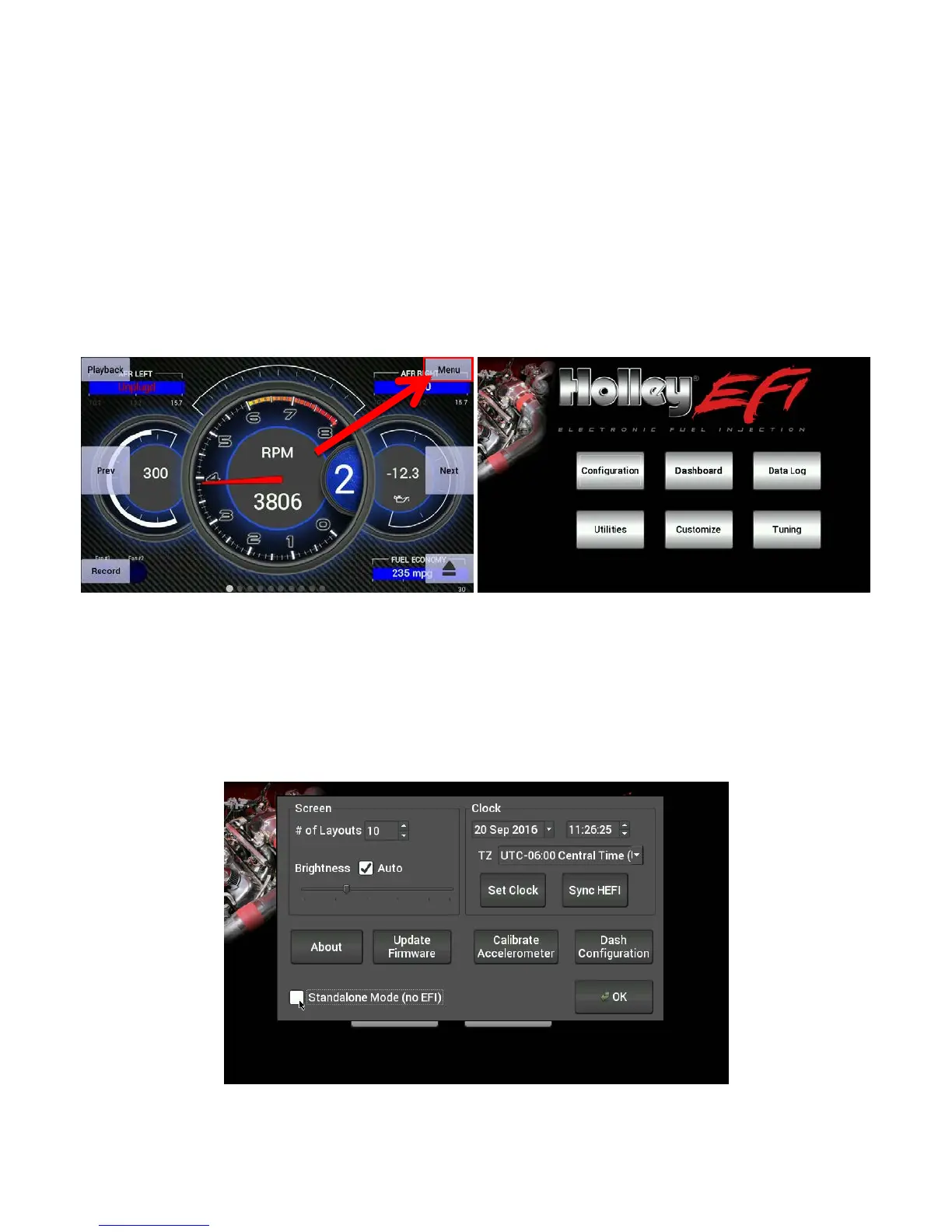
The dashboard will appear when you power on your Dash. There are several screen layouts that can be
selected. Press anywhere on the display to bring up the navigational buttons, then choose ‘Next’ or ‘Prev’ to
cycle through the screen layouts.
Main Menu
Pressing anywhere on a gauge screen will bring up the navigational buttons. To access the main menu
choose ‘Menu’ in the upper right corner of the screen.
Configuration
The configuration screen allows you to change the display brightness, modify the number of gauge display
layouts (screens), update firmware, and calibrate the touchscreen if required.




 To Next Page