Configuring the console switch 32
To view system information for the connected target devices:
1. Select Unit View>Target Devices. The Target Device page appears.
NOTE: HP recommends editing the interface adapter name so that it matches the name of the
device it is connected to.
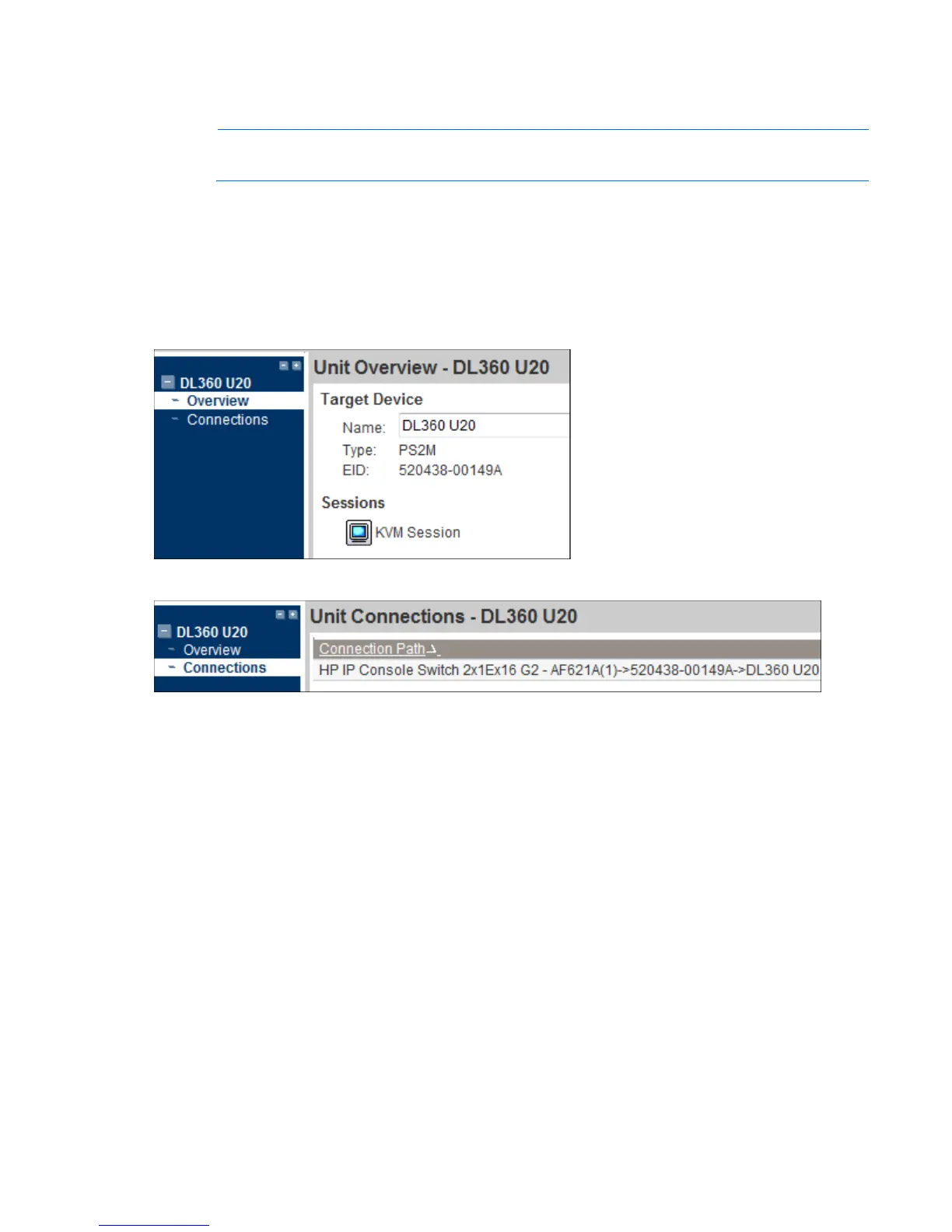
2. Select the name of the interface adapter you want to view. The Unit Overview page appears. The
following properties appear:
o Device name—Edit to match the name of the interface adapter it is connected to
o Type—Lists the type of interface adapter
o EID—Lists the identification number of the interface adapter
o Sessions—Enables you launch an interface adapter session
3. From the side navigation bar, select Connections to view the device connection path.
Filtering target devices
Filtering provides a shorter list of items. To filter the list of target devices, enter a text string to retrieve
matching items. During filtering, the Name column is searched. The search is not case-sensitive. When
filtering, you may use an asterisk (*) before or after text strings as a wild card. For example, entering
emailserver* and clicking Filter displays items with emailserver at the beginning, such as emailserver and
emailserverbackup.
Appliance tools
Select Unit View>Appliance>Overview to view the name and type of console switch you are logged in to.
You can also perform basic appliance tasks, using the following tools:
• Reboot
• Upgrade Firmware ("Upgrading the console switch firmware" on page 33)
• Run Diagnostics
• Ping



 To Next Page