Troubleshooting 72
Troubleshooting
Console switch troubleshooting
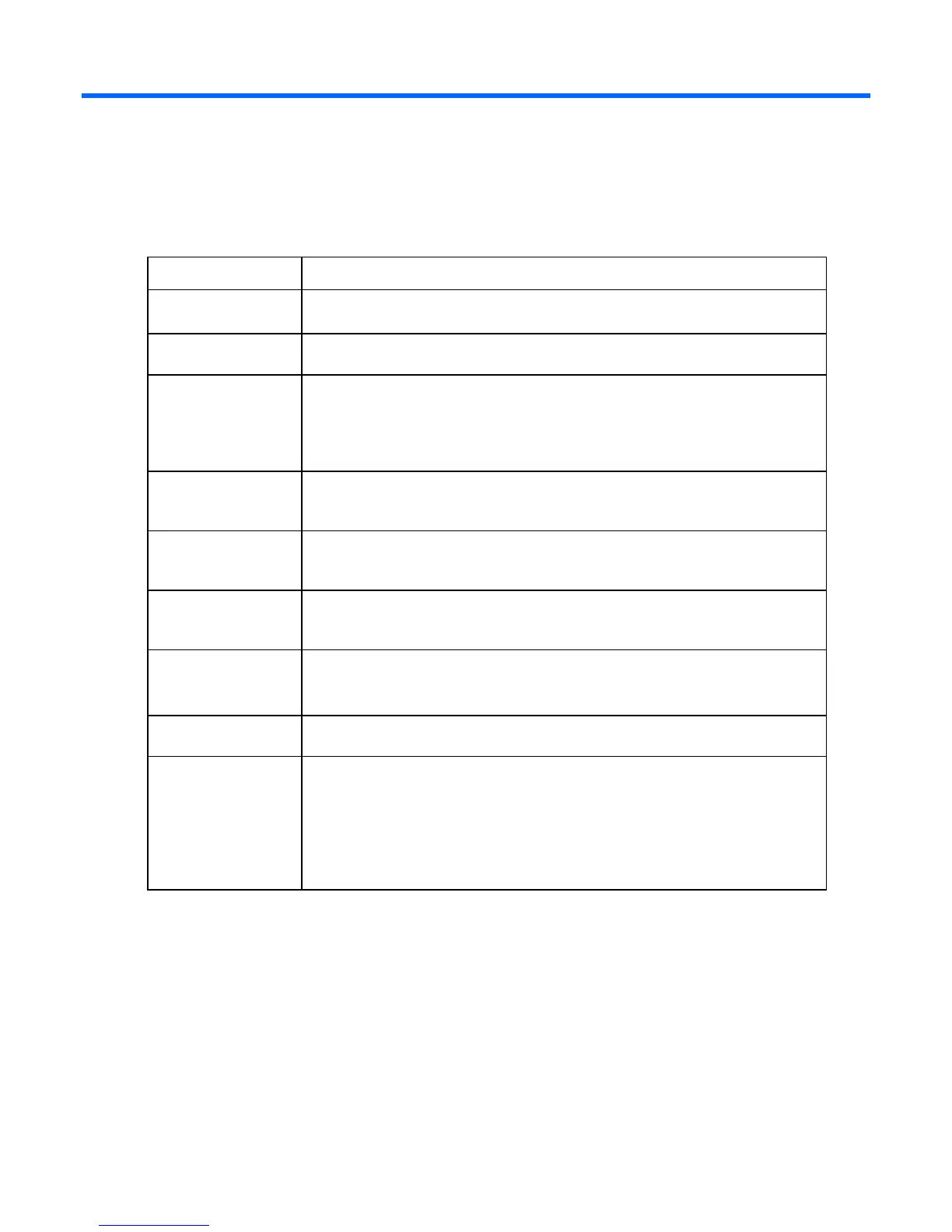
Problem Troubleshooting
The console switch is
not working properly.
1 Determine whether the console switch has power.
2 Determine if all the cables are properly connected.
The console switch
hangs after reboot.
Reboot the console switch again by removing the power cable and then plugging it
back in to a power source.
One of the power
supply status indicator
LEDs does not appear
and the other blinks
irregularly.
One of the power supplies does not have power or is defective. The LED blinking
irregularly is blinking the Morse code SOS.
The system does not
recognize the cascaded
console switches.
Verify that all of the console switches are HP switches, and are upgraded with the latest
firmware.
Servers are still listed
although they have
been disconnected.
Delete the offline interface adapters ("Deleting offline interface adapters" on page 40
through either the local console UI or remote OBWI.
The console switch
serial port password is
lost.
Reset the password through the Local console UI settings (on page 41).
The video displays all
green or red, or the
colors are all wrong.
Look for breaks or bad crimps in the UTP CAT5 cable.
Look for bent pins in the VGA connection.
Be sure that the cable is not a cross-over network cable.
The mouse does not
Verify that there is no mouse acceleration or enhanced pointed precision. The mouse
speed must be 50%.
The mouse and
keyboard lose
functionality after the
Device Reset button is
pressed while operating
a UNIX® based
platform.
The Device Reset button is a Microsoft® Windows® based function. To regain mouse
and keyboard functionality, restart the desktop.



 To Next Page