Configuring the console switch 46
Configuring Serial Session settings
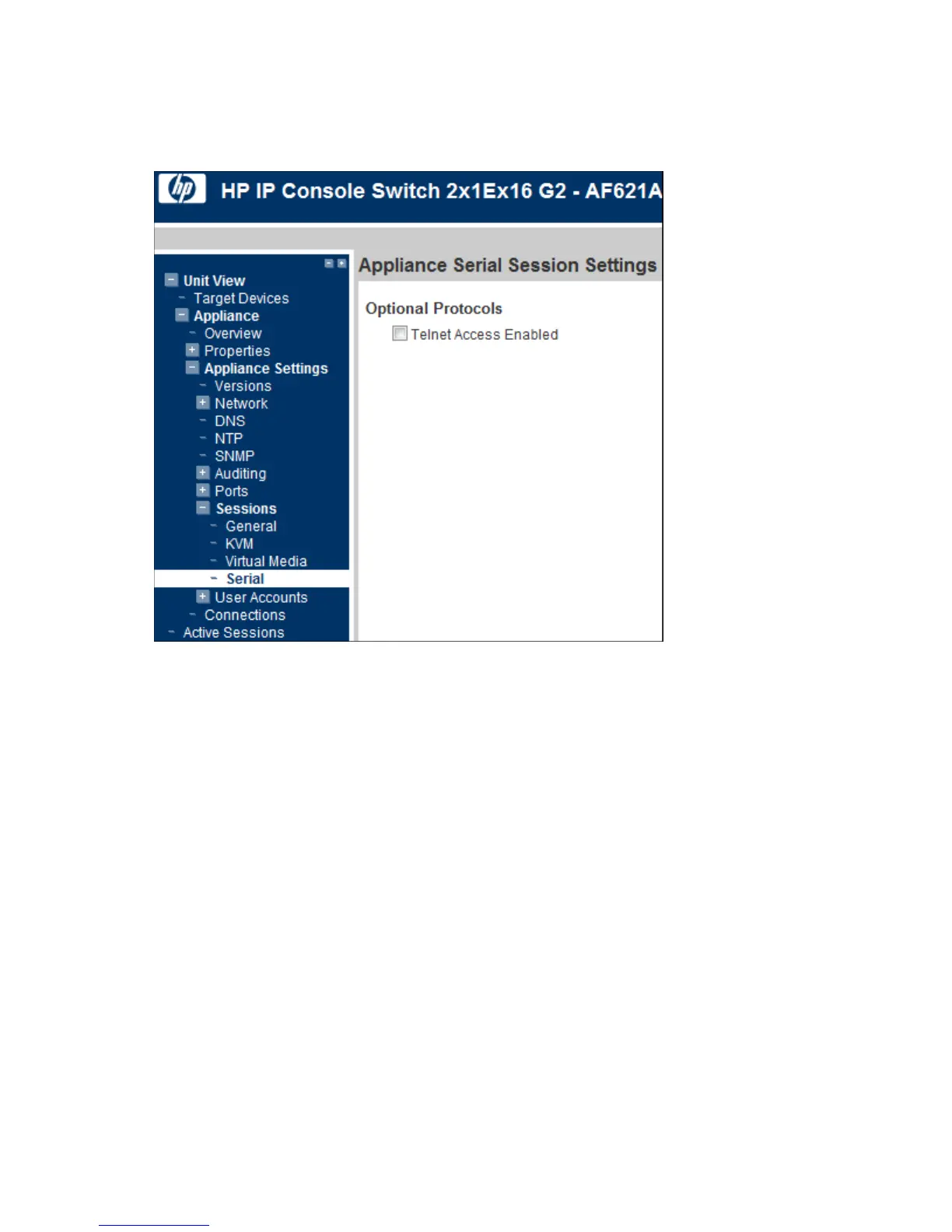
1. Select Unit View> Appliance> Appliance Settings> Sessions> Serial. The Appliance Serial Session
Settings page appears.
2. Select the Telnet Access Enabled checkbox, if you want to enable Telnet.
SSH communication is enabled by default. To connect to the console switch using SSH, you must have
a password assigned to the user account, as required by SSH.
Telnet is not a secure communication protocol. However, you can use any Telnet or SSH compliant
software, such as PuTTY or an OS command prompt to connect to the console switch. After
authentication, you are prompted for the name of the interface adapter you want to connect to.
Setting up serial access from a command line
For serial access from a command line or using a utility like PuTTY, set up a connection with the KVM by
starting an SSH session with KVM.
Example: SSH 192.168.1.222
At the login prompt, provide the user and the target information in the following syntax:
user:target
The target can either be the name of the serial interface adapter or the EID of the adapter.
Example: demouser: DL380G8-Dev2 (case-sensitive)



 To Next Page