Configuring the console switch 35
Restoring the console switch configuration or user database
NOTE: To save or restore the console switch configuration or user database, you must be logged
in to the console switch from the remote OBWI.
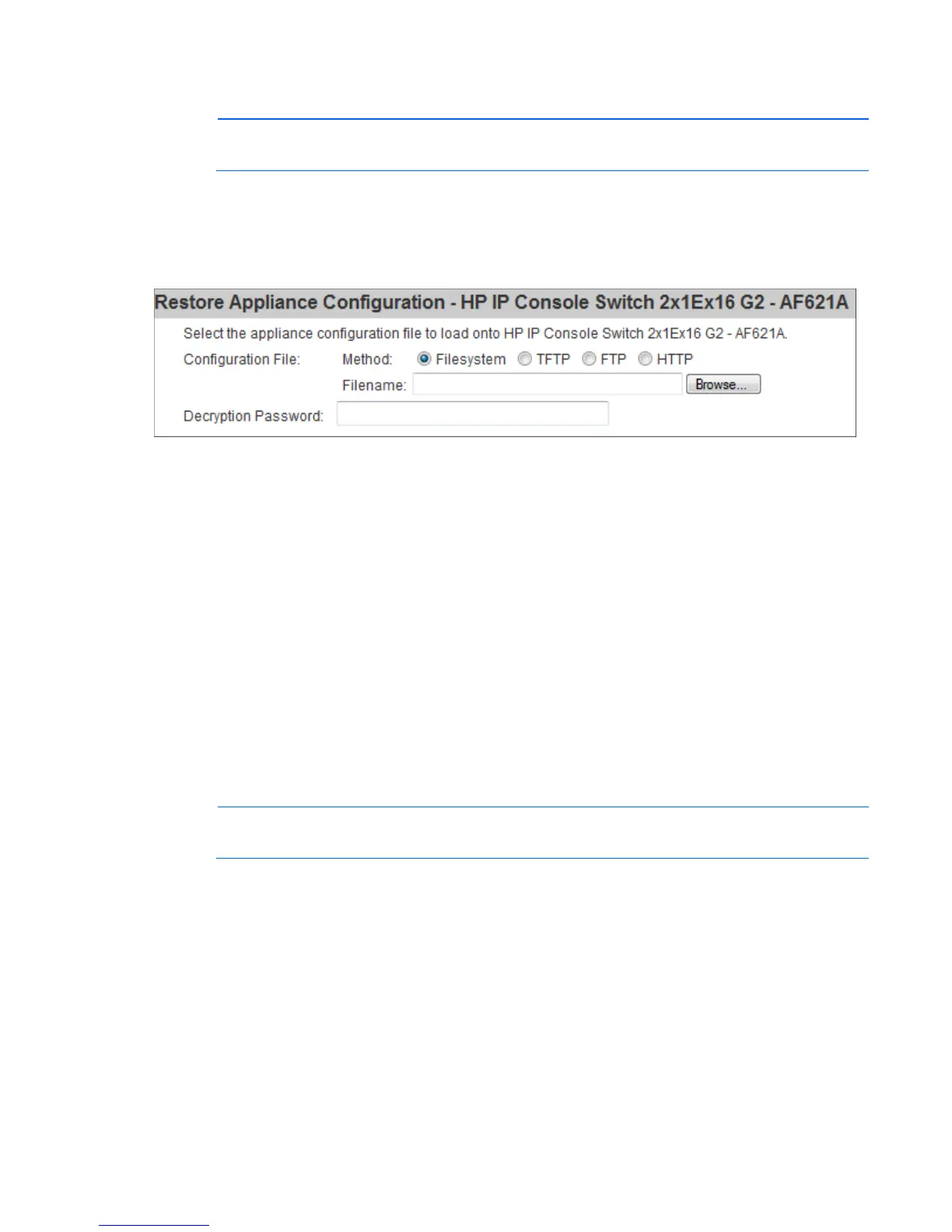
To restore a previously saved console switch configuration or user database:
1. Select Unit View>Appliance>Overview. The Unit Overview page appears.
2. Select either Restore Appliance Configuration or Restore Appliance User Database. The Restore
Appliance Configuration or Restore Appliance User Database page appears.
3. Select the type and location of the file you want to restore:
o Filesystem
o TFTP
o FTP
o HTTP
4. Enter the Decryption Password. The file is uploaded to the console switch.
5. Reboot the console switch ("Appliance tools" on page 32) to enable the restored configuration.
Viewing system information
1. Select Unit View>Appliance>Properties>Identity. The following properties appear:
o Part number
o Serial number
o EID
NOTE: HP recommends completing the Location information for the appliance, so that all
appliances can be logically organized in the software.
2. Select Unit View>Appliance>Properties>Location. The following properties appear:
o Site
o Department
o Location
3. Select Unit View>Appliance Settings>Versions to view the current firmware version. The current
firmware version is listed under the Application Version. The larger the version number, the more current
the firmware.



 To Next Page