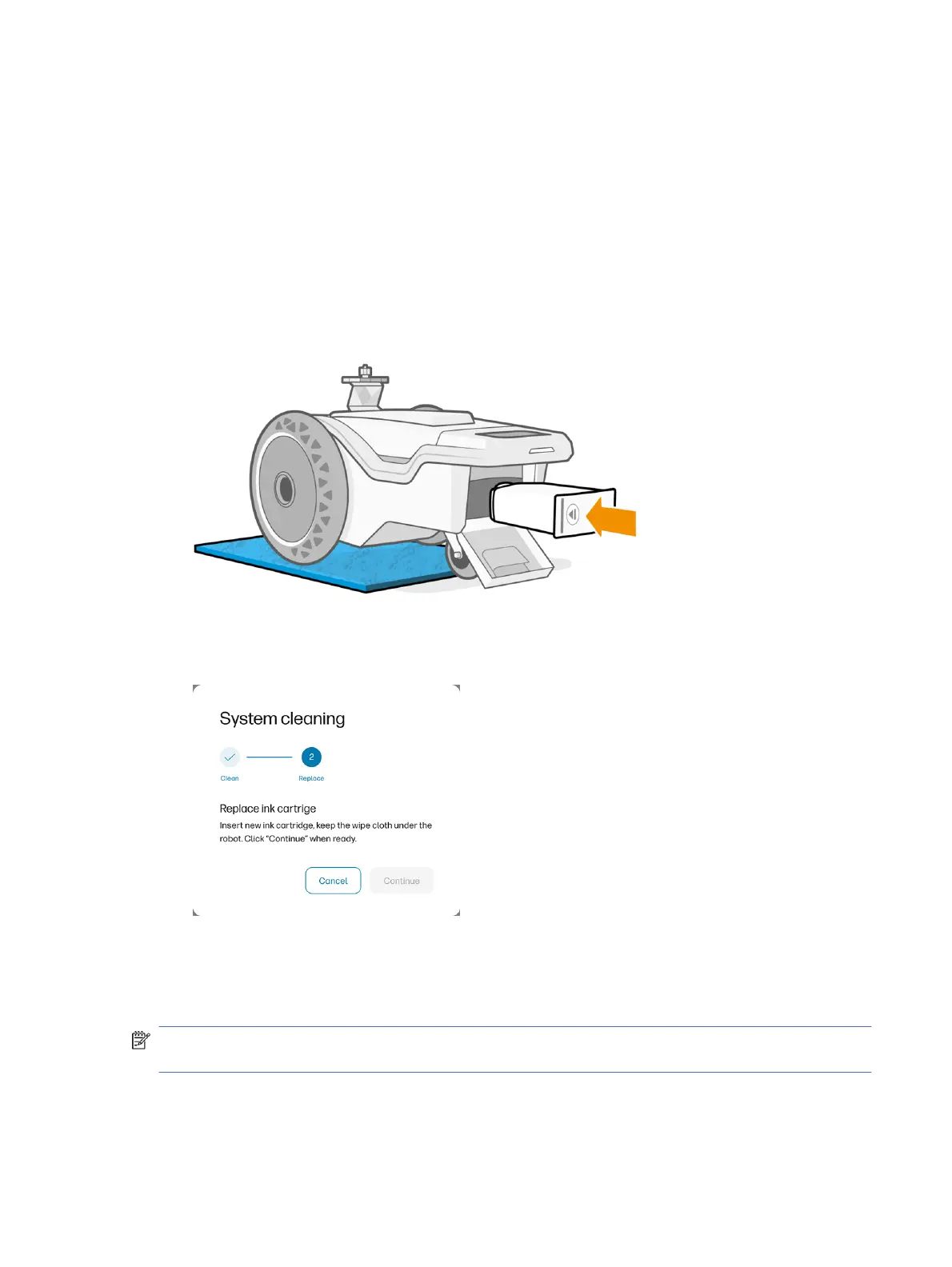
Purge the ink system
It is necessary to purge the ink system the first time that the robot is used, and every time you need to
change the ink type.
The control panel will remind you to purge the ink system when you open the ink-cartridge door.
You will need a waste kit to perform this operation.
1. Select the Support page in the control panel.
2. Scroll down to Ink system care and tap Purge.
3. Place a waste kit under the robot and tap Continue.
4. Insert the cleaning fluid.
5. When the printhead is clean, the control panel asks you to replace the ink cartridge. Tap Cancel.
6. The system cleaning will appear not to be completed. Tap OK. The process is done.
Check the safety sensors
NOTE: Before conducting this process, clean the sensors with a lint-free cloth, ideally dampened with
distilled water.
The safety sensors are an important part of the robot because, in the event of a fall, they reduce risk by
stopping the motors that turn the wheels.
Purge the ink system
59


 To Next Page