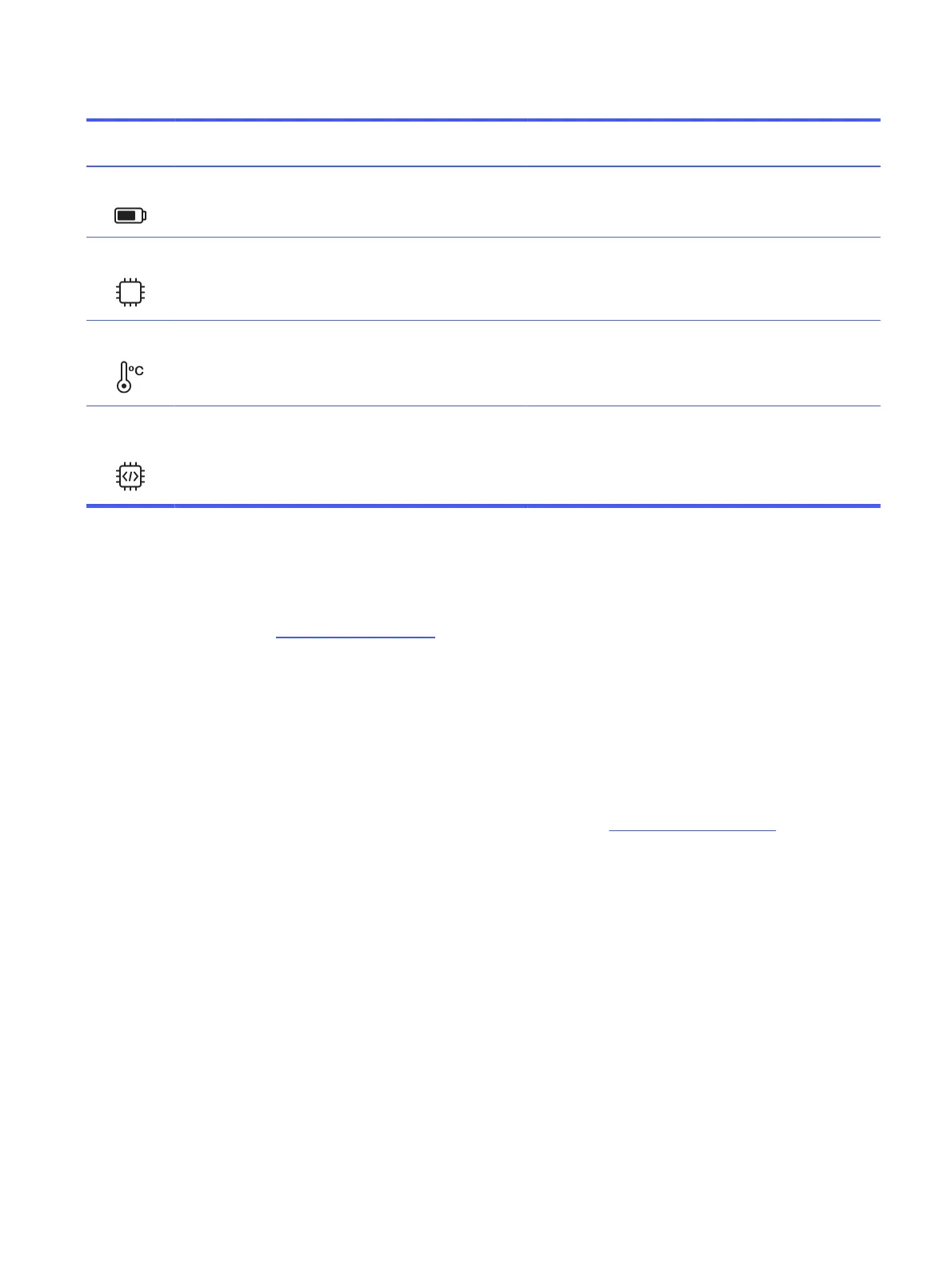
Table 2-3 Robot indicators
Indicator Description Poor (red) Fair (yellow) Excellent
(black)
Actions
Battery level Indicates the current robot
battery level.
< 20% 20–40% > 40% Avoid operating the instrument with a low
battery level.
CPU usage Displays the level of stress
on the robot’s CPU, providing
insight into its processing
capacity and performance.
> 100% 75–100% < 75% If the CPU usage is consistently above 75%
for no apparent reason, contact your HP
SitePrint specialist for further assistance.
Temperature Measures the robot’s internal
temperature.
< −10°C or >
60°C (< 14°F
or > 140°F)
−10 to −5°C
or 55 to 60°C
(14 to 23°F or
131 to 140°F)
−5 to 55°C
(23 to 131°F)
Extreme temperatures, both high and low,
within the robot can adversely impact its
printing performance.
Firmware
version
Indicates the firmware
version running in the robot.
N/A Update
available
No update
available
HP recommends you to use the most up-to-
date firmware version available. If a firmware
update is available, the indicator will display
yellow.
HP SitePrintCloud
The following section provides detail on this topic.
You can find it at https://siteprint.hp.com.
Once you have your robot, you will receive an email invitation to join the HP SitePrint Cloud; you can then
log in or create your HPID account.
How to access
Always perform the steps in the order presented.
1. The DXF files must be previously loaded to the Cloud before going to the layout area.
2. To Access the HP SitePrint Cloud go to the following website: https://siteprint.hp.com/.
3. Press Sign In to login into your account or create a new one.
HP SitePrintCloud
27


 To Next Page