4. Repeat for point 2.
5. Tap Finish.
NOTE: The Accept current setup option can be used if you upload a new version of a DXF file. This
option restores the setup coordinates of the RTS.
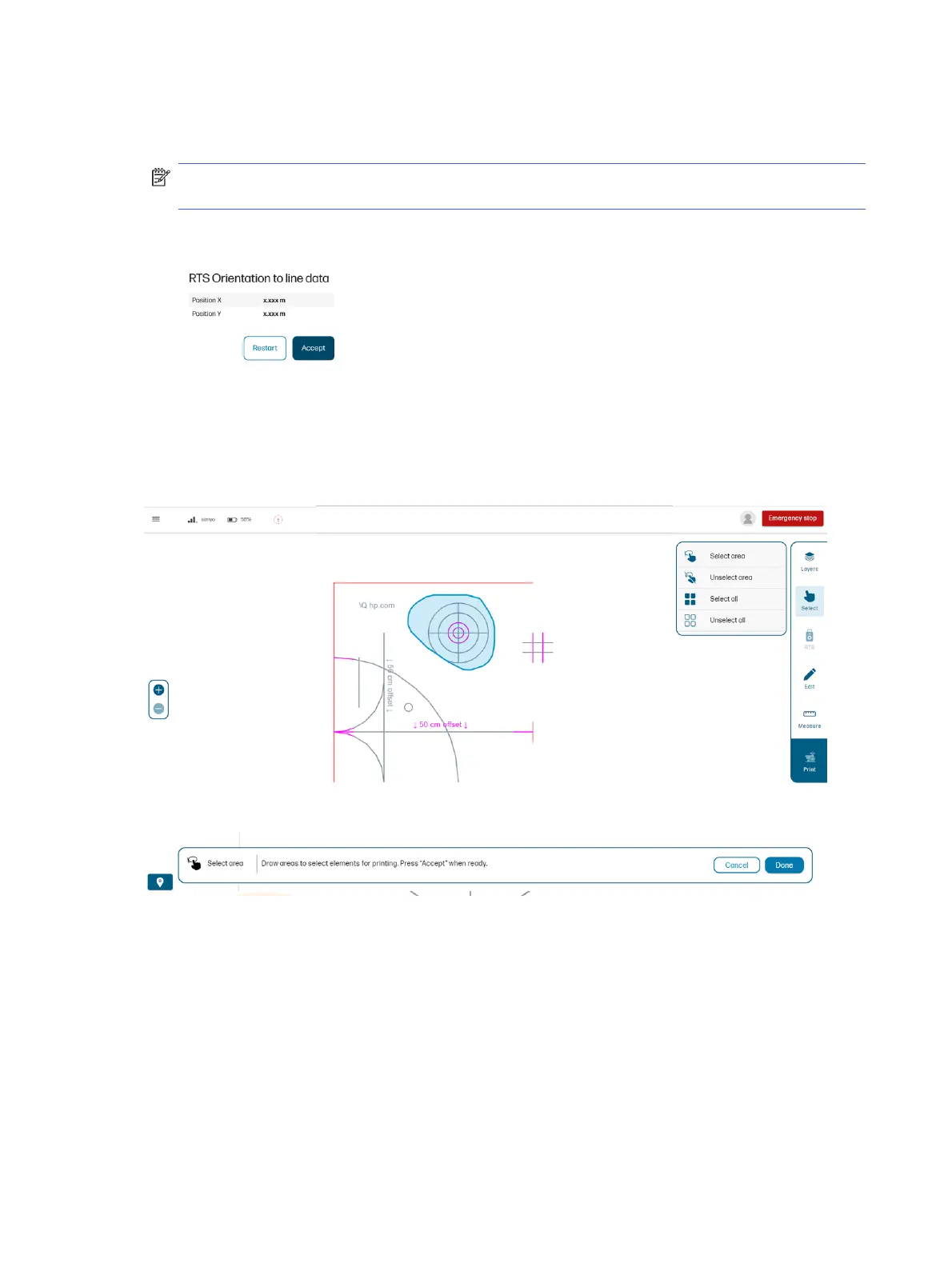
6. The RTS position after orienting to a line is displayed. Tap Accept to end the process.
Select elements to print
Before selecting elements to print, tap Submit to process the file. The button will turn into a Print button
once the drawing is processed.
To select lines to be printed, tap Select, then choose from the options available:
● Tap any individual line to select it.
● Select area by enclosing it with your finger.
● Unselect area by enclosing it with your finger.
● Select all to select all printable lines in the drawing.
● Unselect all to unselect everything.
The selected lines turn blue.
54
Chapter 4 Job execution


 To Next Page