5.6.1. How to define a new PV module
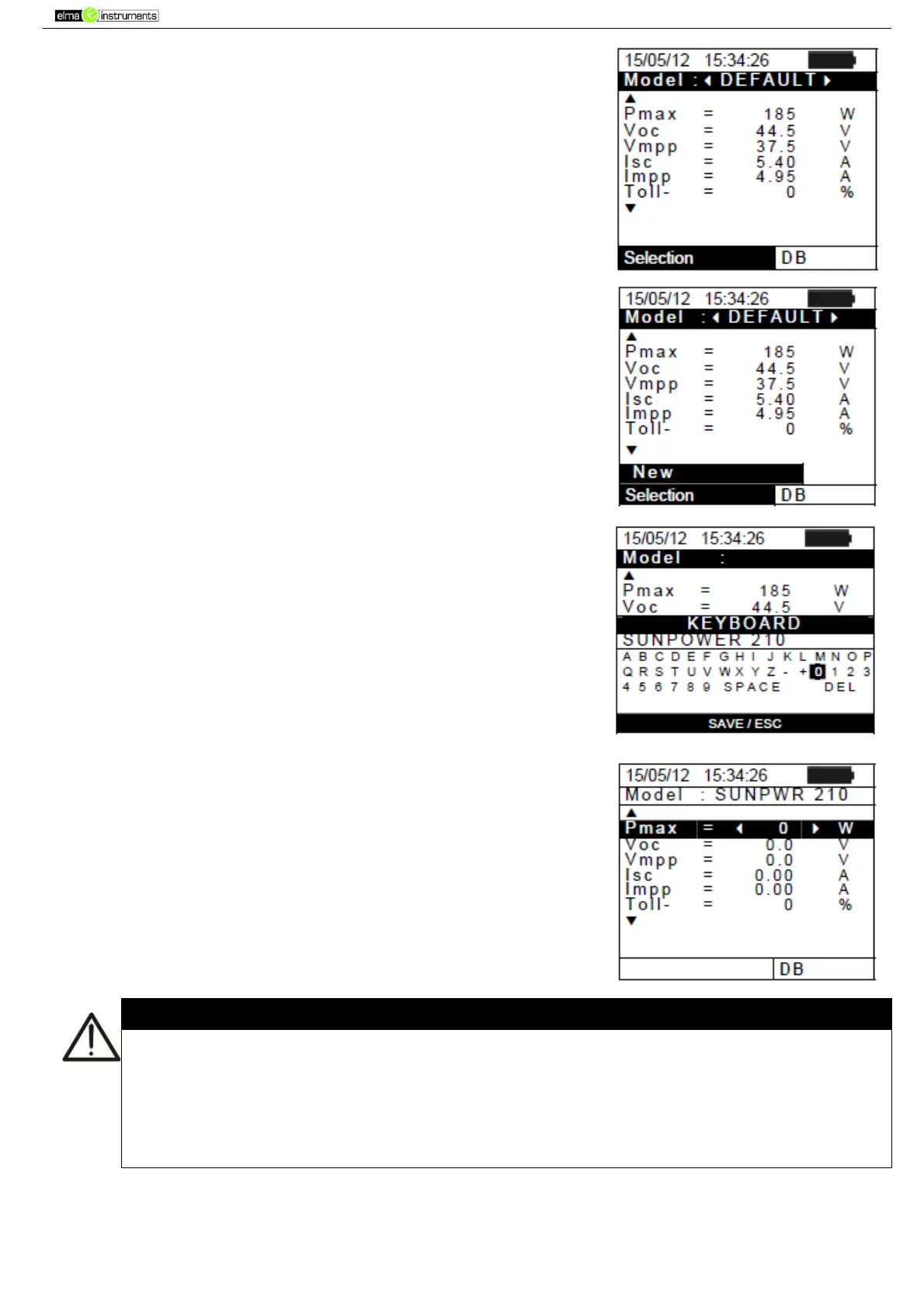
1. Position the cursor onto DB by using the arrow keys
(,)and confirm with ENTER. The display shows the
screen which contains:
The type of PV module
The values of the parameters associated to the module
(see Table 1)
2. Use the arrow keys ( , ) to select the “DEFAULT”
module type and confirm with ENTER.
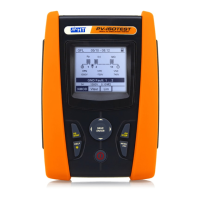
3. Press the ENTER key, select the “New” command (which
allows defining a new module) and confirm again with
ENTER. Use the arrow keys (,) to scroll the list of
parameters.
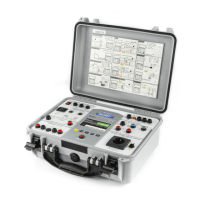
4. By using the internal virtual keyboard it is possible to define
the name of the module (e.g. SUNPOWER 210) by means
of the arrow keys (,, , ). Press ENTER to digit any
character of the desired name.
5. Press the SAVE key to save the name of the new module
thus defined or the ESC/MENU key to exit without saving.
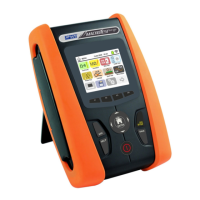
6. Insert the value of each parameter (see Table 1) according
to the possible datasheet of the Manufacturer.). Position the
cursor onto the parameter to be defined by using the arrow
keys (,) and set the value using the arrow keys ( , ).
Keep the arrow keys ( , ) pressed to carry out a quick
setting of the values.
7. Press the SAVE key to save the settings or the ESC/MENU
key to exit without saving.
If the value of any parameter is unknown, press and hold the HELP key for a few seconds
to set the default values.
Upon pressing the SAVE key, the instrument checks the conditions indicated in Table 1
and, if one or more of these conditions are not fulfilled, one of the error messages listed in
§ 6.6 is shown on the display. The instrument does not save the configuration set before
any error is solved.


 To Next Page