Android basics 44
NOUG-2.1.0-100 Nexus One User’s Guide
Opening and switching applications
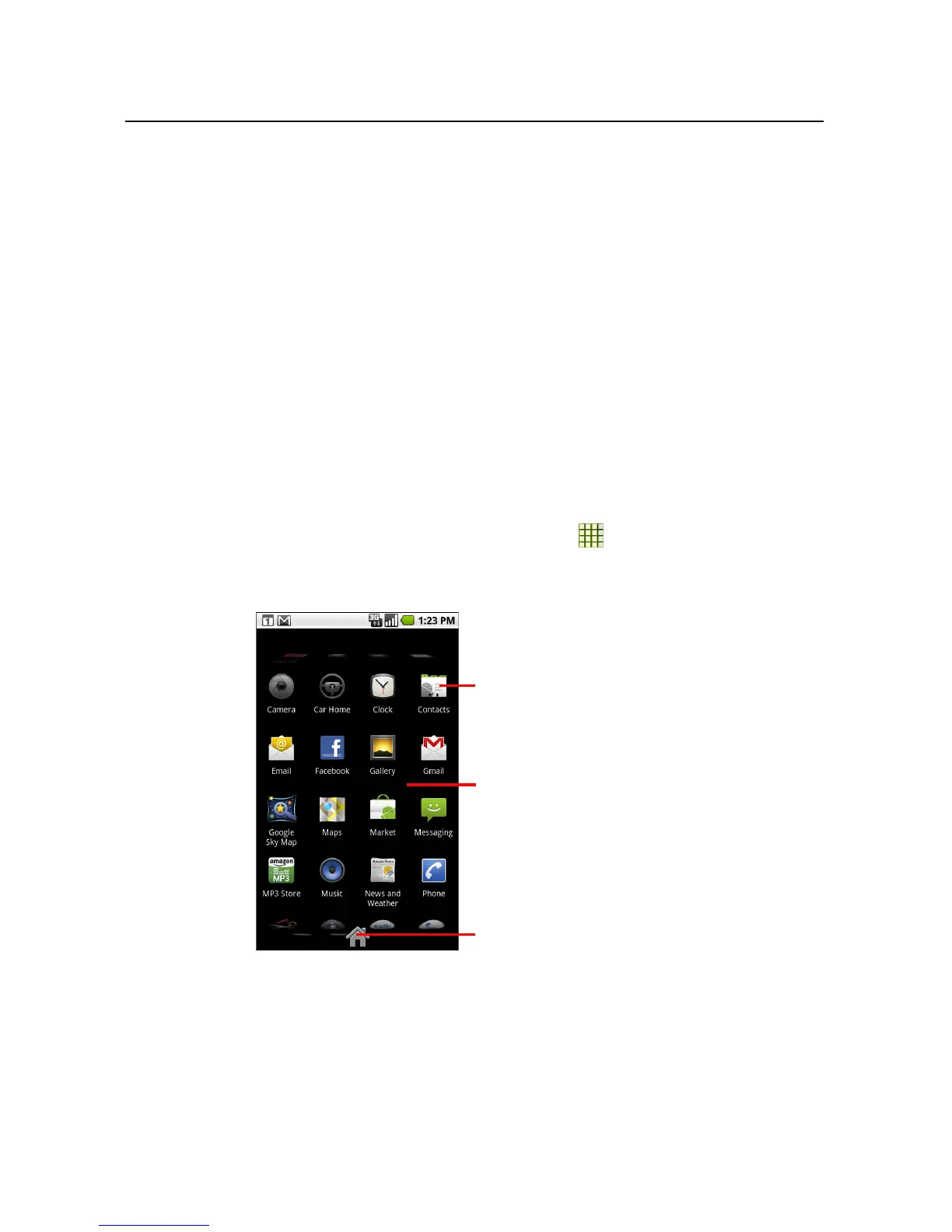
The Launcher, which you open from the Home screen, holds icons for all of the
applications on your phone, including any applications that you downloaded and
installed from Android Market or other sources.
When you open an application, its screens open, but the previous application doesn’t
stop; it keeps on running: playing music, rendering a webpage, and so on. You can
quickly switch among your open applications, to work with several at once. Android
and each application work together to ensure that applications you aren’t using don’t
consume resources unnecessarily, stopping and starting them as needed (you don’t
need to quit an application when you aren’t using it).
See “Market” on page 283 to learn how to discover and install additional applications
and games on your phone.
To open and close the Launcher
S On the Home screen, touch the Launcher icon to open it.
If you have more applications than can fit on the Launcher in one view, you can
slide the Launcher up or down to view more.
Slide the Launcher up or down to bring
more icons into view.
Touch to close the
Launcher.
Touch an application to open it



 To Next Page