Android basics 53
NOUG-2.1.0-100 Nexus One User’s Guide
Search Box. That is, no matter what application you’re working in, pressing
Search twice opens Quick Search Box.
You can also search the web with the Search widget on the Home screen, if you
have added it there. See “Customizing the Home screen” on page 56.
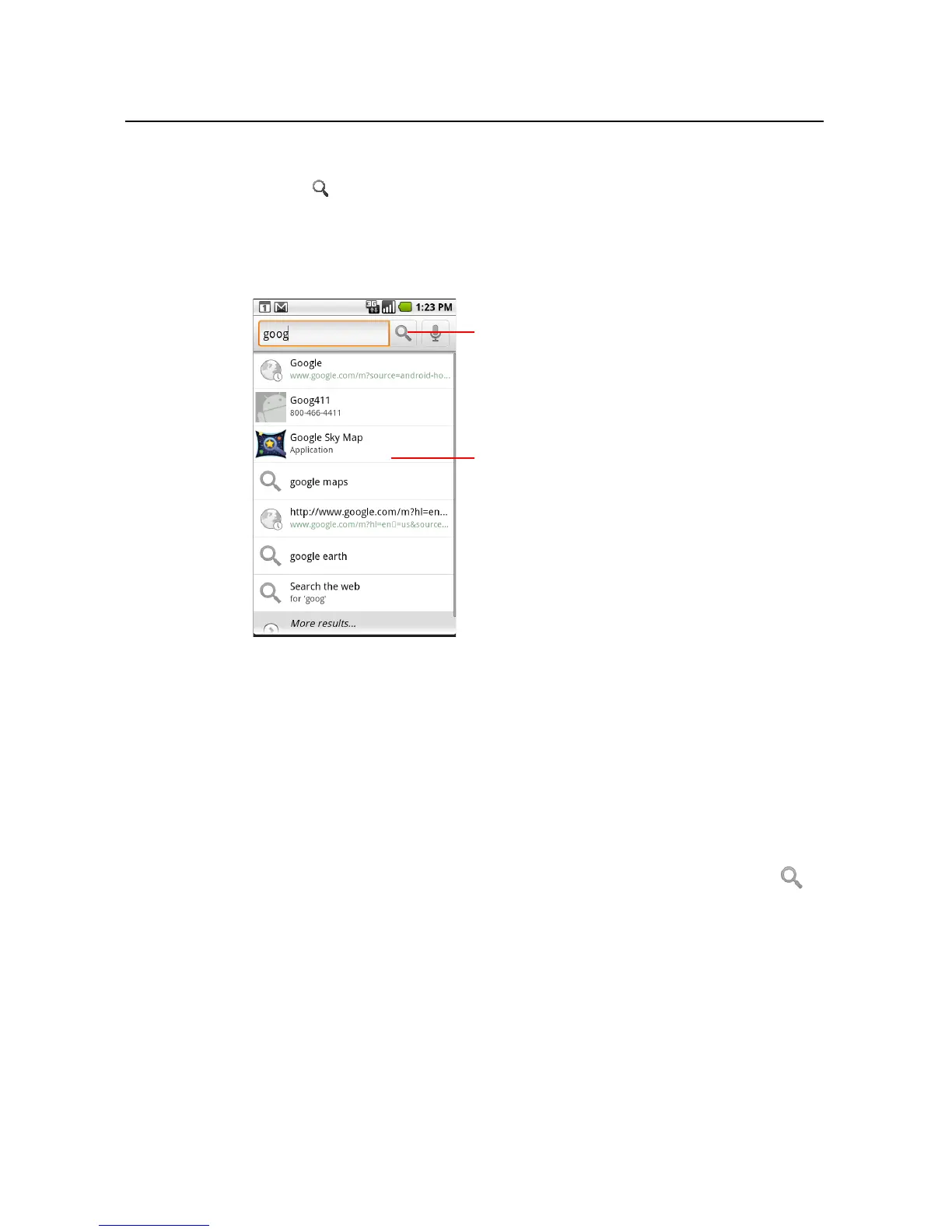
2 Enter the text you’re searching for in Quick Search Box.
As you type, matching items on your phone and suggestions from Google web
search are added to the list of previously chosen search results.
You can use the Search preferences to configure some aspects of Google web
search (for example, whether it makes suggestions below Quick Search Box as
you type), and what phone features you want to include in searches. You can also
clear the list of recently chosen searches. See “Search settings” on page 309.
3 If what you’re searching for is in the list of suggestions, phone search results, or
previously chosen search results, touch it in the list.
The item opens in the appropriate application, such as Contacts or the Browser.
4 If what you’re searching for is not in the list, touch the magnifying glass icon in
Quick Search Box or on the keyboard to search the web.
The Browser opens, displaying results of a Google search on the web. For more
information, see “Browser” on page 195.
Touch to se arch the web.
As you type, search results from your
phone, previously chosen search results,
and web search suggestions appear.
Touch a result to open it.



 To Next Page