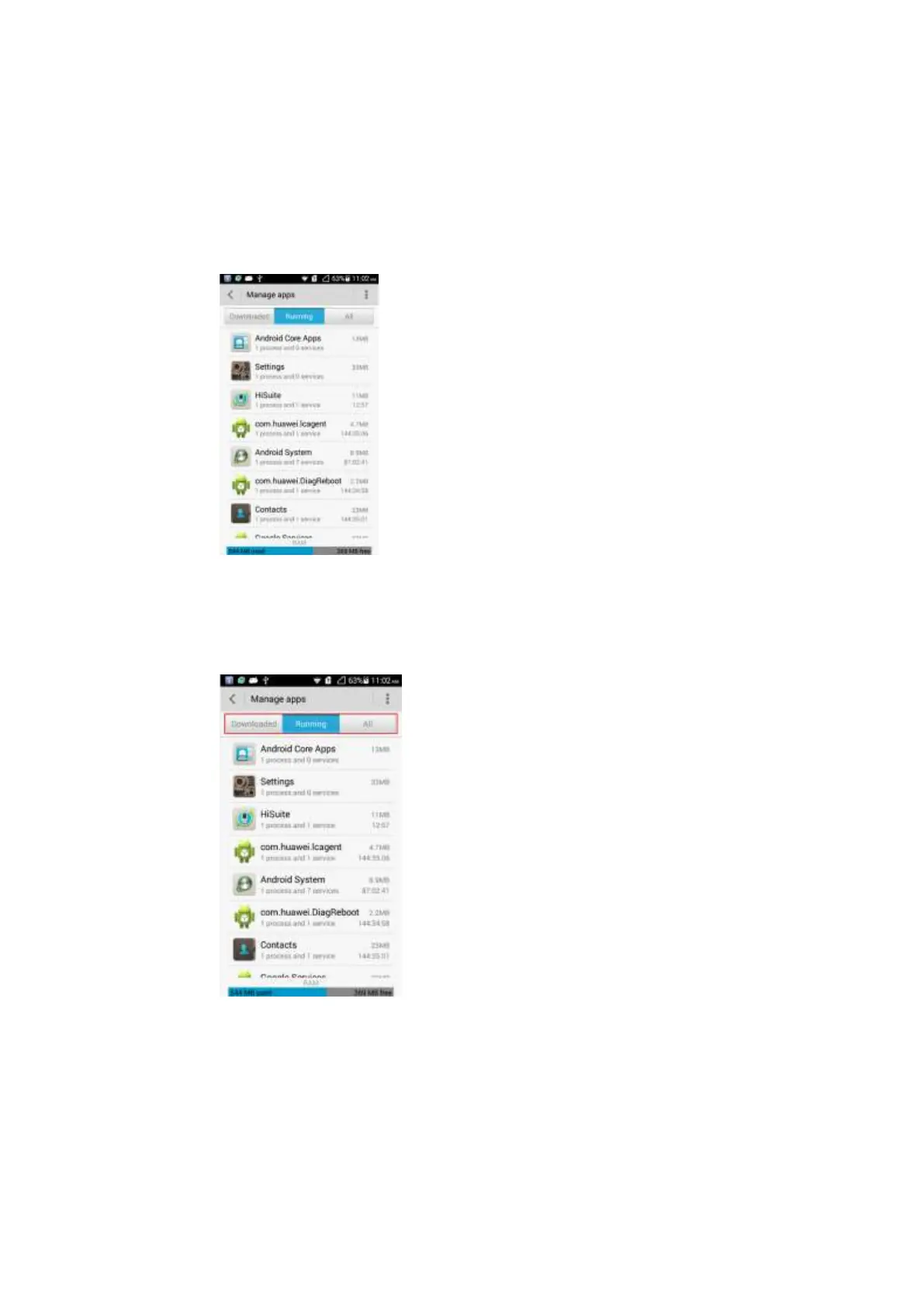
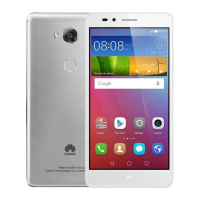
2.14.3 What does the Task Manager screen look like?
On the head of the application management screen, you can switch between the
following three tabs: Downloaded, Running, and All.
The middle of the screen is the program list.
Below the program list is the memory usage information.
2.14.4 What can I do on the Task Manager screen?
Switch to the desired application list.
Enter the program to forcibly stop the program, uninstall the program, and clear data.


 To Next Page