www.ikegps.com/quickstart Page 101 www.ikegps.com/support
Calibrating the touchscreen: If the touchscreen is not responding accurately to stylus
taps, try calibrating the touchscreen manually using the following steps:
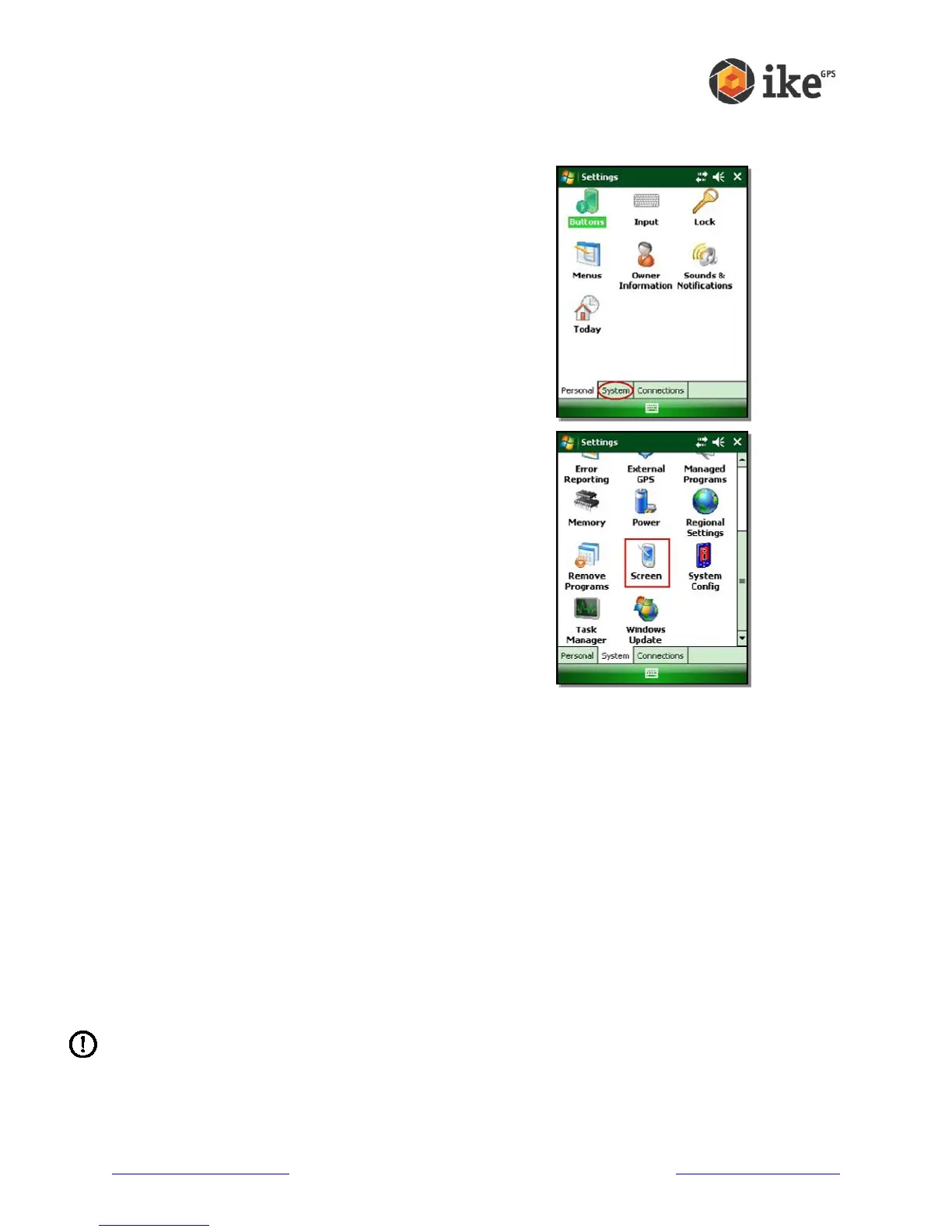
Tap Start > Settings. The Settings window appears, as
shown here.
Select the System tab at the bottom of the display.
Scroll down and tap on the Screen icon, shown at right.
When the Screen window appears, tap Align Screen.
Follow the directions on the display to calibrate the
touchscreen.
After you calibrate the touchscreen, the Screen window
appears again. Tap OK to exit the screen.
Understanding LED signals
ike signals events and processes using a charge LED and a notification LED.
Charge LED: This red light appears to the left of the Start menu button. A flashing light
signals that the battery is currently charging; a solid light signals that the wall charger is
connected but that the battery is fully charged. Note: When the device is suspended or
powered off, the charge LED does not appear.
Notification LED: Appearing on the right side of the Enter button, the green notification
LED appears briefly when you power on the unit after the device is reset or restored to
factory defaults.
Replacing the battery pack
To replace the battery pack, follow these steps:
1. Close all running programs.
2. Suspend the device.
3. Remove the power cable if connected.
CAUTION: The device only stays on for about five seconds without a power source.
Always suspend your device before replacing the battery pack.
Carefully unhook and lift up the bottom hand strap hook.



 To Next Page