www.ikegps.com/quickstart Page 112 www.ikegps.com/support
program first, then tap Start > Help. The help menu items that appear are directly
related to the application program.
Note: If you need more assistance than a help file provides, visit Microsoft’s website or
see Troubleshooting and Service Tips
Backing up data
Your ike is designed to protect your data. However, it is still a good idea to back up your
data regularly by saving information to a desktop computer or to a Secure Digital (SD)
card.
Backing up to a desktop computer: To copy files from your ike to a desktop computer,
follow these steps:
If you have Windows® 2000 or Windows® XP, re-establish an ActiveSync®
connection and continue with Steps 2-6. Note: If you have Microsoft®
Windows Vista/7™, we recommend installing Windows Mobile Device Center™
on your desktop computer from the Microsoft website or by selecting Start >
Programs > Microsoft Update on your desktop computer. You can then sync
your ike with your desktop computer. For more instructions about using
Windows Vista/7™, visit Microsoft’s website.
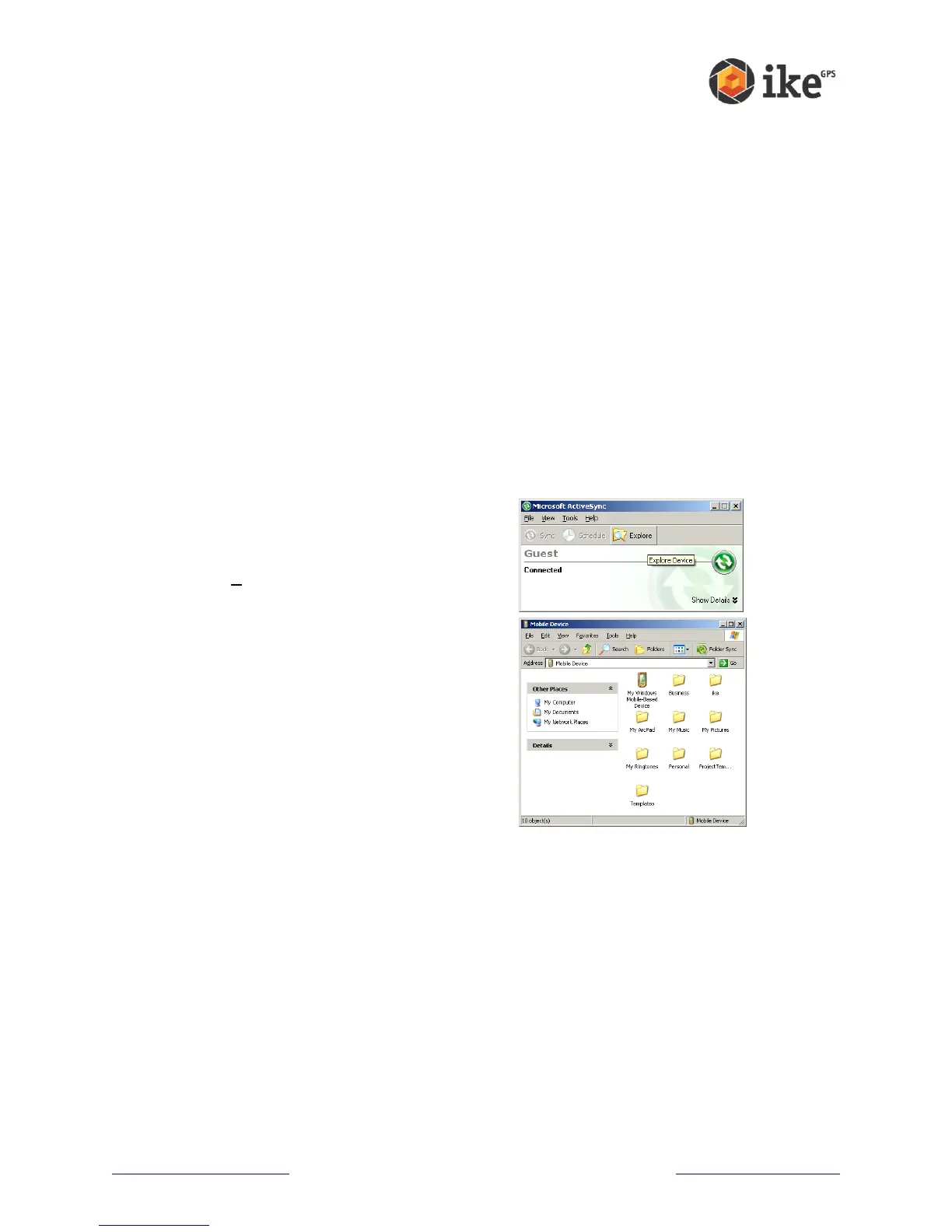
In the ActiveSync window on your desktop
computer, click the [Explore] button on the toolbar.
Alternatively the ‘Explore Device’ option can be
found from the ‘Tools’ menu
A new File Explorer window will open, showing the
file directory for ike ‘Mobile Device’.
Select the files on ike you want to copy.
Copy the files by choosing Edit > Copy or by right-
clicking and choosing Copy.
Paste the files onto the desktop computer.



 To Next Page