www.ikegps.com/quickstart Page 119 www.ikegps.com/support
Using the Integrated Bluetooth
®
Option
This section explains what you need to know about using integrated Bluetooth wireless
technology with your ike. Learn how to—
Identify the power status of Bluetooth
Make ike discoverable to other devices that use Bluetooth
Determine the status of Bluetooth
Create a Bluetooth partnership
Set up an outgoing Bluetooth virtual COM port
Specify a COM port within an application
Set up an incoming Bluetooth virtual COM port
Bluetooth drivers and profiles
Microsoft Bluetooth drivers are loaded as part of the Windows Mobile package.
These drivers support the following profiles: serial devices, ActiveSync, object exchange
(OBEX), dial-up networking, and human interface devices (e.g., keyboard or mouse).
Profiles not supported include network access point and audio.
Supported profiles are described in the next section.
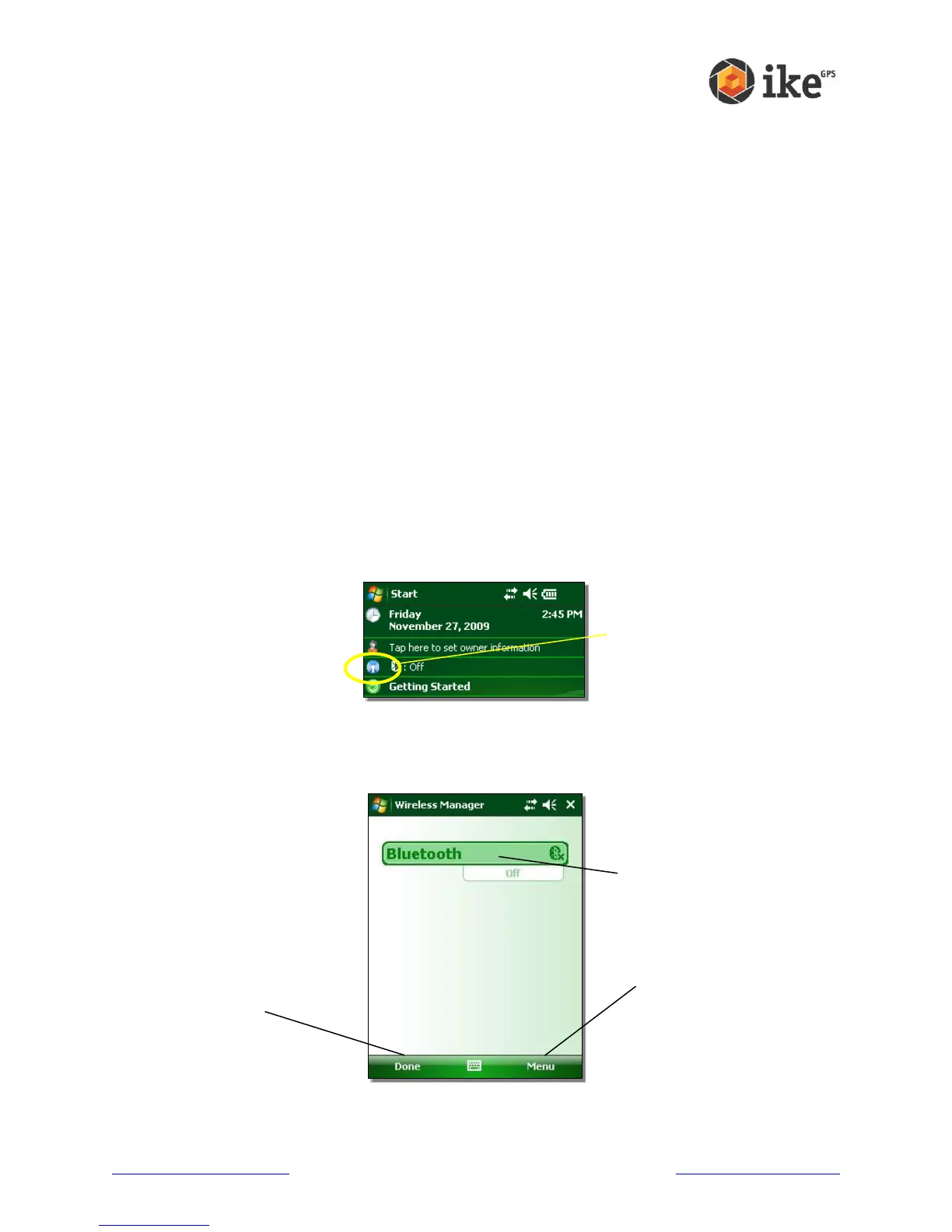
Identify the status of Bluetooth using Wireless Manager
A line on the Today Screen indicates whether Bluetooth is powered on or off, as shown
here.
By tapping this line on the Today screen, you open Wireless Manager, a utility that
controls Bluetooth.
The default screen in Wireless Manager shows the power status, the Done soft key, and
the Menu soft key (see the following figure).
The Bluetooth bar acts as a toggle switch, allowing you turn the device Off or On easily. If
Tap here to
access the
Wireless
Manager



 To Next Page