www.ikegps.com/quickstart Page 114 www.ikegps.com/support
Copying data from a peripheral device
You can copy data from an SD card, or USB flash drive onto your ike by following these
steps:
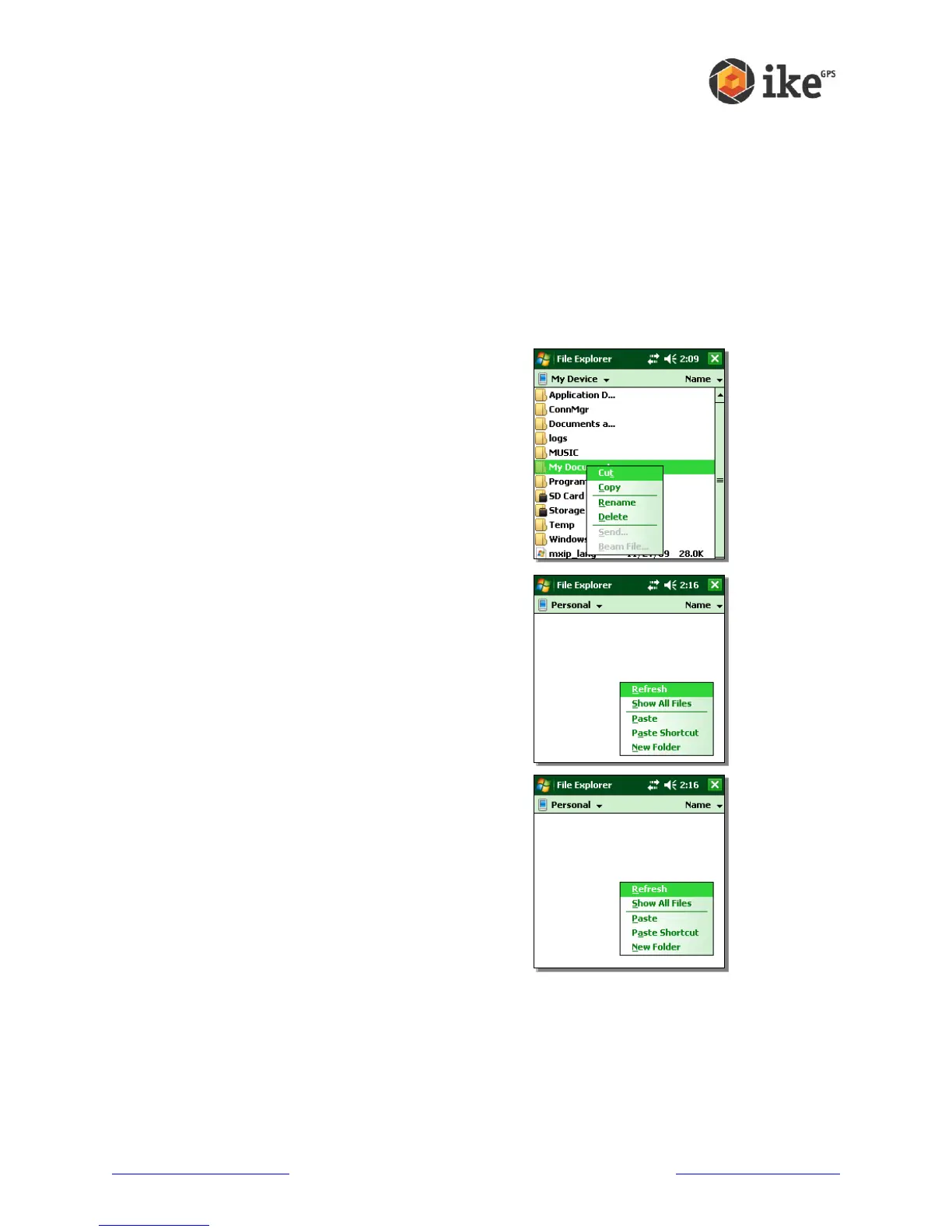
On your ike, tap Start > Programs > File Explorer.
Tap and hold the file you want to copy to your ike. A pop-up menu appears, as
shown here. Note: If you want to copy multiple files, tap and drag the stylus over
the files. Once the files are selected, tap and hold the stylus on the files until a pop-
up menu appears.
Select Copy from the pop-up menu
Open the destination folder where you want to place
your file. (To copy the file to the device drive, select
My device.)
Tap and hold the stylus on the white space below the
list of existing files until a pop-up menu appears.
Select Paste. The copied file appears in the folder.



 To Next Page