www.ikegps.com/quickstart Page 110 www.ikegps.com/support
Closing running programs
Closing programs that are not being used frees memory and allows the device to run
faster. We recommend closing any programs you are not using.
Note: In many cases, tapping on the [x] in the top right corner of a program only minimizes
the program; the program continues to run in the background.
To close one or more running programs, follow these steps.
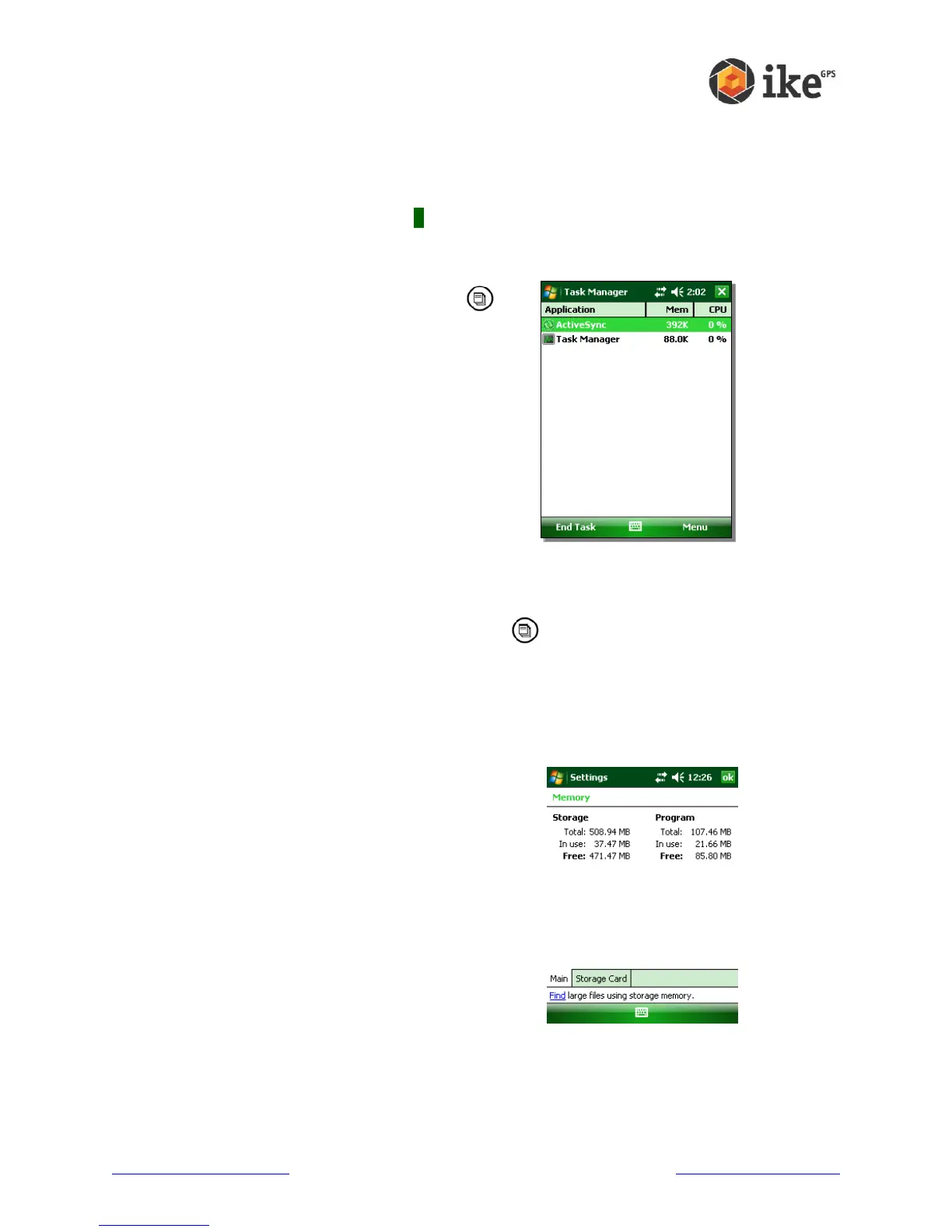
Press the Task Manager button.
The screen at the right appears.
Select the program(s) you want to close
Tap End Task.
Switching between running programs
To switch between programs running on your ike, follow these steps:
1. Press the Task Manager button.
2. Tap and hold program you want to switch to.
3. Tap Activate from the popup menu. The program comes to the forefront.
Viewing memory allocation for programs
To see how much memory is available for programs and storage on your ike
follow these steps:
Tap Start > Settings > System > Memory. A
new window appears as shown in the following
image
The ‘Main’ tab displays the amount of memory the
Windows Mobile operating system has
automatically allocated to file and data Storage
versus Program storage.
This tab also displays the ‘Total:’ amount of
memory, the amount ‘In use:’ and the remaining
available ‘Free:’ memory.”



 To Next Page