www.ikegps.com/quickstart Page 121 www.ikegps.com/support
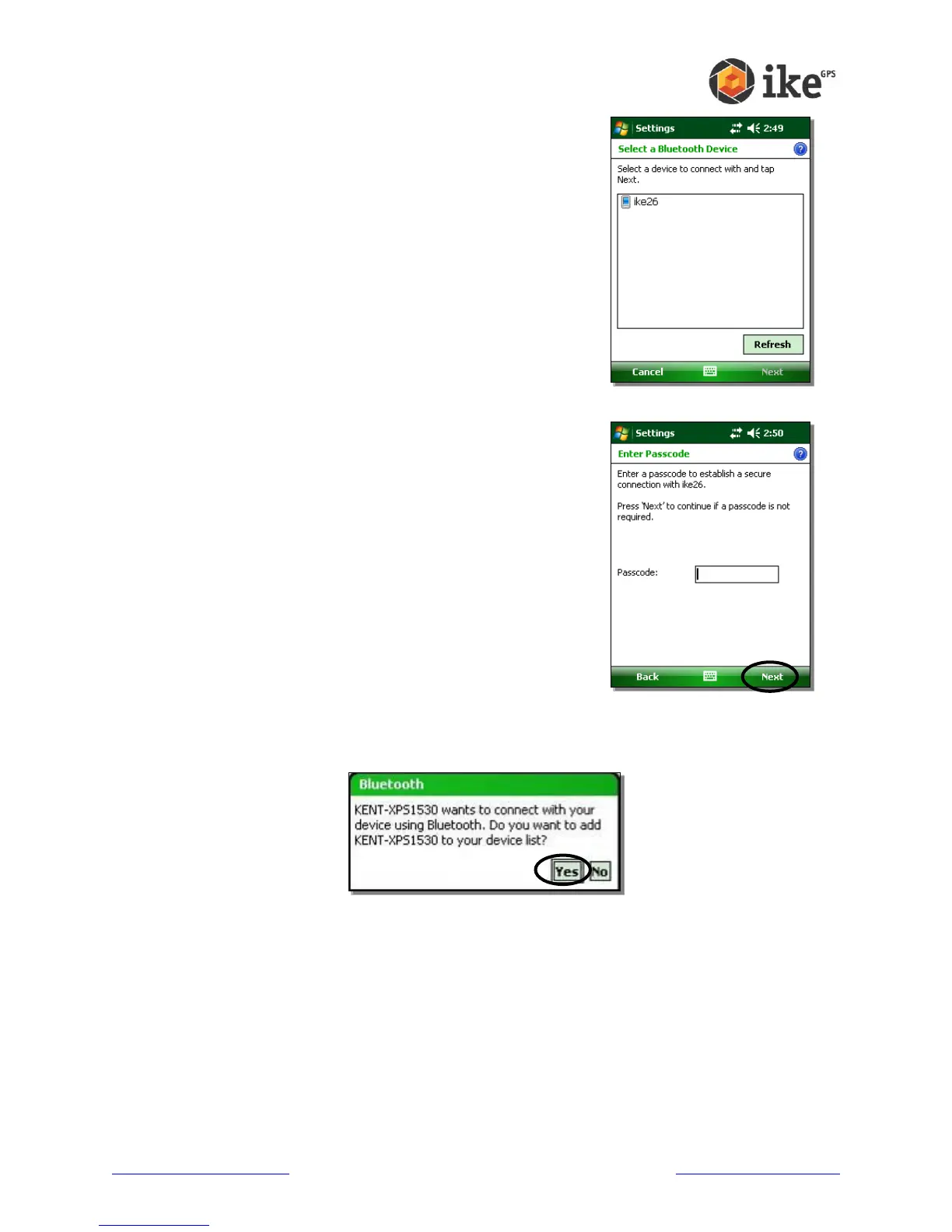
3. Tap Bluetooth > Devices tab > Add New Device. Your
device searches for other devices with Bluetooth
capabilities and displays them in the list, as shown here.
4. The name of the Bluetooth device appears. Tap the name, then tap Next.
5. If the Bluetooth device has an assigned a passcode,
enter the number. If the device has not already been
assigned a passcode but requires one, enter an
alphanumeric passcode on your ike between 1 and 16
characters in the Passcode option. Tap Next. Note: If
you are unsure whether your device requires a passcode
and whether one has already been assigned to your
Bluetooth device, see the user documentation that came
with the device.
Important: If the Bluetooth device does not use a Passcode, leave the Passcode field
blank and tap Next, as shown in the previous image. A message appears, asking if you
want to add the device to the device list. Choose No and skip to step 7.
Note: It is important to choose No when you are asked whether you want to add to the
device to the device list; choosing Yes sends you back to the Passcode screen.
6. Enter the same passcode on the other device.
7. In the Partnership Settings screen on ike, you can assign a new name to the device in
the Display Name option.
8. Select the service you want to use from the Services box, then tap Finish.
Bluetooth virtual COM ports
Some application programs connect using a virtual COM port (serial port) when making a
Bluetooth connection. To make a connection possible for such programs, you must first



 To Next Page