www.ikegps.com/quickstart Page 109 www.ikegps.com/support
Some programs require you to reset your device when you install them. Follow the steps
below to reset ike:
1. Back up your files and close any open applications. (For instructions on backing up
files, see ‘Backing up data’.)
2. Press the power button until the power button menu appears.
3. Choose Reset.
Note: If your device locks up, you can reset the device by pressing the power button for 10
seconds or until the screen goes dark. The device resets itself automatically after a few
seconds.
Exploring files
To explore files stored on your ike, follow these steps:
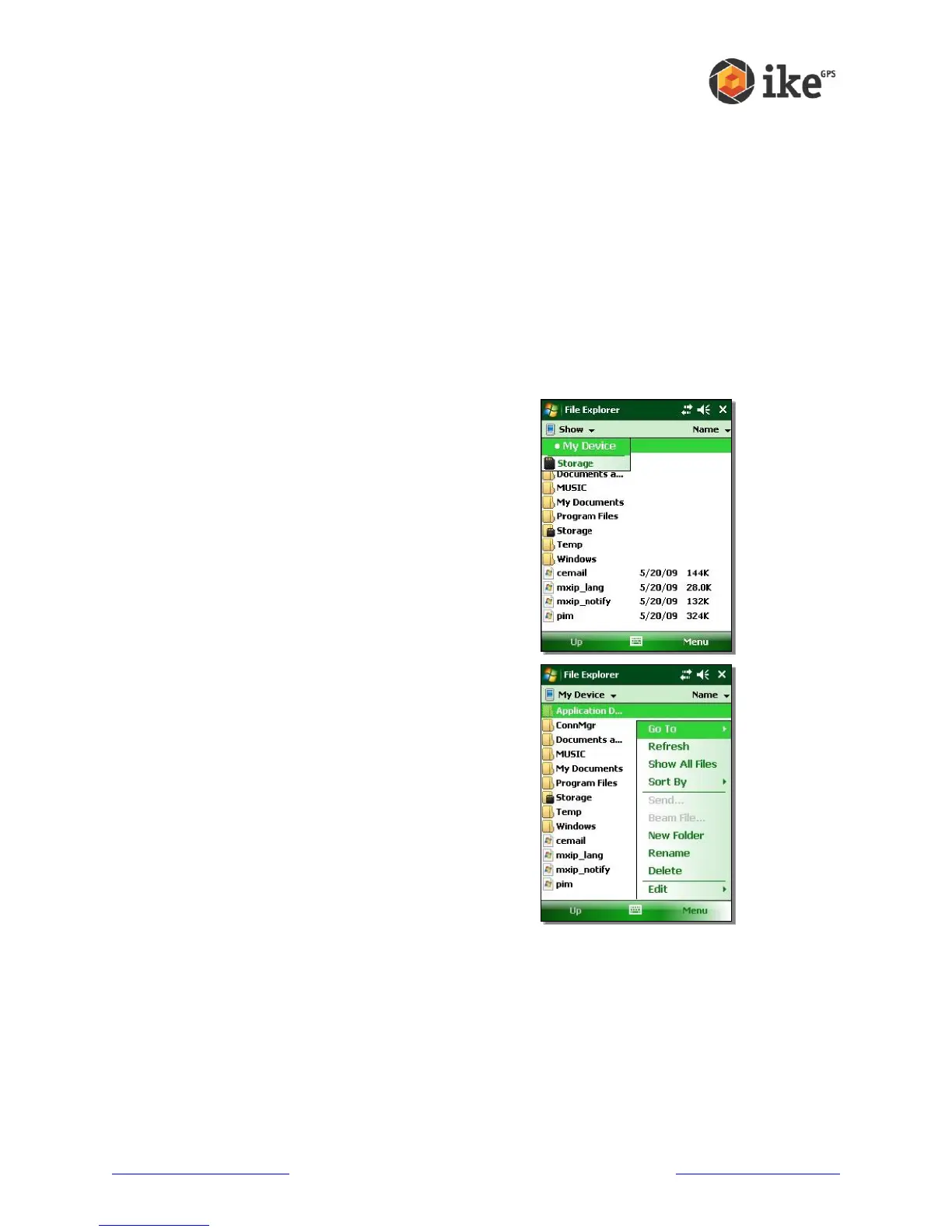
Tap Start > Programs > File Explorer. The File Explore window appears.
If the drive you want does not already appear, tap on
the drop-down menu arrow to select it, as shown
here.
Navigate the file directory by tapping on the folders
and files you want. If you want to go up a level, tap
on the Up soft key at the bottom of the screen.
Use the Menu soft key at the bottom of the screen to
manipulate files.



 To Next Page