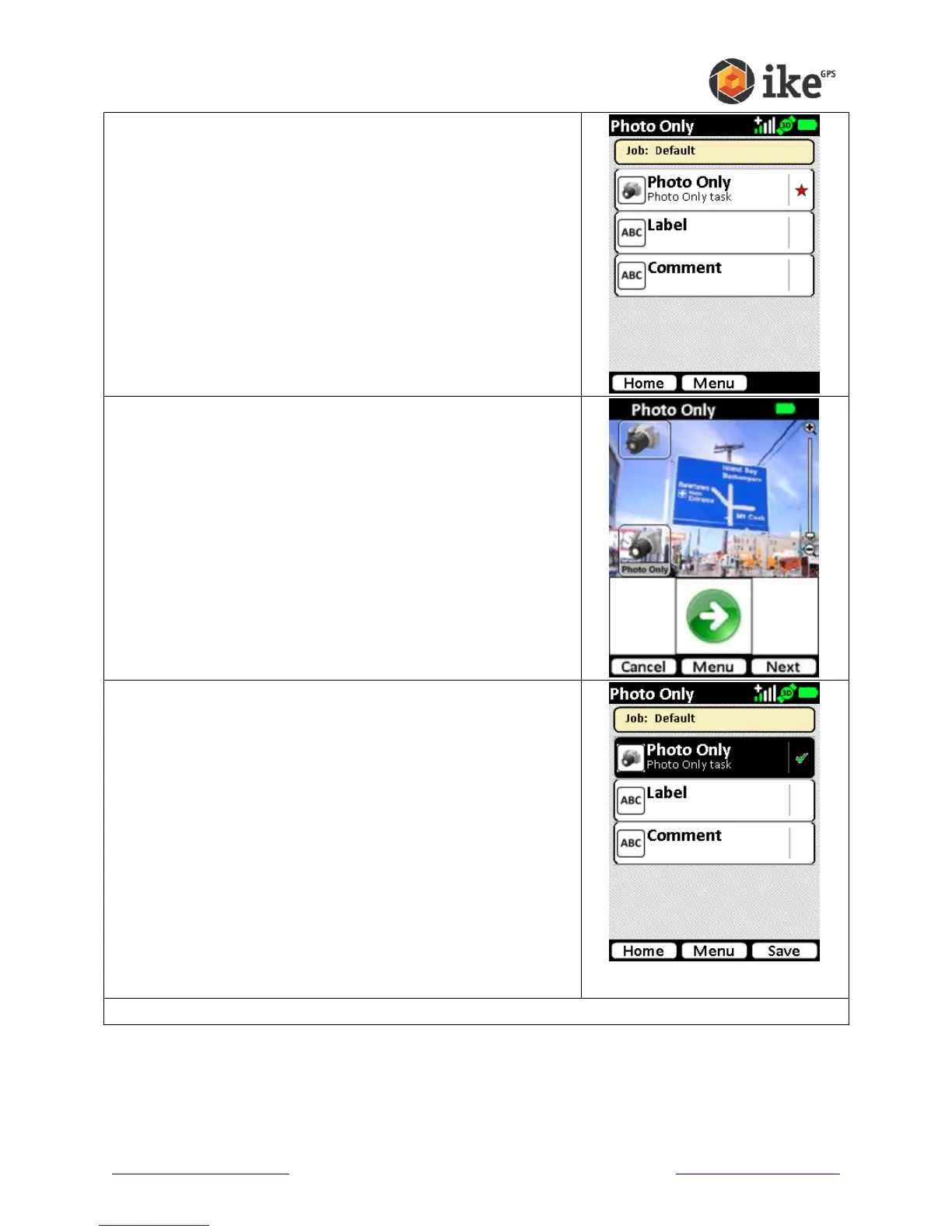
The default tasks for the Photo Only ikeTool will be shown.
A red star will indicate the mandatory tasks.
Tap the Photo Only task to start the video preview screen.
The camera will click, and depending on camera settings,
will revert to the Photo Only selection screen. Where there
is a successful recording a green tick will appear alongside
the task.
From here the information can be abandoned (tap the Home
button), retaken (tap Photo Only again to delete the photo
and re-enter the video preview), and data entered into non-
mandatory Label and Comment fields.
Tap the Label task button to enter the Label entry screen.
Tap the Comment task button to enter the Comment entry
screen.
Tap the Save button to save the target without
Label/Comments recorded.
Tap the Home button to abandon the target and delete the
recorded data.



 To Next Page