Setup and Assembly Manual Page 39
B.3.4 Firmware Update
The Image Access Customer Service Portal at http://service.imageaccess.de offers
downloads of firmware updates for every Scan2Net scanner. As a registered user, log in
with your personal login name and password.
Select Actions S2N Device Updates to download the current firmware version. Enter the
serial number of your scanner and the version number of the firmware installed on the
scanner.
Download the current firmware version to your local PC.
Start the scanner. Select Setup Device and go to the login level Poweruser .
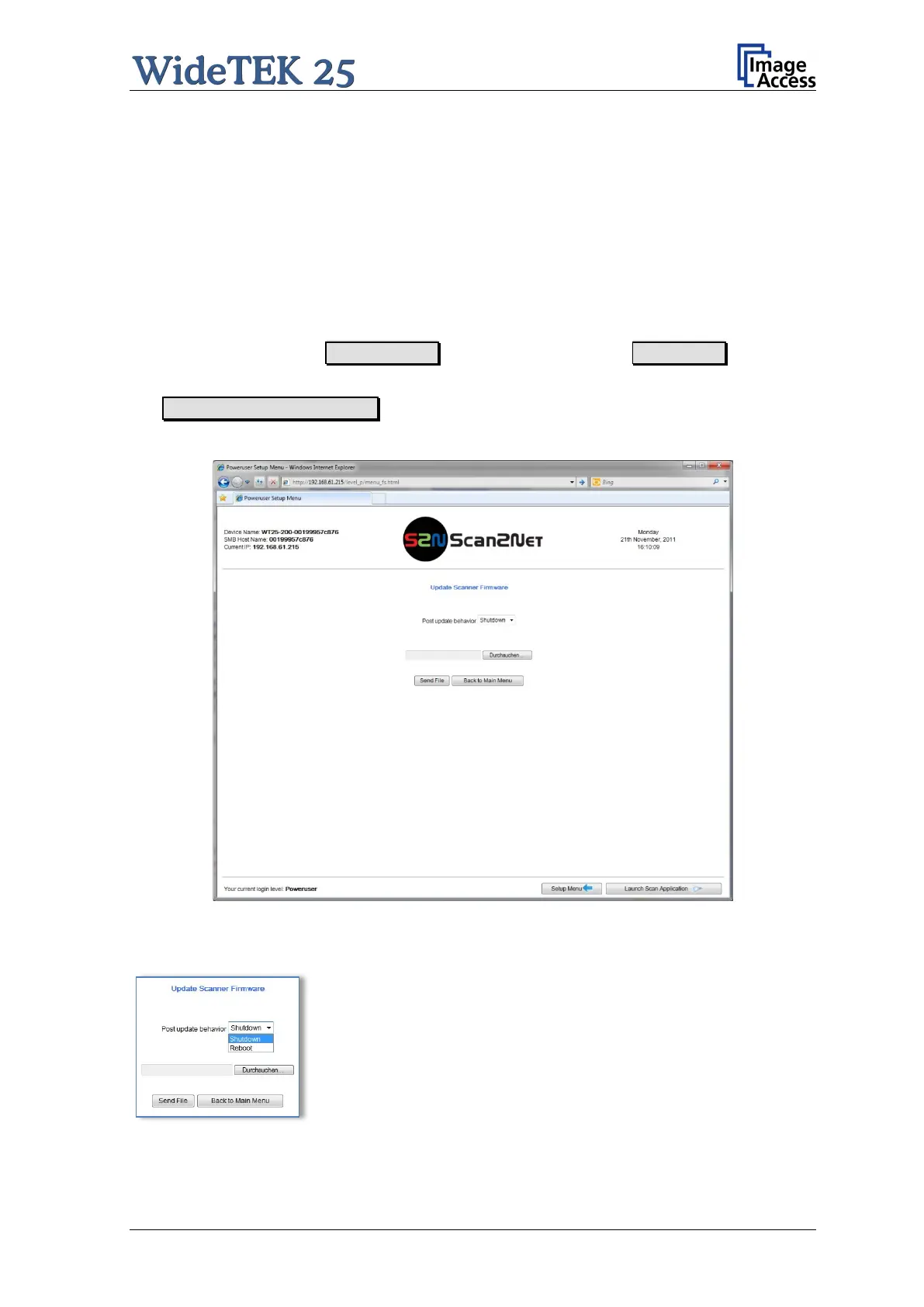
In the main menu screen, locate the section Updates & Uploads and click
the Update Scanner Firmware button.
Browse your local PC and select the previously downloaded firmware update file.
Picture 31: Firmware Update
After the firmware update is complete the scanner must be
rebooted to activate the new firmware.
In the line Post update behavior select “Reboot” to reboot
automatically after updating the firmware.



 To Next Page
 Loading...