Page 40 Setup and Assembly Manual
Click the button Send File to update the scanner’s firmware.
Important:
Do not switch off the scanner while executing the firmware update!
The update sequence can last a few minutes. When the update is running, no messages
will be displayed on the screen.
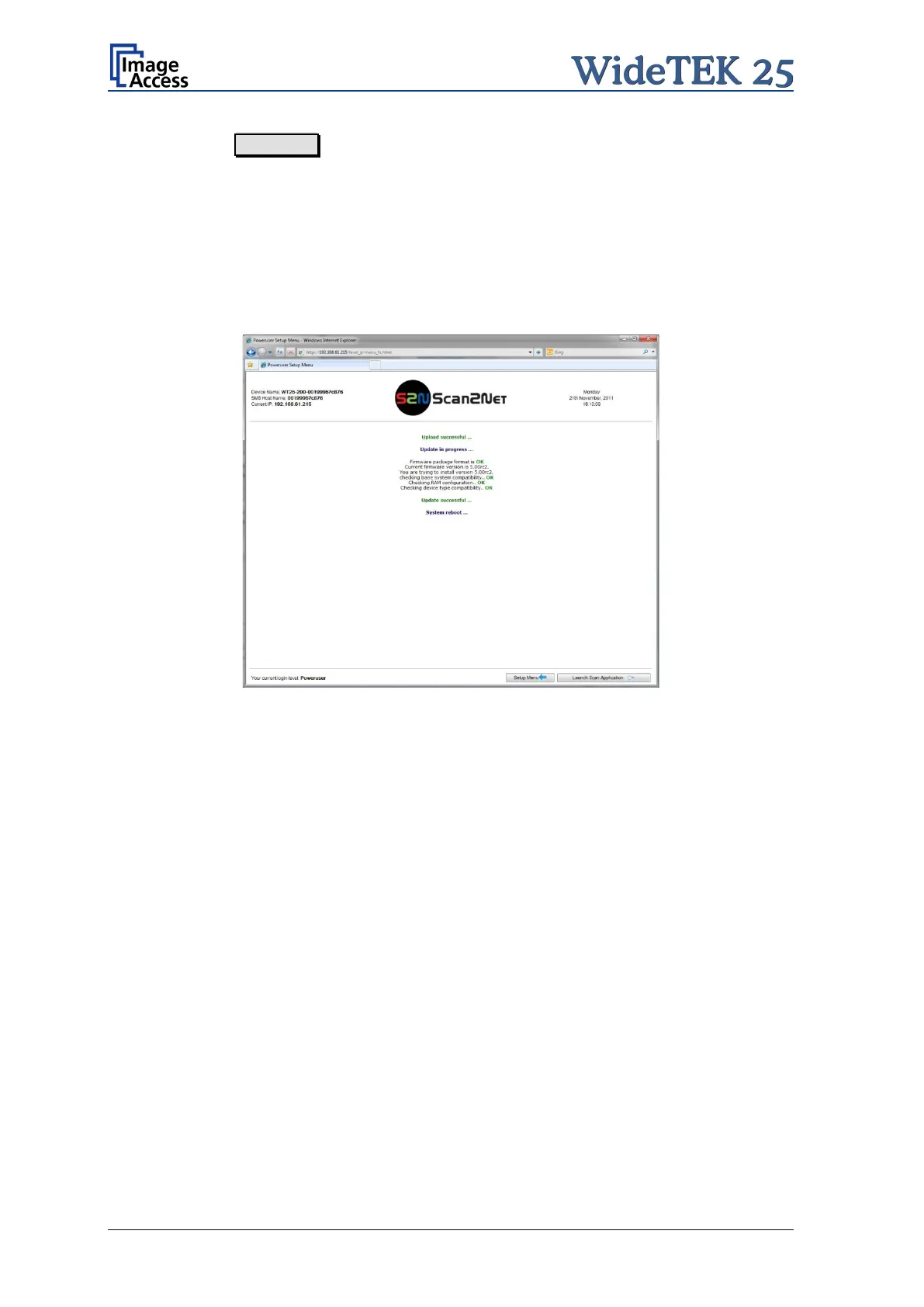
After the firmware is successfully updated, the screen displays a summary.
Picture 32: Summary of successful firmware update
The scanner reboots now with factory default settings.


 To Next Page
 Loading...