Page 26 Interactive Touch Display Hardware Guide
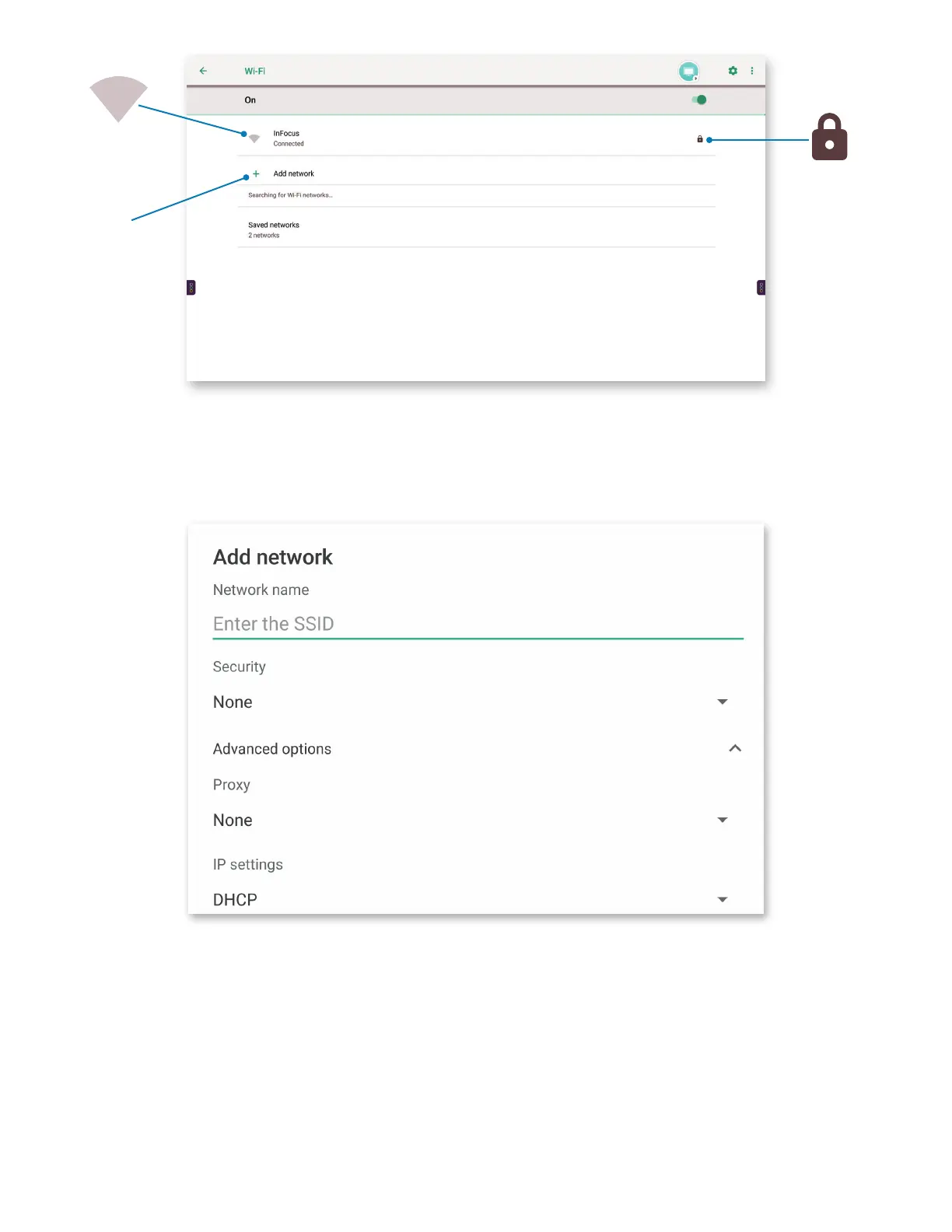
3) Turn WiFi on to show a window with a list of the saved and available WiFi networks.
a) To the left of each address, the perm scan symbol indicates signal strength.
b) To the right of each address, a padlock indicates password protection.
4) To add a network, tap Add network or the “+” symbol.
Perm scan symbol
indicates signal
strength
Indicates pass-
word protection
Add network
a) At the Add Network window, use the on-screen keyboard or a connected keyboard to enter the SSID.
b) Choose a network security protocol under Security.
c) Under Advanced Options, choose how a proxy server will be identied: None, Manual, or Proxy Auto-Cong; choose a DHCP or
a Static IP setting.
d) At the bottom right of the window, tap Cancel or Save to dismiss or conrm your settings.
NOTE: It may be necessary to move the on-screen keyboard to reveal Cancel and Save.


 To Next Page