Page 23 Interactive Touch Display Hardware Guide
SELECT A SOURCE THROUGH LIVEVIEW™
1) Connect an input source to the appropriate port (see page 14 and page 15).
2) Select Access Input Sources by one of ve methods:
a) From the icon on the home page (page 19);
b) From the Total Touch Control menu bar (page 21);
c) From the front panel button (page 16);
d) By swiping up at the bottom of the panel, near the center; or
e) By pressing the Input button on the remote (page 11).
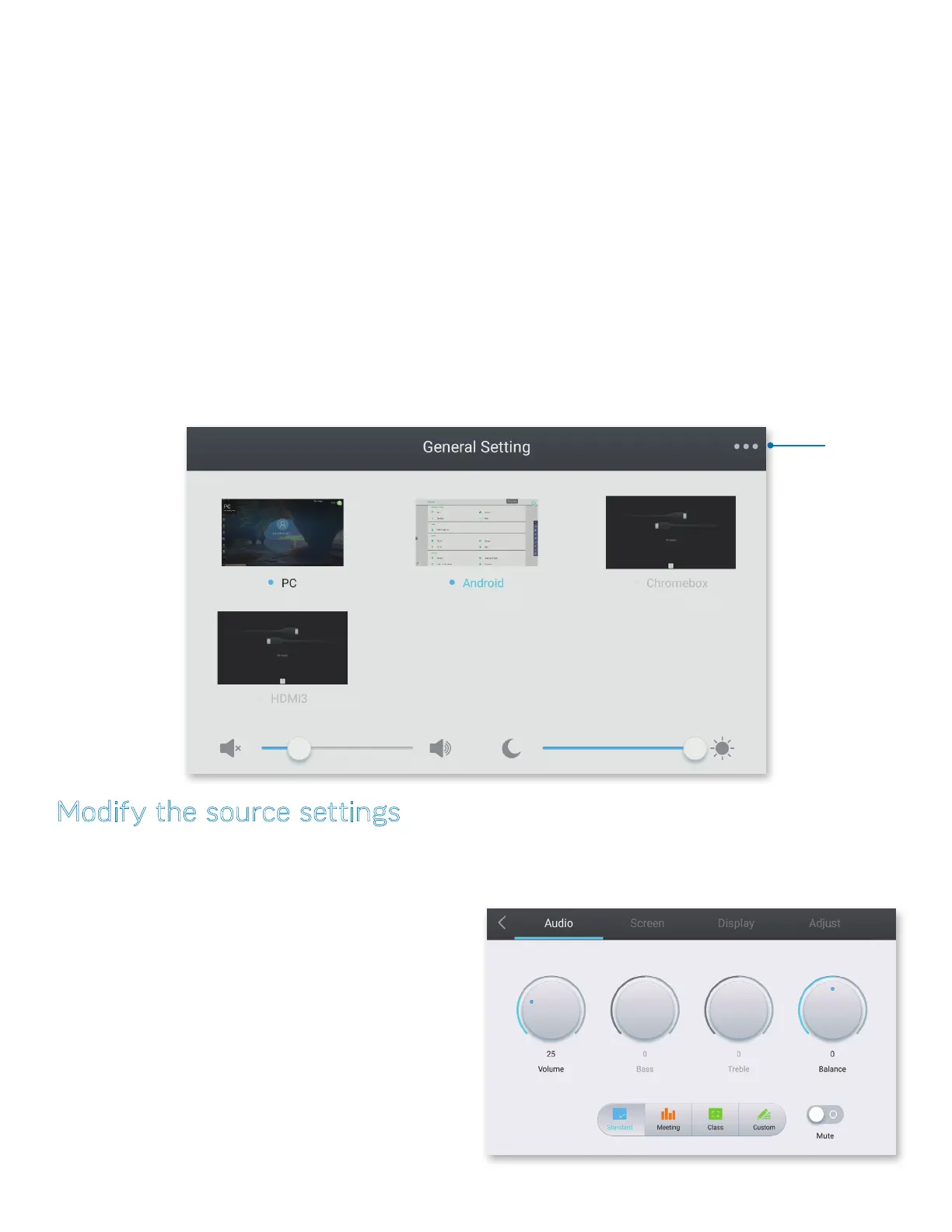
3) The General Setting window appears. If a source is active, a blue dot (
•
) precedes its name, and a real-time (LiveView) thumbnail of
the source is displayed.
4) Tap the desired source to select it. A blue bar appears across the window of the selected source as it is being loaded. After the new
source is loaded, its name is highlighted in blue.
NOTE: Move the buttons on the slider bars at the bottom of the window to adjust the speaker volume and screen brightness.
NOTE: The icons of inactive sources can be hidden, and the name of a source can be changed, through Settings > Personal > Input
Setting (page 46).
Tap the ellipse
(the three-dot Menu
button) for source-
specic settings.
Modify the source settings
1) Tap the ellipse (the three-dot Menu button) at the upper right corner of the General Setting window (above). Select Audio, Screen,
Display or Adjust.
NOTE: Source settings are global, i.e., changing the Audio settings in Android will change them in PC, HDMI1, etc.
Audio
Modify three presets — Standard, Meeting and Classroom — or
create a Custom audio setting. Tap the Mute button to modify the
volume or mute the internal speakers.


 To Next Page