Page 25 Interactive Touch Display Hardware Guide
SETTINGS
There are a wide variety of settings you can use to adjust the display to your preferences. To
access them, tap the Settings icon on the home page (page 19) or at the More Tools submenu
(page 22).
To access one of the settings, tap its name or its icon.
Once at a setting menu, tap the name of the setting or the On/O button, whichever is closer, to
make changes.
Where a choice is available, the Select checkbox identies the current selection.
On
O
Select
Wireless & Networks
NOTE: The Android OS runs on either a wired or a wireless network, but not both simultaneously, with the exception of AirClass (page
22) and LightCast (accessed through the More icon on the home screen, page 19). See the appropriate software guide for instruc-
tions on how to congure them.
WiFi
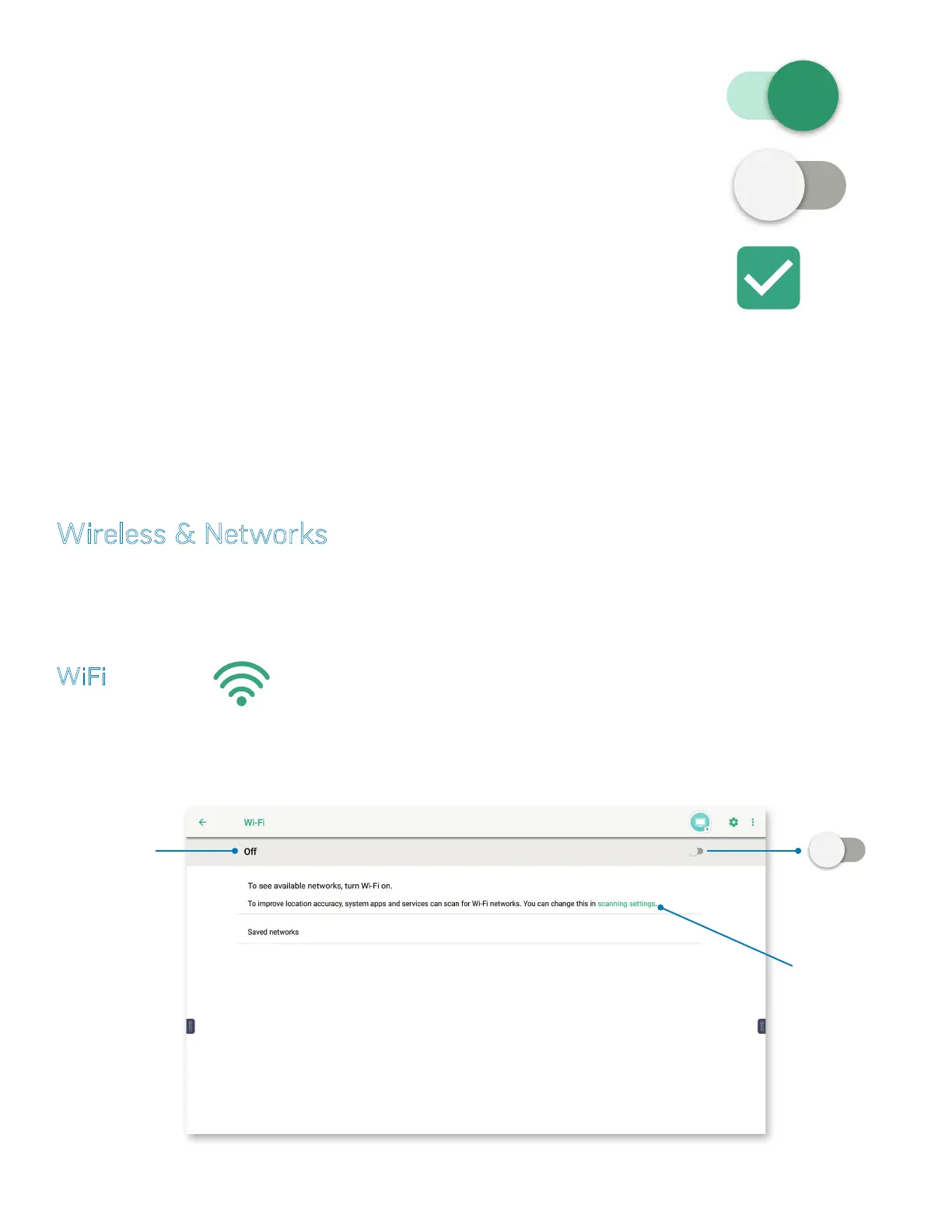
Tap WiFi, or the WiFi icon.
1) When WiFi settings are O, you have the option to turn on continuous WiFi and Bluetooth scanning by tapping on scanning
settings.
2) Turn the WiFi settings on by pressing O, (to the left) or the On/O button (to the right).
Tap to turn the
settings menu on
or o
Turn on continuous
WiFi and Bluetooth
scanning.
On/O button —
Tap to turn the
settings menu on
or o.


 To Next Page