D-0120794-C – 2019/11
Orion Rotary Chair Installation Instructions Page 35
6 System Check on Working Condition
6.1 Program Check
Double check all connections to the equipment. Turn on the power for isolation transformer and boot the
computer. Launch Otoaccess platform and VisualEyes
TM
software.
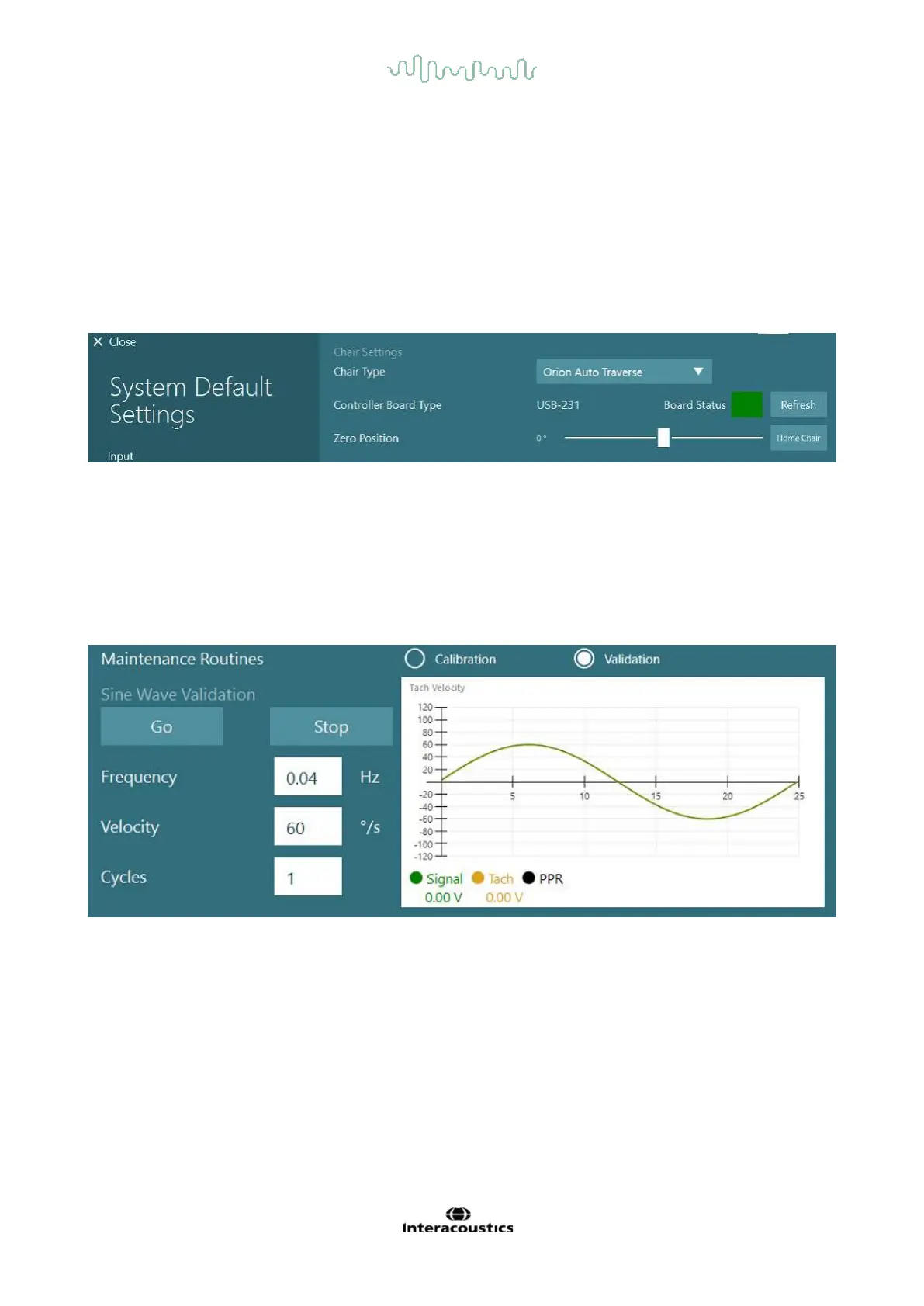
Go to Configuration>System Default Settings and select Rotational Chair option.
The user can select the chair type from the drop-down menu. The user can see the Controller board status
and can also adjust the zero position of the chair.
6.2 Validation
As part of installation checks, the user can validate and calibrate the system. Once the installation is done
the user has to validate the system. By choosing Validation option under Maintenance Routines, the user
can perform Sine Wave Validation.
Click Go on the Sine Wave Validation screen. Chair should rotate back and forth slowly. Watch the sine
wave. There should be two colored sine waves that are superimposed into one curve. If curves match, there
is no need to calibrate.
If NOT matched, then switch to the Calibration Maintenance Routines. Click Go under Drift Calibration. Chair
should be stopped and not drifting. If the chair is moving slowly, remove the drift using the Drift Offset left /
right arrow buttons. Once the chair stops moving, click Stop. Then click Go under Velocity Tach Calibration.
The chair will spin CW. Two lines will be shown and eventually be superimposed. The calibration will stop
automatically.













 To Next Page