*DynaLync Prostate is an optional feature, sold separately
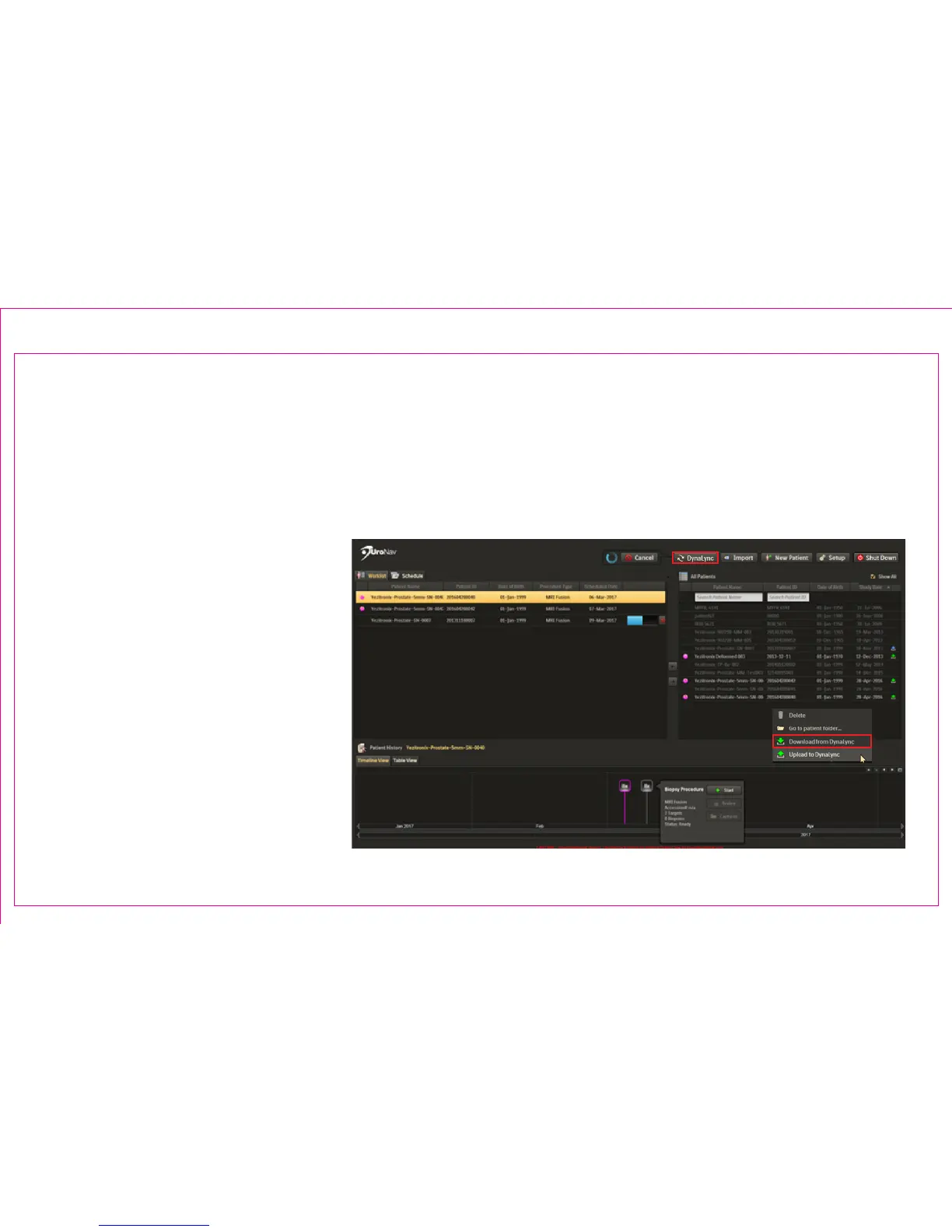
1. Press DynaLync from Patient Browser Window
a. Automatic download of MRI data for all procedures scheduled in DynaLync for the current day
b. Manual download MRI data with the Show All lter
i. “Dimmed” entries represent the DynaLync patient database only
ii. “Bright” entries result from
successful download onto
UroNav
2. Right-click on patient entry, select
Download from DynaLync from
the context menu
3. Patient Import will retrieve three
series types:
a. DCAD STL Prostate Boundary
b. DCAD ROI (targets, if provided)
c. High resolution T2 axial MRI
Page 6
Section 1.5: Download MRI Data from DynaLync Server
1
2



 To Next Page