30
Or
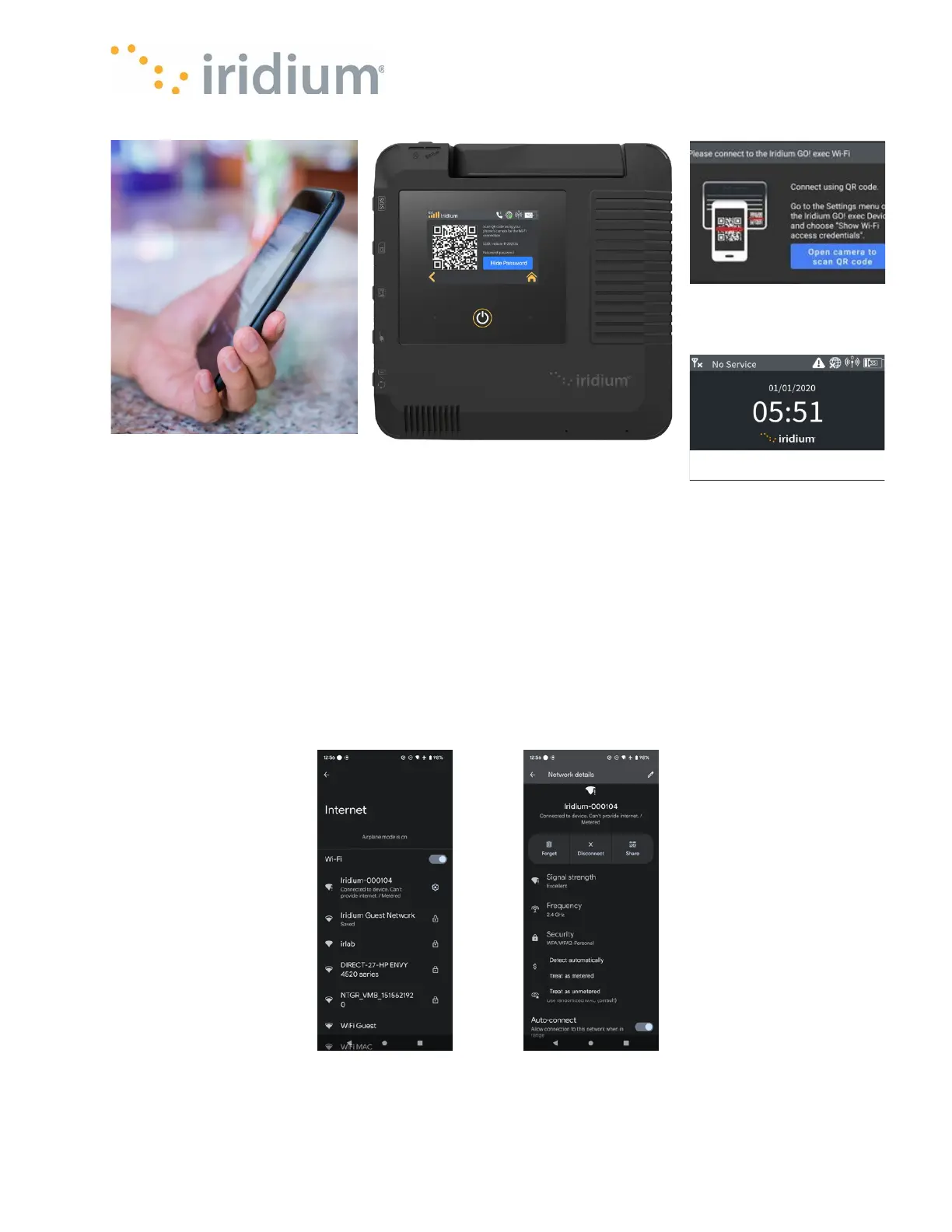
b. Navigate to your smart device’s Wi-Fi settings and look for the Iridium GO! exec SSID as
displayed on the Iridium GO! exec device. Click on the name, enter password when prompted.
Once Wi-Fi connection is successful open your Iridium GO! exec app and it will automatically
log in.
NOTE: Ensure your Bluetooth option is enabled as the Iridium GO! exec uses BLE to send
notifications to your smart device.
NOTE: your smart device might warn you that ‘Internet may not be available’ on this Wi-Fi
connection. This is expected, so please ensure you dismiss this warning and ensure your smart
device stays connected to the Wi-Fi access point.


 To Next Page