39
case. (Be sure to lift the rubber flap over the Iridium GO! exec headset port before attempting to
connect the headset cable).
NOTE: Only digital headsets are supported. If you have a 3.5 mm headset you can connect it to
the Iridium GO! exec by using a digital 3.5 mm to USB-C adapter (not provided). Note that analog
adapter is not supported.
NOTE: Once a headset is plugged in, all system sounds will also be heard through the headset,
with the exception of incoming call ringing signal that is played in both the headset and the Iridium
GO! exec speaker.
Using your Iridium GO! exec
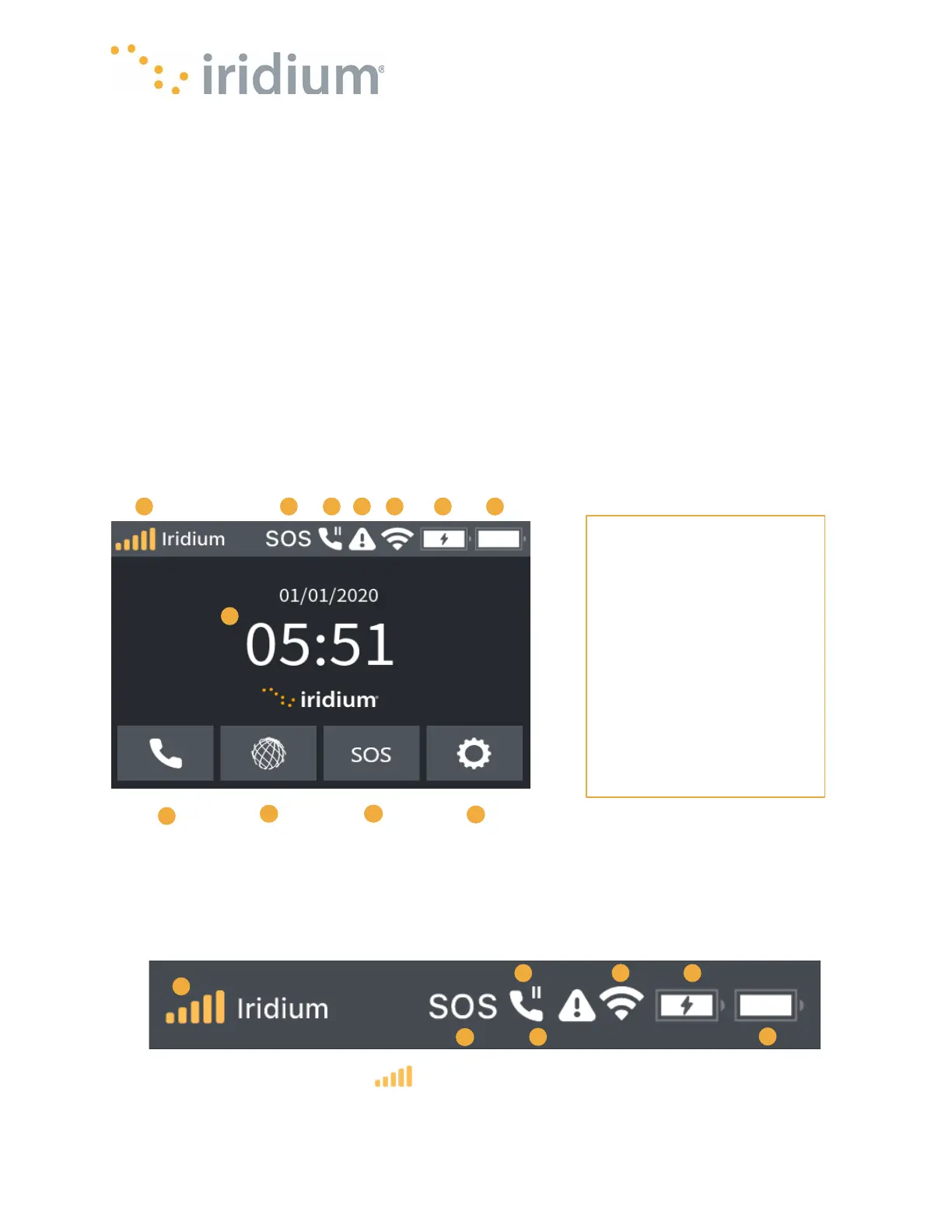
Iridium GO! exec Screen Overview
The Iridium GO! exec has a fully functional color 10cm (4 inch) touchscreen, speaker and 2
microphones that enables the user to use the Device in a standalone mode. In this section we’ll go
over the screen UI and understand what functionalities can be used on the device independent of
companion mobile app.
Status Bar Overview
The Iridium GO! exec shows a status bar across the top of the display regardless of what else is
being displayed. This shows the user the status of the Iridium GO! exec instantly from any screen.
The status bar presents the following information.
1.
Satellite modem state
(on/off)
Indicates whether the satellite modem is turned on or not. The modem will always be on except
in cases where the Iridium GO! exec is attempting to operate outside its temperature range.
1. Signal Strength
2. SOS Status
3. Call on Line I / Line II
4. Critical Errors
5. Wi-Fi Status Indicator
6. Ext. Device Charging
from Terminal
7. Battery Indicator
8. Time
9. Call Option
10. Data Option
11. SOS Option
12. Settings Option


 To Next Page