37
Option 3: Connect PC via Wi-Fi
To connect your computer to the Iridium GO! exec via Wi-Fi, perform the following steps:
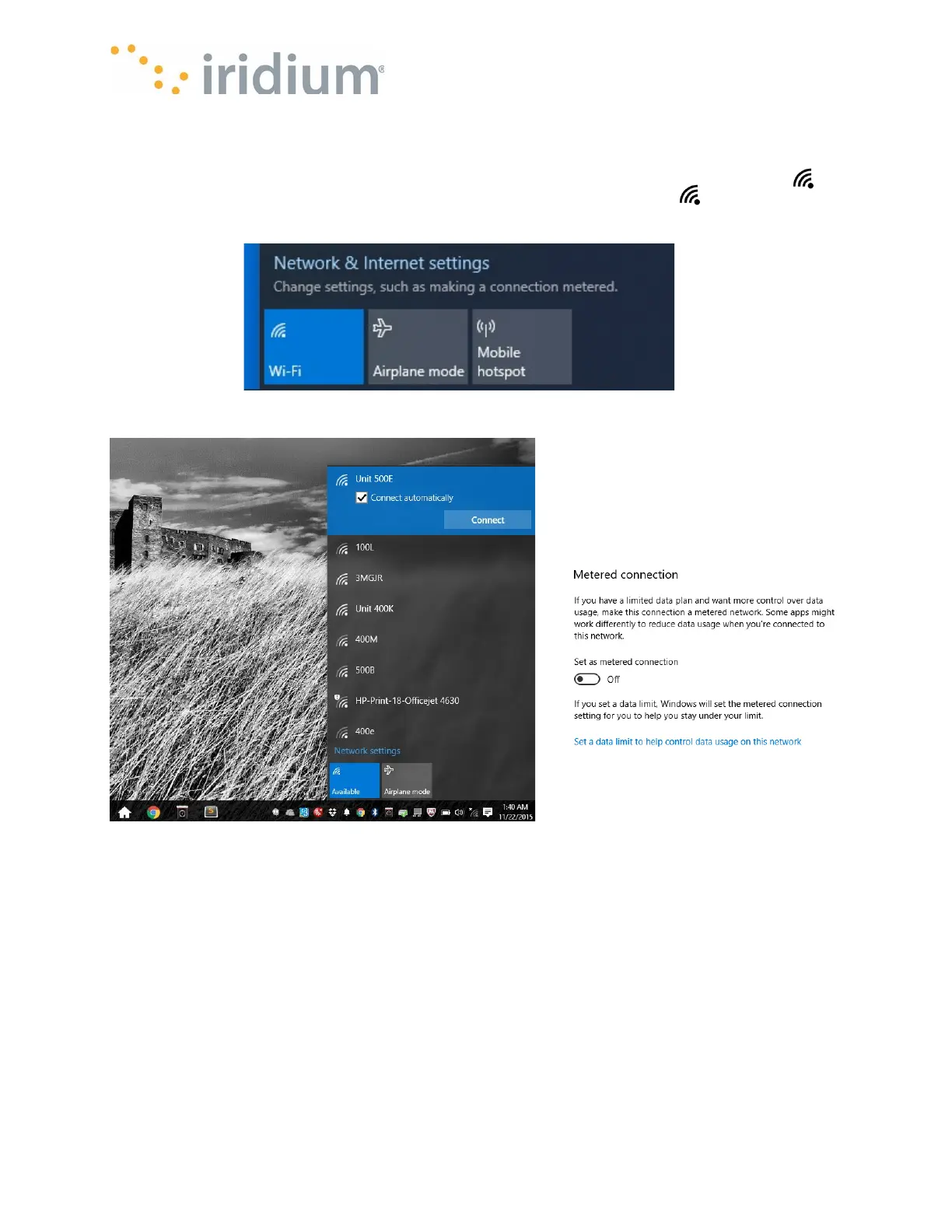
• On your Windows machine enable wireless networking by selecting the Network icon on
the taskbar at the bottom right of your screen. Then select Wi-Fi button with the left mouse
button. The screen should look like this if the Wi-Fi has been enabled.
A list of available Wi-Fi networks should also be showing. Your Iridium GO! exec network name is
Iridium-<6 digit serial number> e.g., Iridium-123456.
• Move your mouse over the network labeled Iridium-<6digit serial number> and select it by
pressing the left mouse button.
• Select “Connect”
• Enter the network security key – the default network security key is “password”
NOTE: This connection should be set as “metered” to minimize the amount of traffic sent to it
from other services running on your computer. To configure as metered, select the Properties
link for the selected network, scroll down to the Metered Connection setting, click the button to
toggle “On”.


 To Next Page