43
Quick Dial Menu
User can use the app to set up a ‘Quick Dial’ call list (from app) for up to 10 numbers for one touch
dialing and conversations
To make an outbound call from the device using the quick dial menu, navigate to the home screen,
select the phone icon then select the Quick Dial icon . Call the Quick dial number by
selecting it from the drop-down list. The active call screen will be displayed. To hang-up the call,
press the button marked with a red phone. Adding or removing numbers from the Quick dial list
must be done from the application.
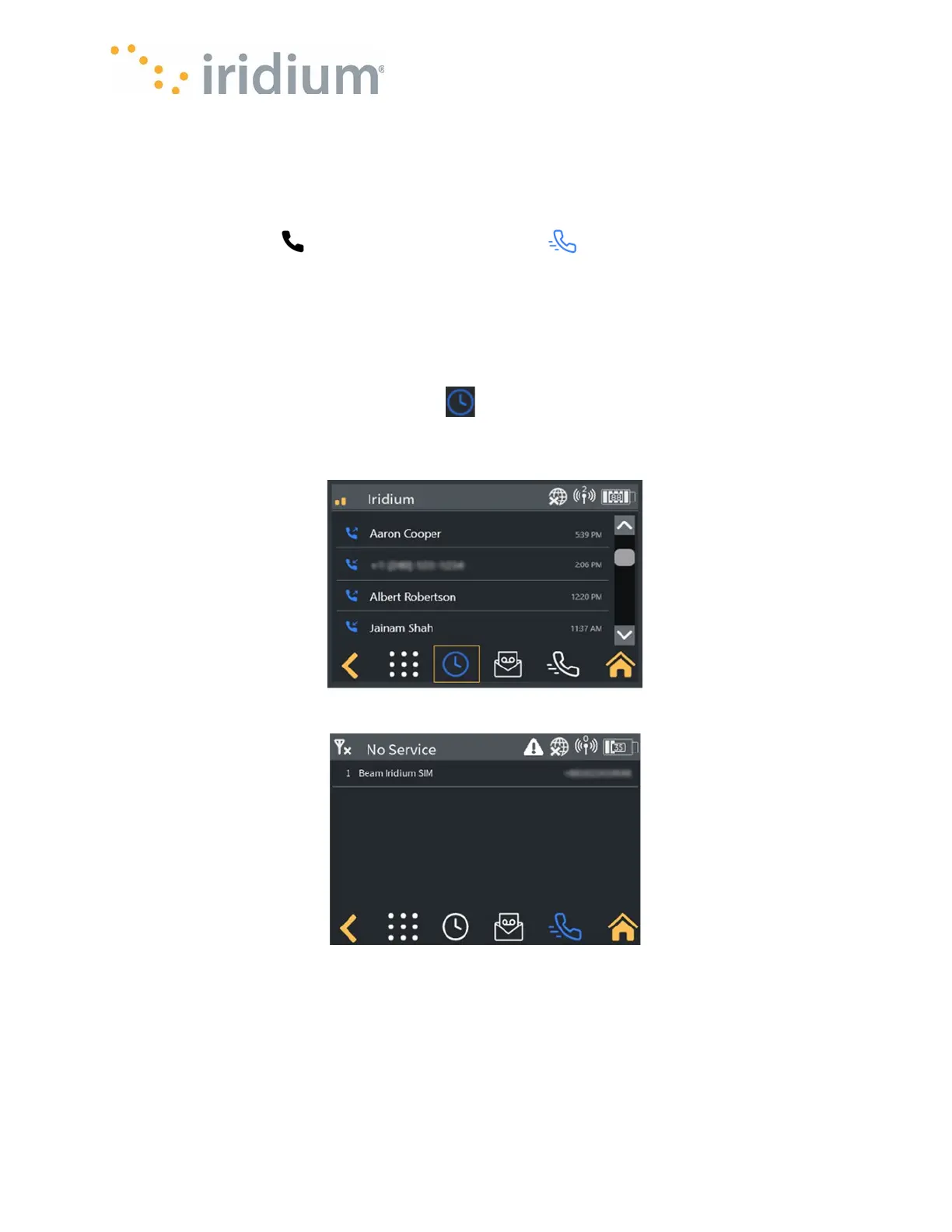
Showing the Voice Call History
The list of recent calls can be displayed on the device. Navigate to the home screen, select the
Phone icon then select the Call History icon . The device will display the most recent inbound
and outbound calls.
NOTE: The call list includes all sent and received calls made by the Device and Applications.
Quick Dial
Recent Call History
Accessing Voicemail
Voicemail messages can be accessed for either line from the voicemail screen. Navigate to the
home screen, select the phone icon then select the voicemail icon.
Voicemail for the desired line can be accessed by pressing the appropriate button.


 To Next Page