49
1. Selecting a Web/App profile
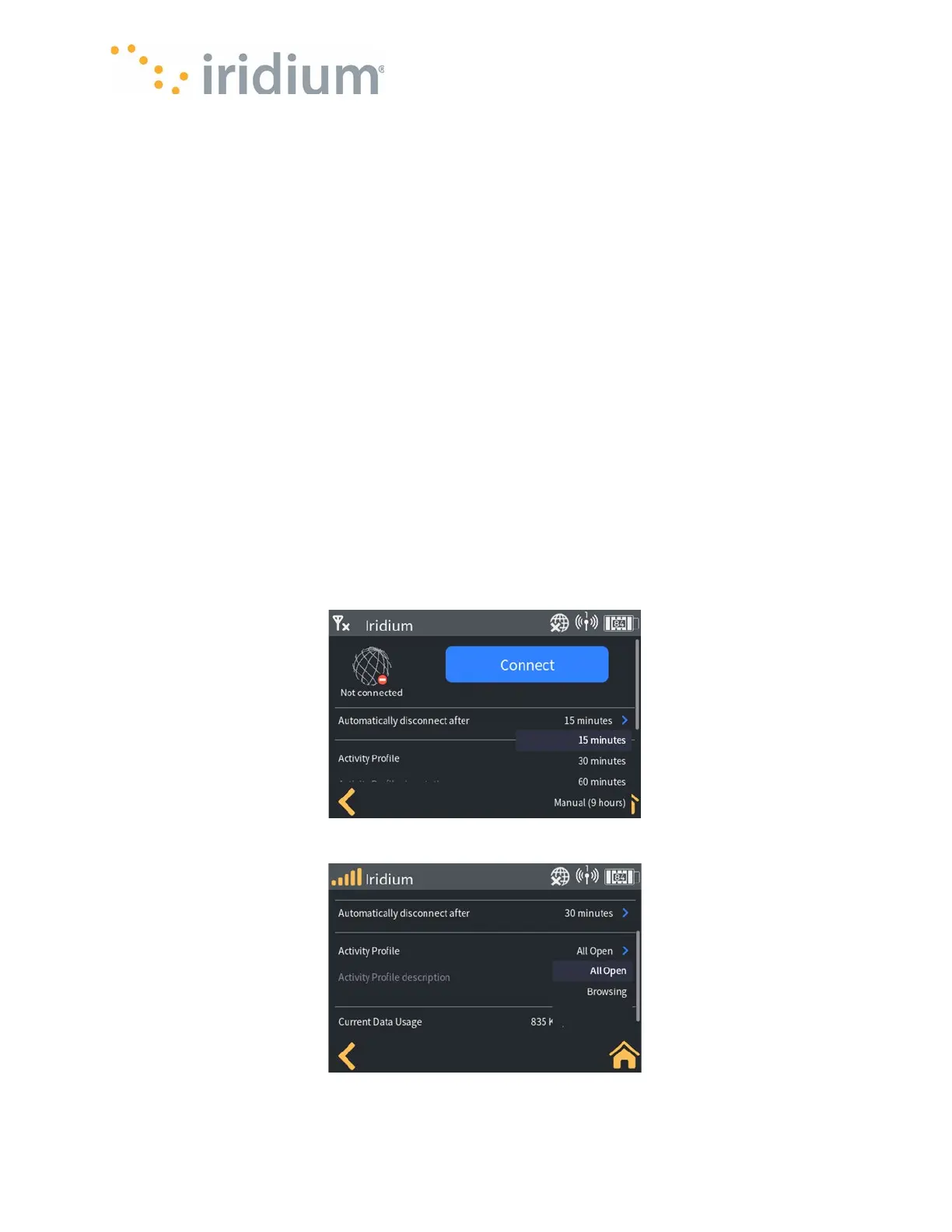
Any Device that connects to the Iridium GO! exec network (Wi-Fi or Ethernet) can access the
internet through the Iridium GO! exec. To optimize your internet connection (and speed), the user
can use the Web/App Profile. Select the Web/App Profile that best suits user’s need from the
Web/App Profile drop down menu.
Select “All Open” if you are unsure. See Web/App Profile for hints on using profiles. See section
Creating and Managing Custom Web/App Profiles for details regarding customized Web/App
Profiles. You can also change a session’s Web/App Profile while a session is active.
2. Selecting a session duration
You can select a duration for your internet connection to control the usage and costs. The Iridium
GO! exec will close the internet connection when this duration expires. This can be useful if you
are busy with other tasks and forget to close the session manually. You can also extend a session
choosing a new duration while a session is active.
3. Starting the session
To start the session, press the large blue button marked “Connect”. The Iridium GO! exec will
show “connecting” while it is connecting to the internet and then “Connected”. See FAQs for
Troubleshooting options if your Iridium GO! exec cannot connect to the Internet.
4. Stopping the session
If a session is active, you can stop the session by pressing blue button marker “Disconnect”. This
will close the satellite internet connection immediately. To restart the session, simply press the
blue button now marked “Connect”.
Data Connect Screen
Data Profile Setting


 To Next Page