File Version: 3.4 / JAKA Zu Series Hardware User Manual
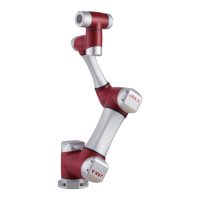
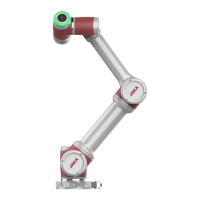
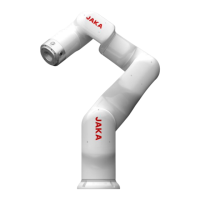
Unpack the robot.
Note: If you want to move the robot
later, please keep the original
packaging.
Take out the robot from the packaging
materials.
Refer to 5 Transportation
Transport the robot to the intended
mounting location.
Lift and secure the robot to the platform
or foundation.
Refer to 8.5.2 Robot Mounting
Secure the tools on the end of the robot,
if any.
Refer to 8.5.3 End-Effector
Mounting
Control cabinet
installation
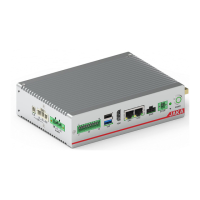
Unpack the control cabinet.
Take out the control cabinet from the
packaging materials and carry it to the
vicinity of the robot.
Note: The length of robot connection
cable is 6m (36.220in), so the distance
between control cabinet and robot
should be less than it.
Refer to 5 Transportation
Connect the robot connection cable,
control cabinet power cable, control
stick cable, Ethernet cable (if any), and
TIO cable (if any) in sequence.
Refer to
⚫ 8.1.4 Robot Connection Cable
Interface
⚫ 9.5 Bottom Panel Interfaces
⚫ 8.1.3 Tool I/O Port
Flip the toggle switch at the bottom of
the control cabinet to turn on the power
switch.
Refer to 9.5 Bottom Panel Interfaces
The emergency stop button on control
stick is released in default, if it is
pressed, please release it first.
Power up the control cabinet, power on
and enable the robot by control stick.
Refer to 7.1 Control Stick Control
Robot
Connect the robot by a
computer/pad/mobile phone.
Refer to 1.5 JAKA Zu App Software
User Manual
Set the mounting orientation, payloads
and collision sensitivity of the robot in
the JAKA Zu App.
Refer to 1.5 JAKA Zu App Software
User Manual
Enable robot to move by pressing the
Free button on the end of the robot or
entering programming/manual
operation interface of the JAKA Zu App.
Refer to
⚫ 8.1.2 Buttons on Flange
⚫ 1.5 JAKA Zu App Software User
Manual



 To Next Page