In the lock state, the indicator is orange, and all buttons except the lock
button and power button are disabled. The App can control the robot.
In the unlock state, the lights go out, and the control stick can be used.
The App interface is gray, and you cannot use the App to control the robot.
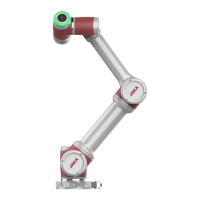
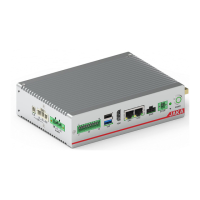
When powering on the control cabinet, the control stick indicator first shows red, blue
and green alternately with three beeps, and then it turns orange, waiting for the
control cabinet to power up. The control stick indicator is blue when the controller
program is running normally. After enabling the robot, the control stick indicator will
flash green.
Note:
Once the control cabinet is powered up, the control stick will beep twice per second if any button is pressed.
When using the control stick to operate the robot, ensure that the robot you are operating is within your sight
and follow the relevant safety guidelines to avoid any injury to personnel or equipment near the robot.
7.1
Steps of enabling robot are as follows:
1. Press the power button. The buzzer makes a noise, and the control cabinet is
powered up.
2. Press and hold the lock button for 3s, and the lock indicator goes out, which
means the control stick is unlocked.
3. : Press the enable button, waiting for the ring-shaped light to turn blue, which means the
robot is powered on.
4. When the robot is powered on, press and hold the lock button, then press the enable button
at the same time until the ring-shaped light turns green, which means the robot is enabled.
5. App cannot be operated when control stick is unlocked, you should lock control stick
first. Press and hold the lock button for 3s, and the lock indicator turns orange, which means control stick is
locked. You can use App now.
Steps of powering down control cabinet are as follows:
1. Press and hold the lock button for 3s, and the lock indicator goes out, which
means the control stick is unlocked.
2. When the robot is enabled, press and hold the lock button, and then press the enable button
at the same time until the ring-shaped light turns blue, which means the robot is disabled.
3. : Press the enable button, waiting for the ring-shaped light to turn blue, indicating that the
robot is powered off.
4. Press and hold the power button for 3s or more. The control stick beeps 6-7
times, and the control cabinet is powered down. After powering down the control cabinet, please do not cut off
the power immediately. Wait until the control stick light goes out, and after waiting for 5 to 10 seconds, you can
disconnect the power.



 To Next Page