DP321 User's Manual
- 22 -
adjustment. (The margin set in the software can cover this adjustment, so you had
better adjust the printing home position with the software.)
9. When you finish printing (the printer receives no data for several seconds) the printer feeds the
perforation of the tractor paper to the edge of the printer cover so that you can tear off the last
sheet.
Note: Set the auto tear off function in the Print Setting mode on. Otherwise, the printer does
not feed the perforation to the edge of the printer cover automatically.
10. If the perforation and the edge of the printer cover do not match, you should adjust the paper
position following the steps in “Micro adjust” and tear down the paper having been printed.
When you send print data again, the paper automatically feeds back to the printing home
position and ready to print.
How to switch tractor paper to cut-sheet paper
Firstly, tear down the tractor paper having been printed, then hold LOAD/EJECT button to eject the
paper in the offline mode. Pull the paper-selected lever to the cut-sheet position, and load the
cut-sheet according to chapter 3.1.1.
Caution: Make sure tractor paper having been printed is teared off before ejecting the printer,
as too many pages ejected can cause paper jammed.
Printing in the pull tractor position
1. Turn the printer off; then remove the paper guide. Pull the paper-select lever forward to the tractor
paper position. Remove the printer cover and tear part and adjust the gap adjust lever according
to the paper type.
2. Make sure the tractor installed correctly (refer to chapter 1).
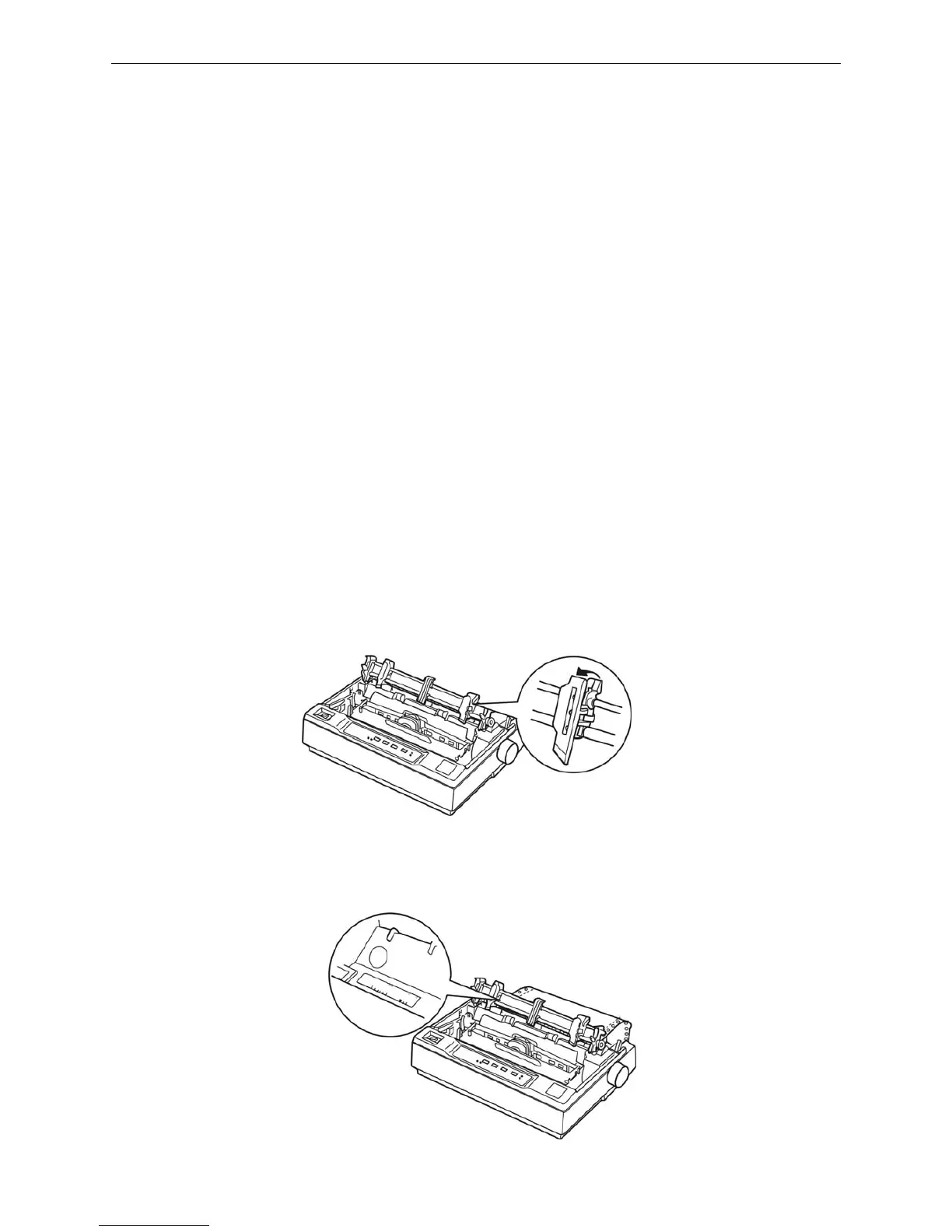
3. Release the sprocket units by pulling the sprocket locks upward shown as figure 3-12.
4. Insert the paper (the printing side is faced down) into the paper slot as shown below and pull it up.
Position the paper using the scale on the printer as a guide. The printer prints to the right of the
position marked 0.
Figure 3-12 Release the sprocket units
Figure 3-13 Insert the tractor paper into the paper slot


 To Next Page