140
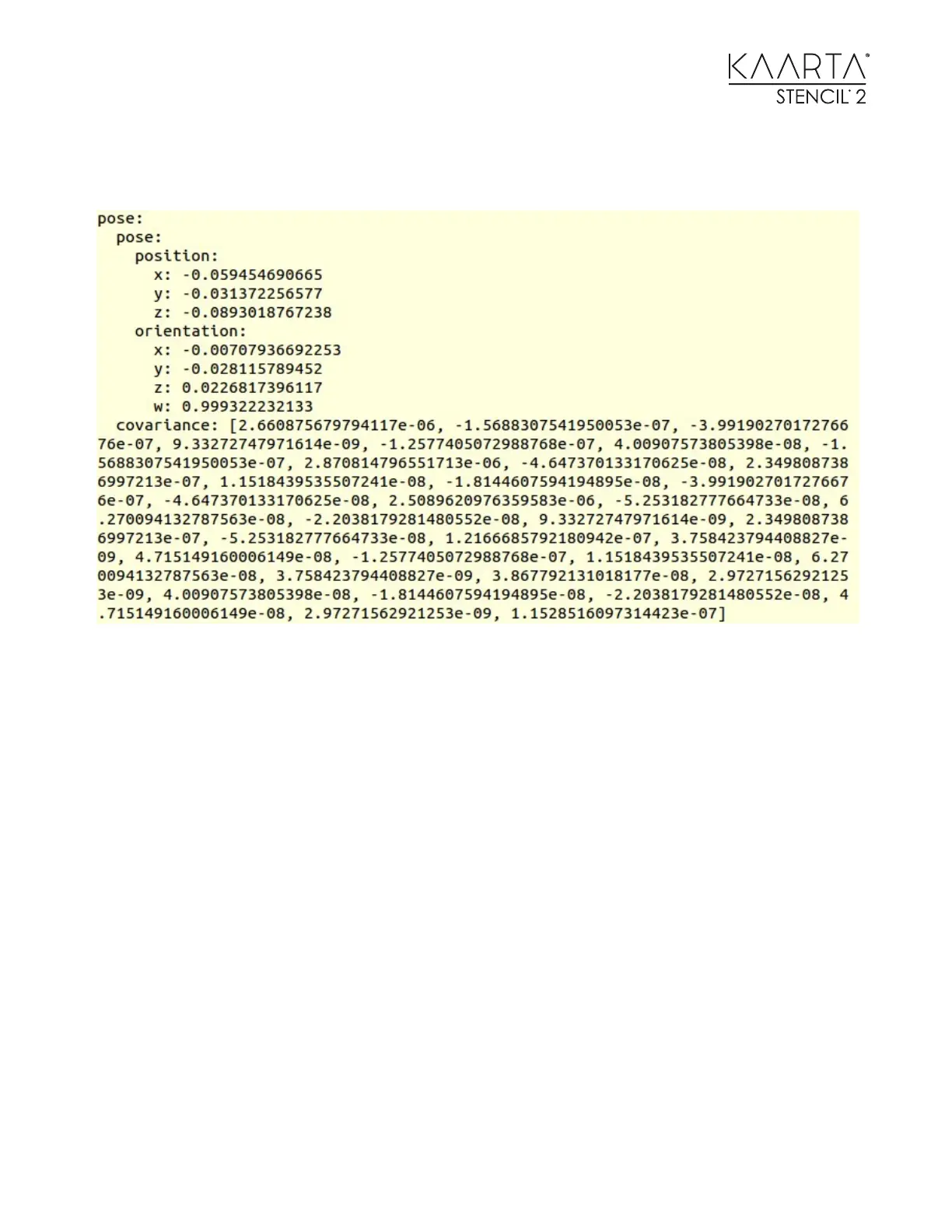
The current pose and a covariance matrix should start printing and update rapidly. It should look
like the following image.
Move and rotate Stencil 2 and verify the values change.
SHOWING MAP, CAMERA, AND POSE INFORMATION USING RVIZ
Demonstrate the full data available for localization, obstacle avoidance, path planning, etc. by
running RVIZ on the Customer Computer with the Stencil 2 RVIZ configuration.
To do this, first find the Stencil 2 RVIZ configuration file (clay_cam_v16.rviz if using a VLP-16 or
clay_cam_v32.rviz if using an HDL-32) copy it onto the Customer Computer. It is located in
~/stencil/install/share.
Then start mapping or localization on Stencil 2. Open a terminal window and run rosrun rviz
rviz -d [PATH TO FILE]/clay_cam_v16.rviz. Replacing [PATH TO FILE] with the location
of the clay_cam_v16.rviz file on the Customer Computer. An RVIZ window will open that should
appear the same as the window that is displayed on Stencil 2.
SYNCHRONIZE STENCIL 2 - TO- COMPUTER TIME
Optionally, you can use chrony to demonstrate time synchronization between Stencil 2 and the
Customer Computer. This allows users to align timestamped pose information from Stencil 2
with algorithms on their machine (such as path planning or obstacle detection).



 To Next Page