Manage Labware Specifications
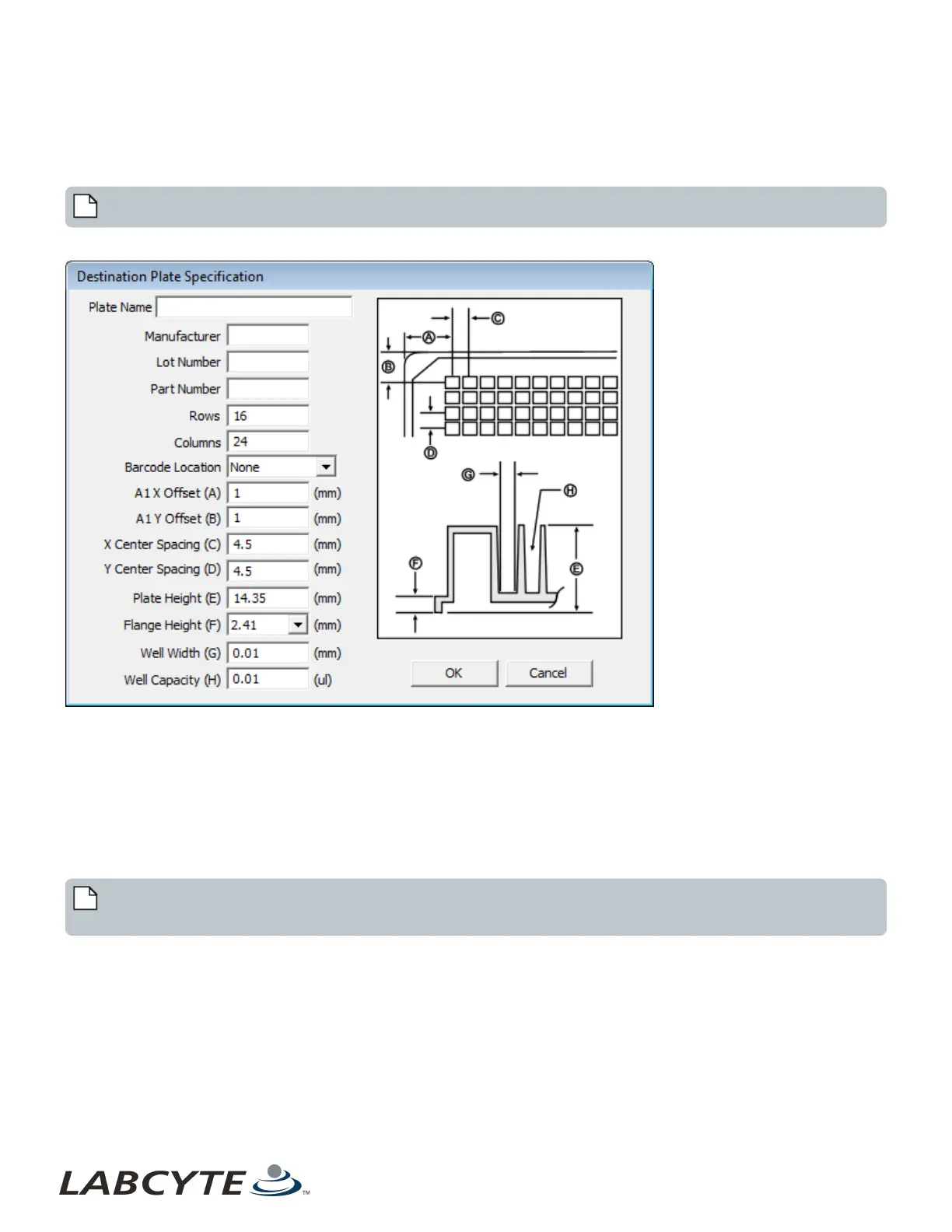
Adding a new destination plate, or editing an existing destination plate, are virtually the same process. On the Labware tab click
either Add or Edit. The Destination Plate Specification dialog box will open.
Note: The edit window for the source plate specification looks the same, but only the barcode location can be edited.
Figure 68: Plate Specification for Destination Plate
l Plate Name: Enter a plate name to identify the new specification (required).
l Manufacturer: Enter the manufacturer’s name.
l Lot Number: Enter the plate lot number identification.
l Part Number: Enter the manufacturer’s plate part number.
l Rows: Enter the number of rows. The valid range is one or more.
l Columns: Enter the number of columns. The valid range is one or more.
l Barcode Location: From the drop down list, select the barcode location. The choices are None, Left-Side and Long-Side
(front). The right-side is not supported.
Note: Some users are more familiar with the microplate sides identified by the compass points: Left-Side = West and
Long-Side = South and Right-Side = East.
Echo Liquid Handler Software CHAPTER 5 | Software
112


 To Next Page