LaCie 5big Network 2 • DESIGN BY NEIL POULTON Connecting to a Network
User Manual page 13
2.2. STEP 2: Connect the Ethernet
Cable
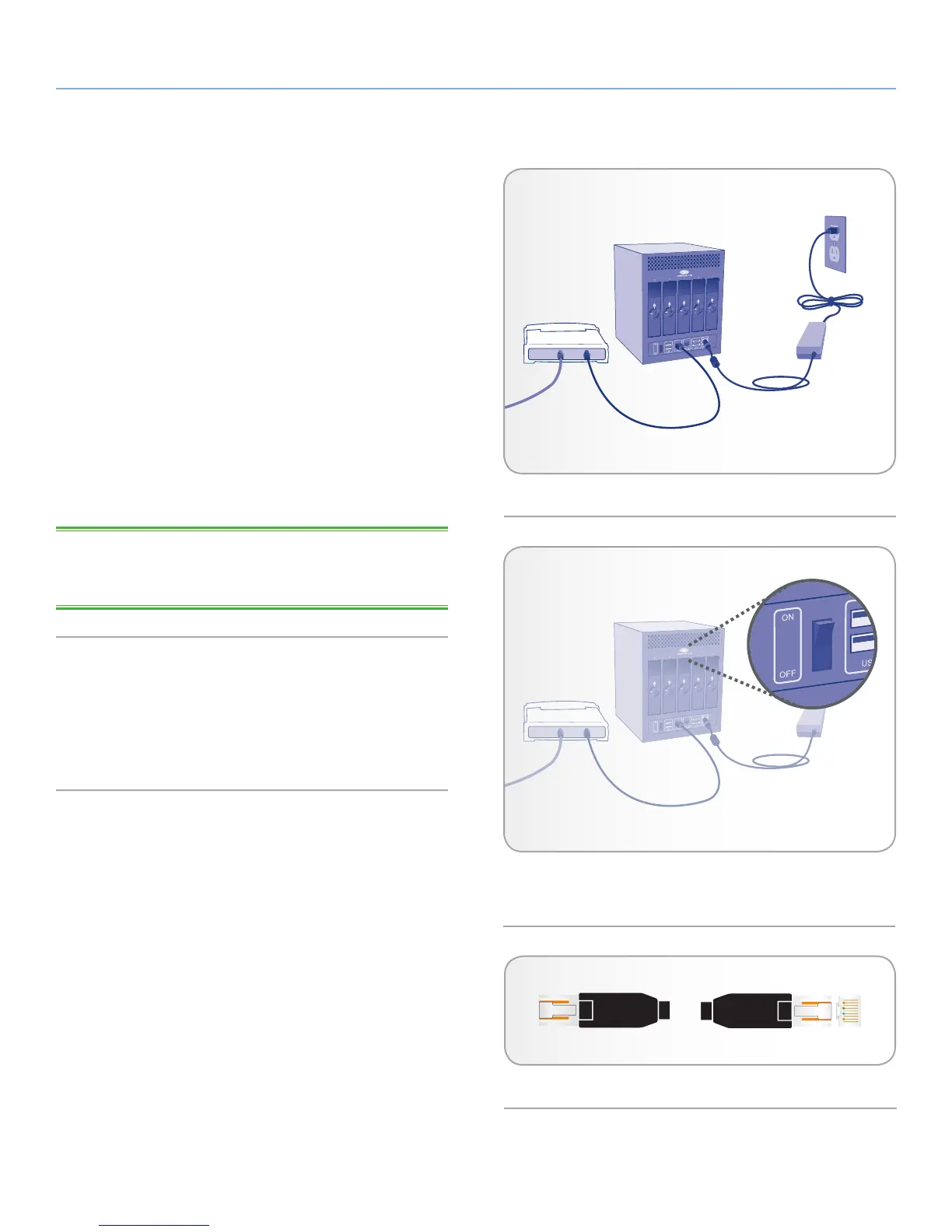
1. Connect the Ethernet cable to the Ethernet port on the back of
the LaCie 5big Network 2 (Fig. 04).
2. Connect the other end of the Ethernet cable into an available
Ethernet “out” port on your router or hub (refer to your router or
hub’s documentation if necessary).
3. Turn on the drive by pressing the power button on the back of
the drive (Fig. 05). The front LED will turn on and then begin
blinking.
The drive is ready to be accessed once the blue LED has stopped
blinking. The product may take up to 3 minutes to boot.
Now move on to step 3, section 2.3. STEP 3: Connect using LaCie
Network Assistant.
TECHNICAL NOTE: Depending on your computer’s Ethernet set-
tings, you may be able to connect the 5big Network 2 directly to
your computer using the Ethernet cable.
Gigabit Ethernet Cables And Connectors
See Fig. 06 for an illustration of the Ethernet cable used to connect
your LaCie 5big Network 2 to your network device. The ends of the
Ethernet cable are the same and either end can be connected to the
LaCie 5big Network 2 or your router.
Fig. 05
Fig. 06 - Gigabit Ethernet cable ends
Fig. 04



 To Next Page