LaCie 5big Network 2 • DESIGN BY NEIL POULTON Connecting to a Network
User Manual page 18
2.6. Assigning a Static IP Address
Most networking routers are DHCP servers, meaning that the router
will automatically assign the 5big Network 2 an IP address. If the
network is not DHCP-managed, the 5big Network 2 will use APIPA
to assign itself a valid IP address of existing network; in some cases it
will assign itself an IP address following the rule 169.254.xxx.yyy/24.
TECHNICAL NOTE: Make sure you provide an IP address on the
same subnet as your computer so that the 5big Network 2 will be
visible to that computer.
If your network requires devices to be assigned a static IP, follow
these steps to use the LaCie Network Assistant:
1. Make sure the LNA is installed on your computer (see section
2.3. STEP 3: Connect using LaCie Network Assistant for details).
2. Launch LaCie Network Assistant and open the Network settings
tab:
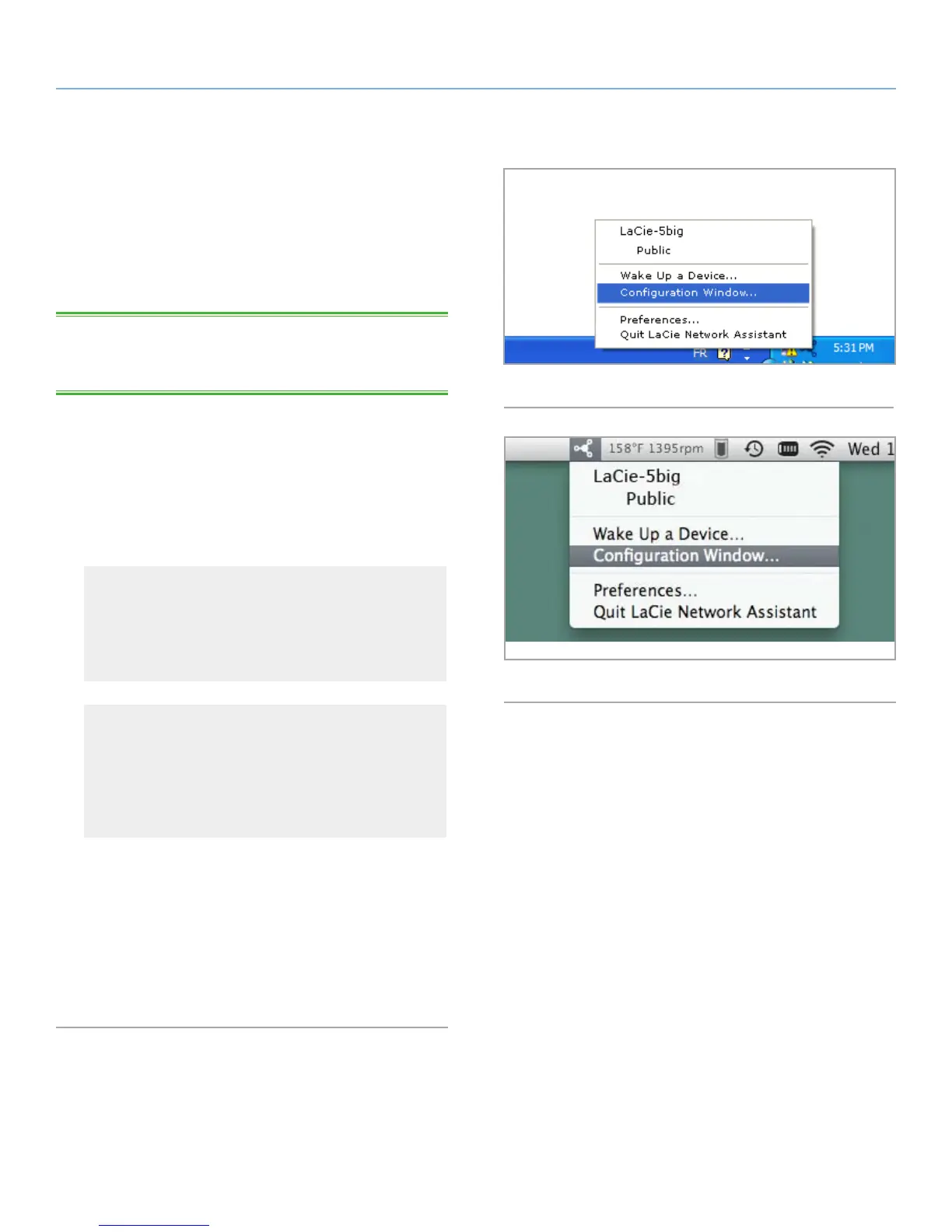
Windows Users
Select LaCie Network Assistant in Start/Programs. An Net-
work Assistant icon will appear in the system tray and Net-
work Assistant will automatically detect your LaCie 5big
Network 2 and any other storage devices on your network.
Mac Users
Select LaCie Network Assistant in your Applications folder.
An Network Assistant icon will appear in the menu bar and
the Assistant will automatically detect your LaCie 5big Net-
work 2 and any other LaCie storage devices on your net-
work.
3. Click on the icon in the system tray (Windows) (Fig. 15) or menu
bar (Mac) (Fig. 16) and select Configuration Window....
4. Click the Network tab and select Manual.
5. Modify the network settings to work with your network.
6. Click Apply.
Fig. 15
Fig. 16



 To Next Page