LaCie 5big Network 2 • DESIGN BY NEIL POULTON Administering Your LaCie 5big Network 2
User Manual page 31
4.1. Dashboard: Accessing
There are two ways to access the Dashboard, using the LaCie Net-
work Assistant and using a browser.
Use LaCie Network Assistant
1. Click on the LaCie Network Assistant icon in the system
tray (Windows users) or menu bar (Mac users) and select
LaCie-5big.
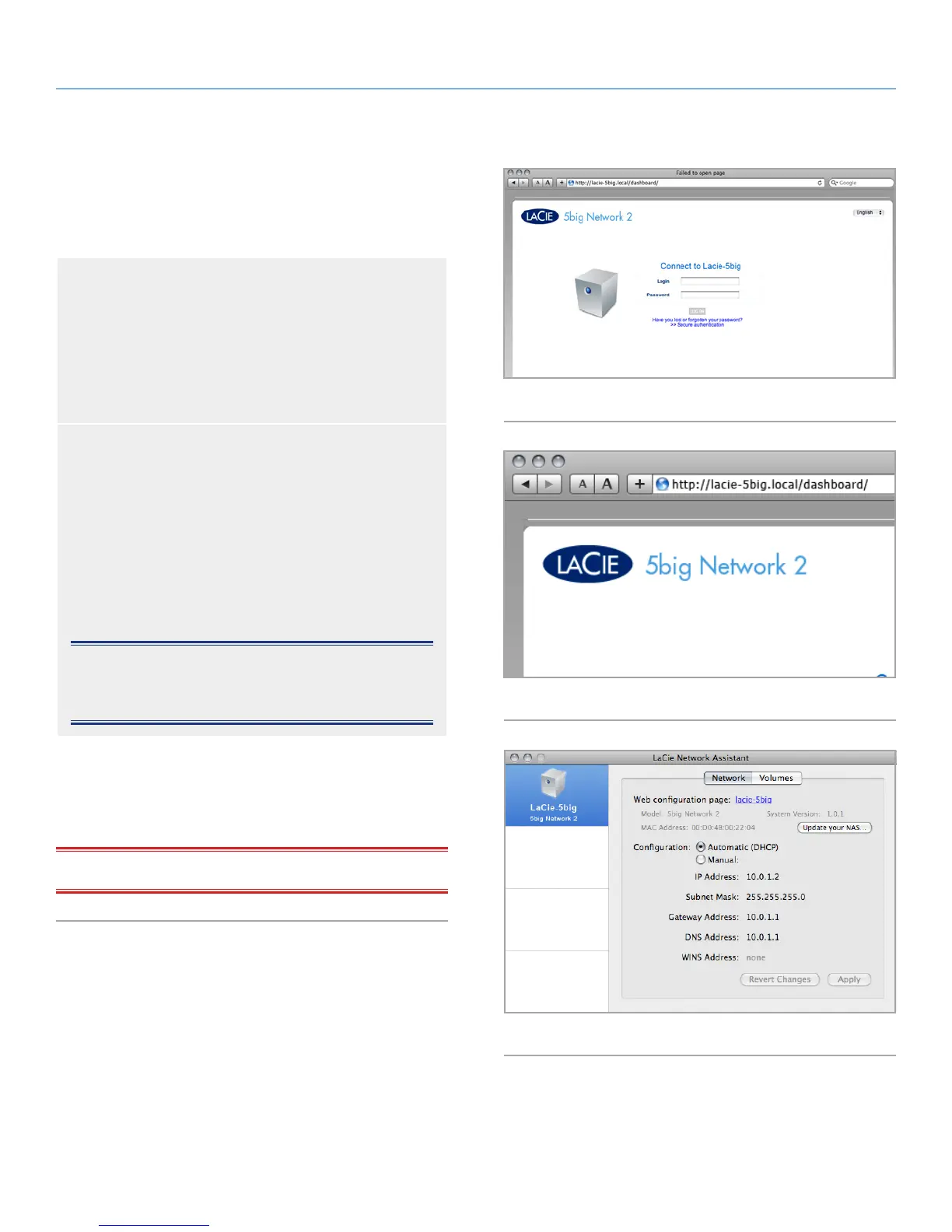
The LaCie 5big Network 2 login page will open in a new
browser window or tab (Fig. 30). If your browser is not
open, LaCie Network Assistant will open it for you.
Use a Browser
1. Open your Internet browser (Firefox, Internet Explorer, Sa-
fari, etc.) and type your LaCie 5big Network 2’s IP address
or machine name (by default, LaCie-5big) in the browser’s
URL (web address) field (Fig. 31).
http://[IP address] or
http://LaCie-5big (Windows)
http://lacie-5big.local (Mac)
NOTE: The IP address of your LaCie 5big Network 2 can be
found by clicking on the Network tab of the LaCie Network As-
sistant network Configuration Window (Fig. 32).
2. For administrative access, in the login prompt, enter your admin
username and password.
3. Click Login.
IMPORTANT NOTE: The login and password are case-sensitive.
Fig. 30
Fig. 31
Fig. 32




 To Next Page