LaCie 5big Network 2 • DESIGN BY NEIL POULTON Administering Your LaCie 5big Network 2
User Manual page 35
4.7. Dashboard: Users
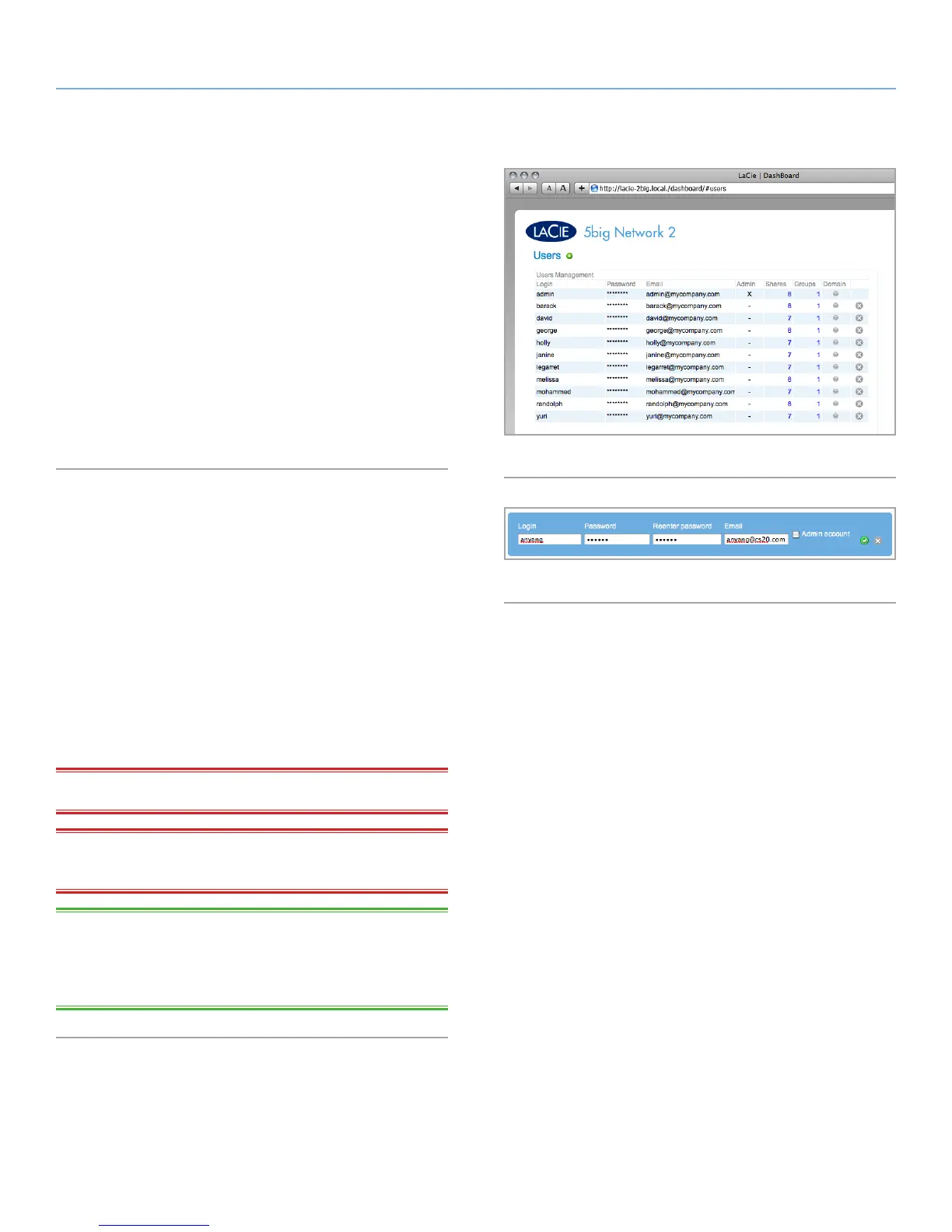
This page allows you to manage user accounts. See below to learn
how to accomplish user management-related tasks (Fig. 39).
User data is organized in a table.
✦ An X in the Admin column indicates the user has administrative
privileges.
✦ The number in the Shares column indicates to how many
shares the user has access.
✦ The number in the Groups column shows to how many groups
the member belongs.
✦ The bullet in the Domain column indicates whether the user
has been inherited from when the product joined a domain.
4.7.1. Adding a New User
1. Click the green plus sign next to the page title (“Users ac-
counts”).
2. In the box that opens, type in the username (You may enter
4 to 20 characters using letters (case sensitive), numbers, the
hyphen, and the underscore. No other symbols, punctuation, or
spaces may be used. Do not begin or end with a hyphen and/or
an underscore.), password (4 to 20 characters), confirm pass-
word, and optional fields (email address, toggle administrator
account) (Fig. 40). Click the Admin account box to give the user
admin privileges.
3. Press the green plus sign at right to create the user account.
IMPORTANT NOTE: The password is case-sensitive.
IMPORTANT INFO: The administrator password must be at least
4 characters.
TECHNICAL NOTE: Providing an email address will allow the user
to receive notifications regarding their user account sent automati-
cally by the 5big Network 2. See section 4.13.1. Email Notification
Events for details.
Fig. 39
Fig. 40













 To Next Page