LaCie 5big Network 2 • DESIGN BY NEIL POULTON Administering Your LaCie 5big Network 2
User Manual page 49
4.14. Dashboard: Download
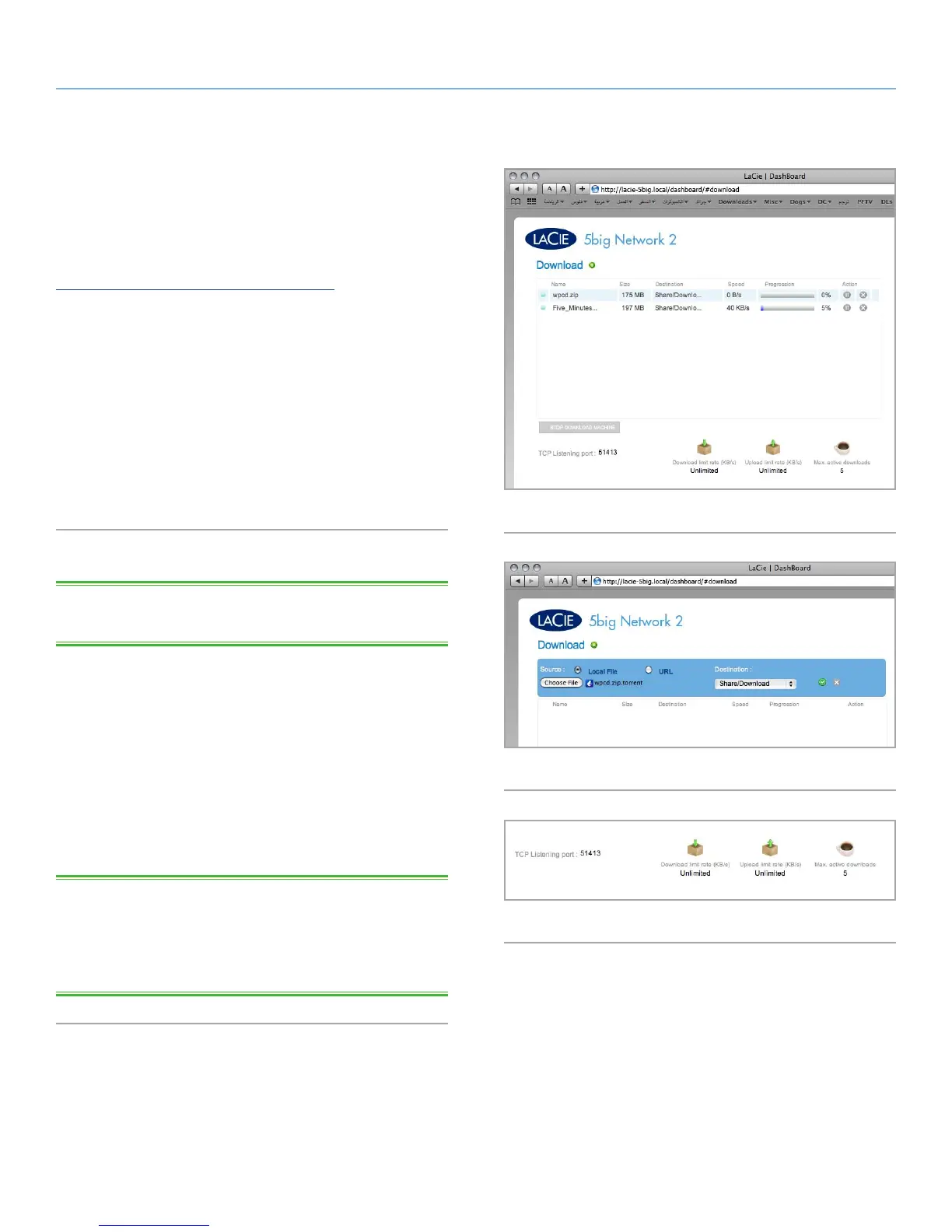
The 5big Network 2 Dashboard features a torrent server that will
allow you to download torrent files (Fig. 67). For more information
on torrents, see:
http://en.wikipedia.org/wiki/BitTorrent_protocol
1. First click the Start Download Machine button.
2. To start a download, click the green plus sign next the page title
(Fig. 68).
3. Choose whether the torrent source is a file or a URL, then navi-
gate to the source.
4. Choose the destination (i.e., on which share the downloaded
file will be stored) and click SUBMIT.
5. The file will begin downloading (can sometimes take a few min-
utes to begin).
4.14.1. Download Page Settings
TECHNICAL NOTE: The download manager is only available to
administrators.
Below the list of downloads are several settings (Fig. 69).
TCP Listening port: Choose a router port through which the torrent
service will operate.
Download limit rate: Type a number here to restrict maximum down-
load rates.
Upload limit rate: Type a number here to restrict maximum upload
rates.
Max. active torrents: Type a number here to limit the number of
torrents that can download/upload simultaneously. Type zero for
no limit.
TECHNICAL NOTE: Because the torrent client service uses band-
width and system resources, multiple simultaneous downloads can
impact 5big Network 2 performance. Additionally, even after a
download has completed, it may continue to use system resources if
it is uploading, as long as the torrent is active.
Fig. 67
Fig. 69
Fig. 68













 To Next Page