LaCie 5big Network 2 • DESIGN BY NEIL POULTON Administering Your LaCie 5big Network 2
User Manual page 58
4.18.2. Method 2: Update with LaCie
Network Assistant Software
This update procedure will not erase your configuration or files
saved to the drive.
Recommendations for Updating
Using LaCie Network Assistant
✦ Connect your PC or Mac to the network using an Ethernet
cable (turn off wireless connection)
✦ Make sure users on your network have stopped data trans-
fers to the NAS
✦ Turn off other NAS on the network except the one you wish
to update
✦ Disconnect all connections to shares on the NAS you want
to update
1. Make sure you are using the latest version of LaCie Network
Assistant (minimum 1.4.1). If you download a newer version,
make sure to uninstall previous versions.
2. Download the latest software update for your product from here.
3. Run LaCie Network Assistant.
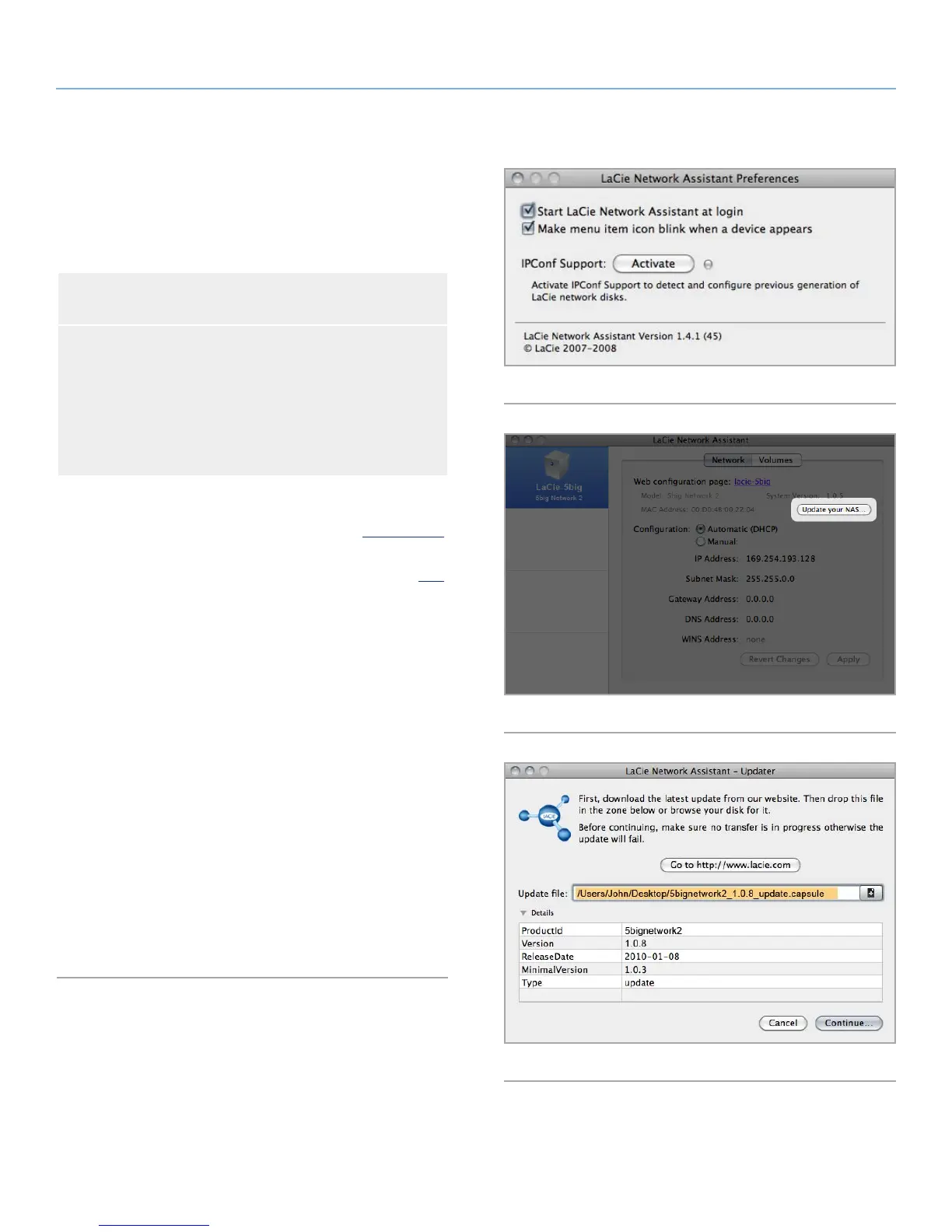
4. Go to Preferences and make sure IPConf Support is deactivated
(Fig. 89).
5. Select your product from the list on the left and click on the
Update your NAS button (Fig. 90). Enter your admin username
and password.
6. Browse to and load the update package (.capsule file) you
downloaded (Fig. 91).
7. Click on Continue... to begin update. Mac users may have to
type in their administrator’s password.
8. Once the update is complete, verify the update: Click the LNA
logo in the menu bar (Mac) or task bar (Windows) and select
Configuration Window. Click the Network tab, where the system
version will be listed.
9. If the update has failed despite the network precautions listed in
the box above, connect the drive directly to your computer using
the Ethernet cable, then try again.
Fig. 90
Fig. 91
Fig. 92



 To Next Page