LaCie 5big Network 2 • DESIGN BY NEIL POULTON Administering Your LaCie 5big Network 2
User Manual page 32
4.2. Dashboard: Welcome Page
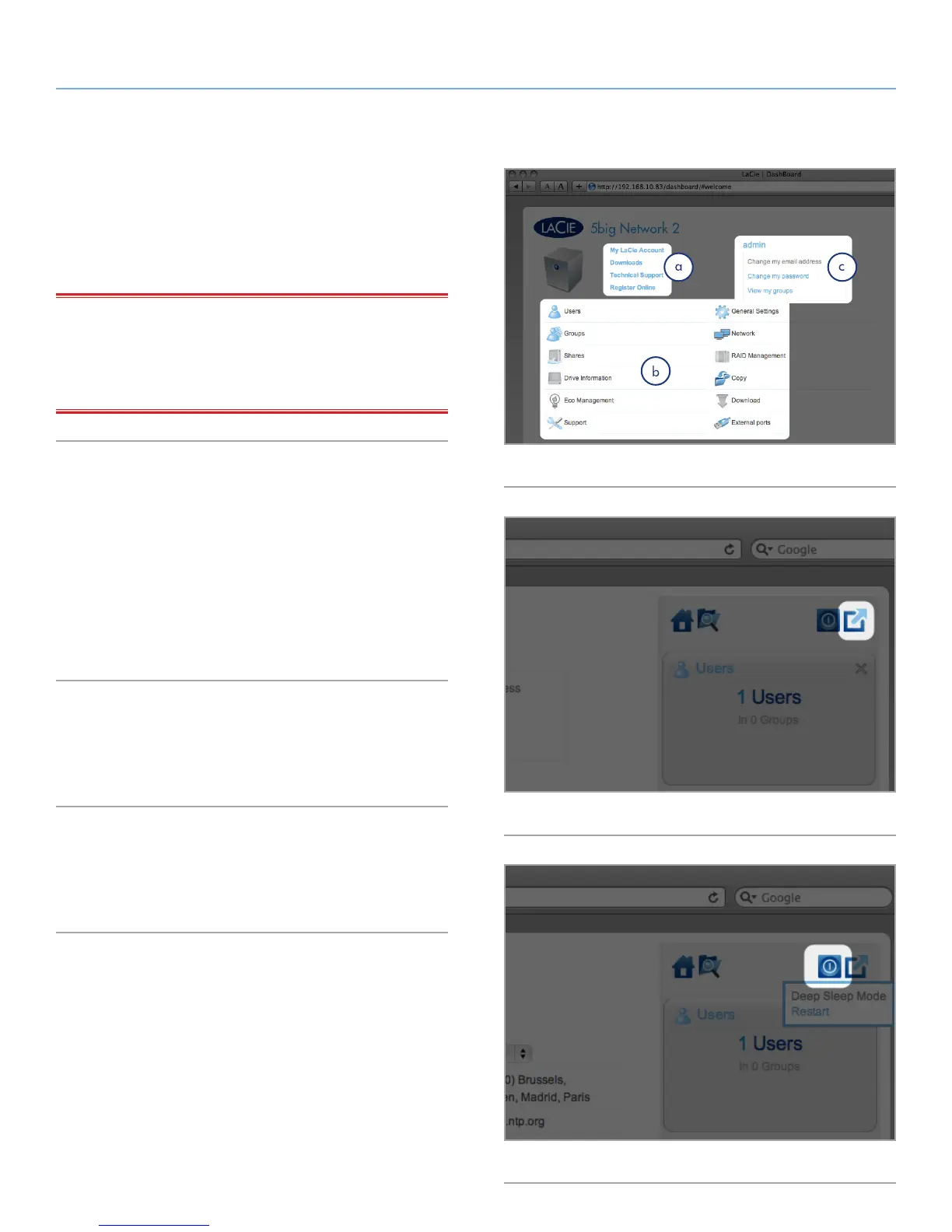
The welcome page contains links to helpful documents from the
LaCie Website (Fig. 33, a) and a table listing the different pages
that make up the Dashboard (Fig. 33, b). You can also change the
admin user data (Fig. 33, c).
IMPORTANT INFO: If you sign onto the Dashboard as an admin-
istrator, you will see the detailed Welcome page with full manage-
ment capability (as in Fig. 33). If you sign in as a user, you will have
fewer options (ability to change username/password and access the
file browser).
4.3. Dashboard: Navigation
The Dashboard is made up of a central area surrounded by widgets,
or small boxes that represent the different pages that make up the
Dashboard. The widget displays a summary of the information con-
tained in the page. For full information, navigate to the page itself.
✦ To navigate to a page, click the widget below its title.
✦ To minimize a widget, click the X next to its title.
✦ To expand a minimized widget, drag its icon over an expand-
ed widget, which replaces it.
4.4. Dashboard: Logging Out
To log out of the Dashboard, click the log out button in the upper
right-hand corner of any Dashboard page (Fig. 34).
4.5. Dashboard: Restart/Shutdown
To restart or shut down the drive, click this button, then choose be-
tween Deep Sleep Mode and Restart (Fig. 35).
Fig. 33
Fig. 34
Fig. 35













 To Next Page