LaCie 5big Network 2 • DESIGN BY NEIL POULTON Administering Your LaCie 5big Network 2
User Manual page 40
4.9.4. Setting/Modifying Access Rights for
Users/Groups
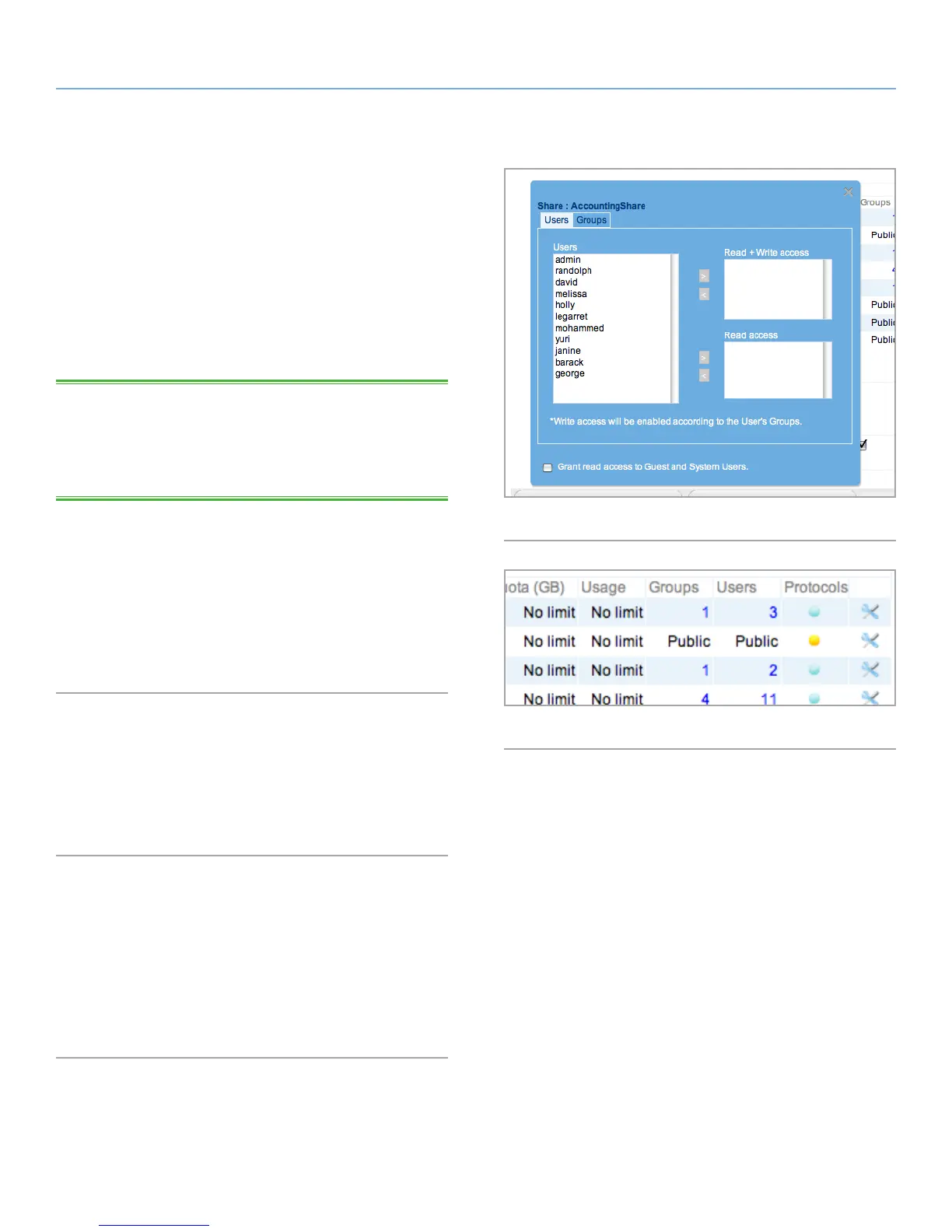
To modify access rights to the share for users or groups, follow the
instructions below (and refer to Fig. 51).
✦ Modify user access (to a private share): Click the edit icon to
the right of the share listing, then select Manage User Access.
In the window that opens, select a user in either the Read Write
or Read Only column and click the add button. To remove
a user, select the user in the Members column and click the
remove button.
TECHNICAL NOTE: If you select “Grant read access to Guest
and System users”, the Share will be accessible in RO by any user
(including guests) in addition to registered users. This will be indi-
cated in the Shares table with a “+” next to the number of users with
access to the share.
✦ Modify group access: Click the edit icon to the right of the
share listing, then select Manage Group Access. Select a
group in either the Read Write or Read Only box in the left-
hand column and click the add button. To remove a group,
select the group in the right-hand column and click the re-
move button.
✦ To make a share private or public: Click the edit icon to the
right of the share listing, then select either Change share to
public or Change share to private.
4.9.5. About Access Rights
✦ Read-Only means that all users can view and open files, but
they only the administrator can copy files to the share (see
table at right).
✦ Read/Write means that all users can view, modify, and copy
files to the share.
4.9.6. Specify Share-Level Access Protocols
If you click on the bullet under the Protocols column, you can modify
which access protocols are active for that share. By default, new
shares have SMB, AFP, and FTP enabled. If you want the share to
serve files to UPnP/DLNA devices and/or to act as a Time Machine
target, activate these protocols by clicking on the bullet in the Proto-
cols column. If the default setting is overruled at the share level, the
bullet in the Services column will turn from blue to yellow (Fig. 52).
Fig. 51
Fig. 52













 To Next Page