5 . 1 0 . 5 S o f t C a l ™ C a l i b r a t i o n C u r v e C r e a t i o n 91
| www.lakeshore.com
5.10.5 SoftCal™
CalibrationCurve
Creation
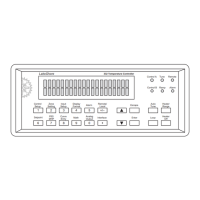
Once the calibration data points have been obtained, you may create a SoftCal™ cali-
bration. Press Curve Entry, then scroll to Softcal and press Enter. A list of sensor types
is displayed containing DT-470, PT-100, and PT 1000. Scroll to the desired sensor type
and press Enter. A list of SoftCal™ parameters is displayed.
Use the Store Location parameter to choose the user curve location in which to store
the newly generated curve. If desired, use the Serial Number parameter to enter a
serial number for the newly generated curve. Use the Point X Temp and Point X Sensor
parameters to enter calibration data point X, where X can be point 1, 2, or 3. If only 1
or 2 data points were acquired, only enter those data points and leave the others at
their default values. Note the acceptable temperature ranges for each calibration
data point in FIGURE 5-8 and FIGURE 5-9. If a temperature value outside of the
acceptable range is entered, the value will be limited to the closest acceptable value.
Once the data points are entered, highlight Generate Softcal and press Enter. Choose
Yes at the confirmation message to finalize the operation. To cancel the operation,
either choose No to the confirmation message, or press Escape. When the Softcal™
curve has been generated, the following message will appear on the display:
*** SoftCal curve has been generated ***.
The Generate Softcal operation will overwrite an existing user curve. Please ensure the
curve number you are writing to is correct before generating the calibrated curve.
You can check the new curve using the View Curve instructions in section 5.9.2. The
curve is not automatically assigned to any input, so you will need to assign it to an
input. Refer to section 4.4.11 for details on assigning a curve to a sensor input.
Menu Navigation:
Curve Entry QSoftcalQ(DT-470, Platinum 100, Platinum 1000)QData Entry (see note
below)Q(Generate Softcal)Q (Yes)
Interface Command: SCAL
Data entry includes new curve serial number and calibration points.


 To Next Page